
 by Ansel on Aug. 18, 2026 | NO COMMENT
I recently switched to a new iPhone and quickly discovered that my old, essential conversations were missing. Losing important texts is incredibly stressful, especially when Apple’s confusing iCloud settings make it difficult to know if those messages are gone forever or just hidden.
Most people are rightfully afraid of completely resetting their current iPhone just to see if an old backup contains a few missing texts. If you are looking for a way to get your messages back, you are in the right place. In this guide, I will share the exact procedures that worked during my hands-on testing. We will cover safe, verified solutions to recover your messages—starting with a free, 30-second settings tweak, moving to a targeted extraction tool, and finally covering the traditional full device restore.
Before you attempt any recovery procedure, understanding how Apple manages your data is crucial. Apple’s different message storage systems create a massive amount of confusion for users. Explaining Messages in iCloud versus iCloud Backup is the key to figuring out why your texts might be gone permanently, or if they are safely stored away.
Depending on your settings, Apple uses a dual storage system. Knowing the difference between the two will save you a lot of time and heartache.
When you turn on the Messages in iCloud feature in your Apple ID settings, your texts sync across all your devices in real-time. Think of this as a live mirror, not a static archive. If you delete a text on your iPhone today, the server automatically deletes it, and it instantly disappears from your iPad or Mac as well.
Once a message is deleted from this active message sync, it is officially gone. Apple does not keep a hidden trash can for synced iCloud messages.
If the live sync feature is turned off, your text messages are bundled into your standard, nightly device backup instead. This backup is a static snapshot of your phone at a specific point in time.
For example, if you delete a text today, but your phone automatically backed up last night while you were sleeping, the text still exists safely inside last night’s static file. Knowing which system you were using when the texts disappeared determines the exact solution you need to follow below.
Not all recovery procedures are equal. Depending on your current situation, you have three primary options. I always recommend trying the free, native Apple fix first before moving on to software or factory resets.
| Recovery Method | Success Rate | Time Cost | Technical Skill | Safety Risk |
| 1. Toggling iCloud Sync | Variable (Only fixes syncing glitches) | Very Low (30 seconds) | Beginner | None |
| 2. Selective Extraction Tool | High (Requires an older backup) | Moderate (Scan takes ~45 mins) | Beginner | None (Non-destructive) |
| 3. Full iCloud Backup Restore | Moderate (Requires an older backup) | High (Requires a full device wipe) | Intermediate | High (Overwrites current data) |

Scan, preview, and recover available iPhone data without a full-device restore. Click Here to Free Download
Always try this built-in Apple feature first. You can attempt to retrieve your messages by toggling your sync settings off and back on. This is a quick, free procedure that forces your iPhone to re-initiate a “handshake” with Apple’s servers.
Expert Insight: Keep in mind that toggling your sync settings only works if your message sync was previously paused, stuck, or experiencing a minor iOS glitch during your phone transfer. If you intentionally deleted a text while sync was fully active, this method will not bring it back.
Plug your device into a charger, ensure you are connected to Wi-Fi, and open your Messages app. Wait to see if the missing threads reappear. If they do not appear after an hour, the texts are not on the live server. You will need to extract them from a backup.

Designed to fit effortlessly into your iPhone data recovery.
Download NowIf the quick sync toggle failed, your texts are likely trapped inside an older iPhone backup. When I realized my texts were missing, my biggest hurdle was finding a way to get them back without wiping my newly set-up phone and losing all the new photos I had taken that week.
The most practical solution is using a dedicated extraction tool like Primo iPhone Data Recovery. However, it is vital to understand exactly how these tools work before you spend your time and money.
⚠️ TRANSPARENCY DISCLAIMER: Read Before Downloading
Third-party tools like Primo offer “selective recovery,” which means they safely extract your messages from an iCloud backup and export them to your computer (Mac or PC). They export your texts as easily readable HTML, PDF, or CSV files. Apple’s system is tightly closed; third-party software cannot inject, merge, or push old messages back into your iPhone’s live Messages app. If you want a readable record of your texts and a folder of your saved photo attachments safely stored on your desktop, this is the best method.
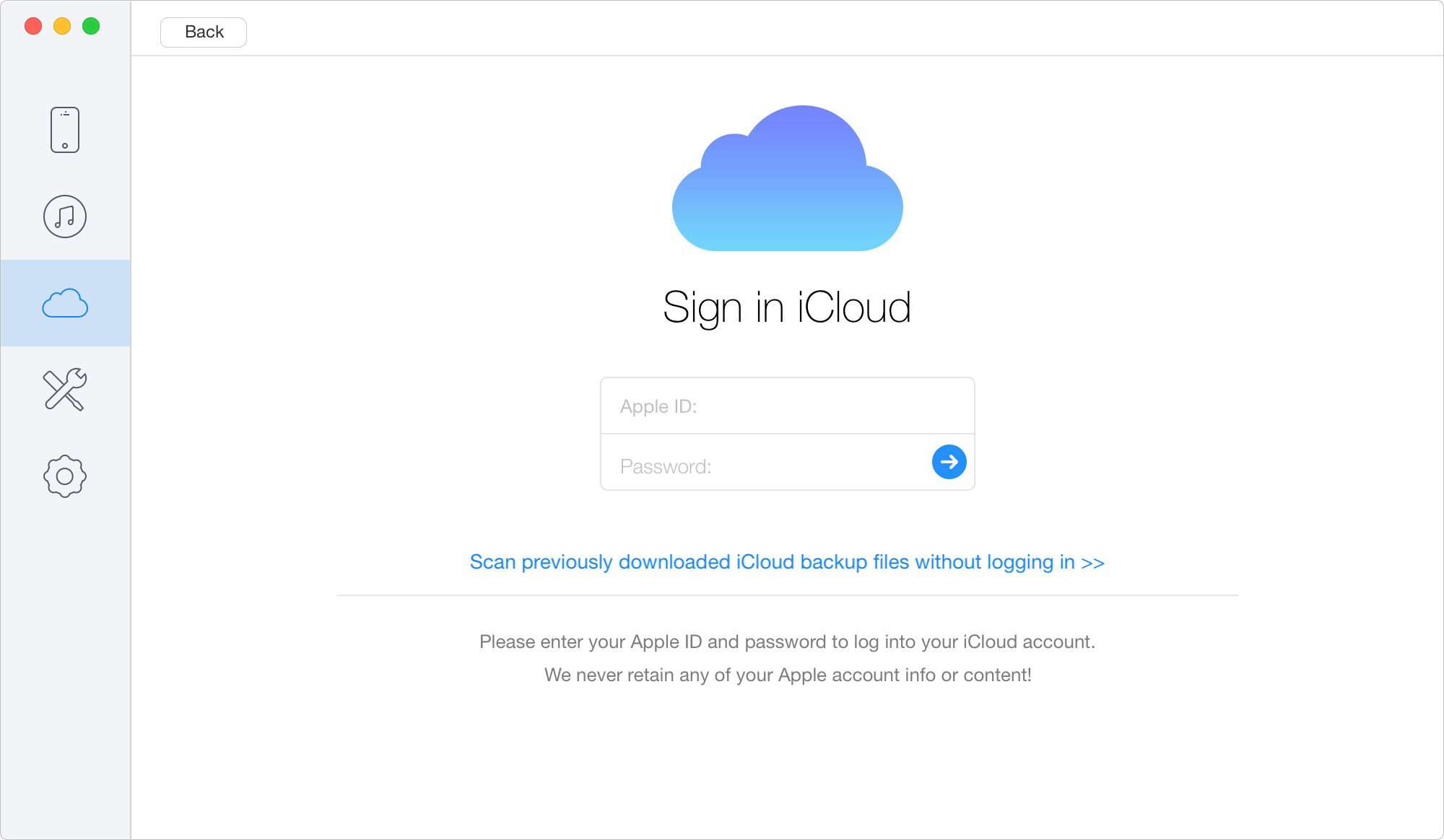
Choose the Recover from iCloud Mode
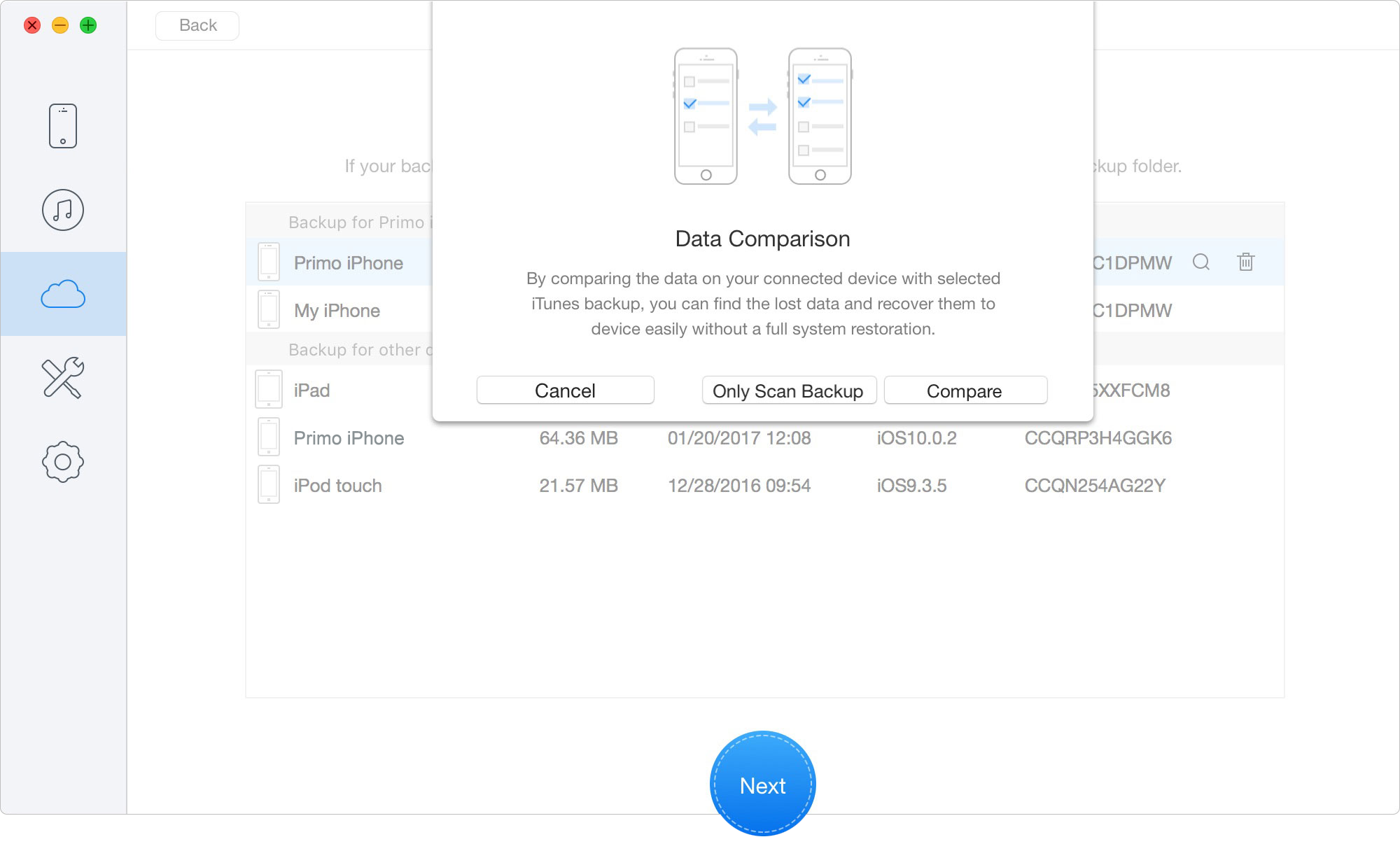
Scan Lost Data from iCloud Backup
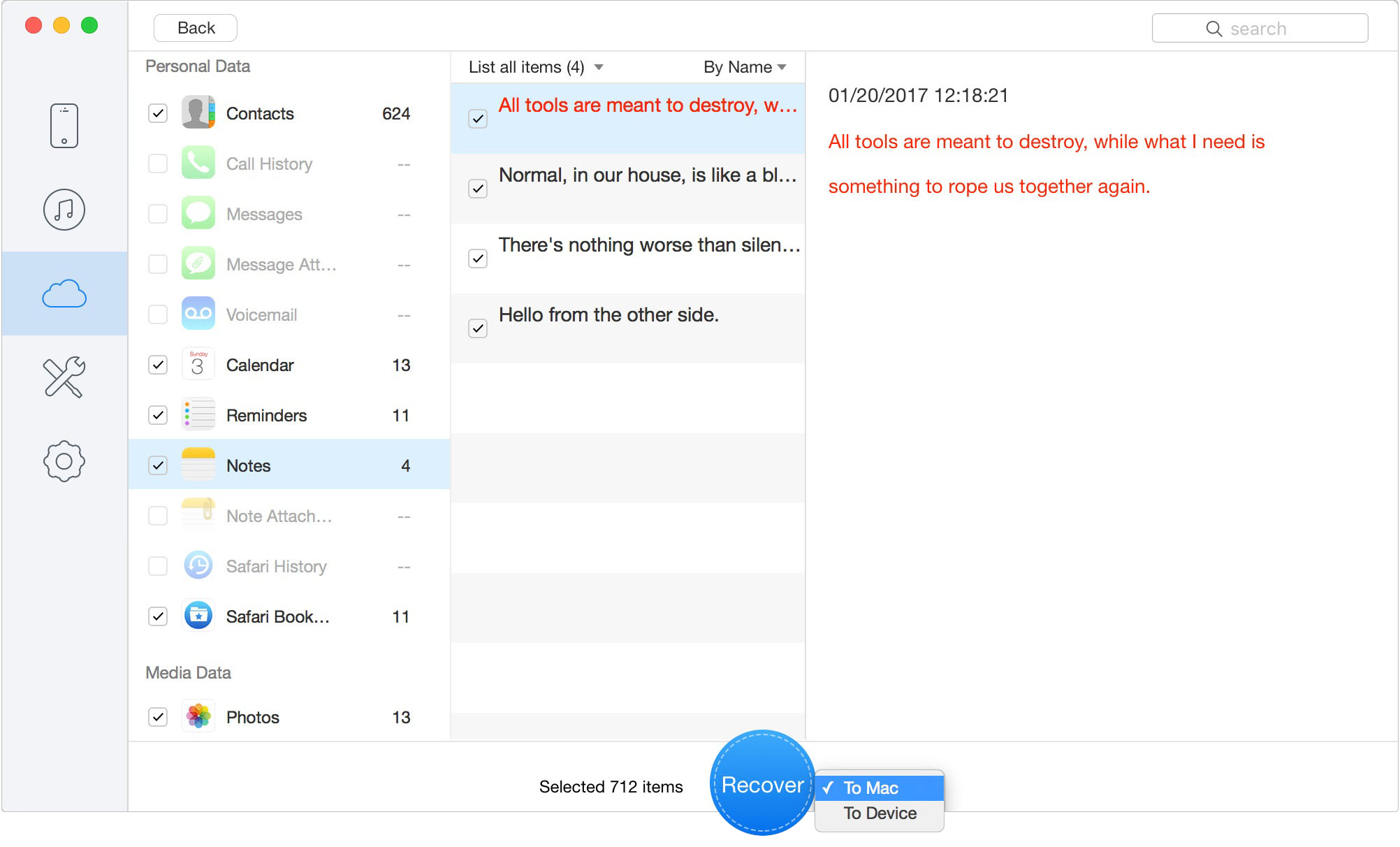
Recover Data to Computer or iOS Device
If you absolutely must have the text messages back inside the native Messages app on your iPhone, your only remaining option is Apple’s official procedure: a full iCloud backup restore.
🚨 WARNING: HIGH RISK OF DATA LOSS
This method comes with a severe limitation: it requires a complete factory reset of your device. This technique will forcefully overwrite all data currently on your phone with the data from the past backup. Any photos taken, apps downloaded, or new texts received after the backup date will be permanently deleted. Only proceed if you have backed up your newest photos and files somewhere else.
Because of this high data loss risk, consider this method a last resort. If you are willing to overwrite your phone, follow these steps carefully.
🚨 CRITICAL WARNING ON WI-FI DEPENDENCY
Stay connected to a strong, stable Wi-Fi network and keep your phone plugged into a wall charger until the transfer finishes completely. This process can take anywhere from 30 minutes to several hours depending on the size of your backup. If your battery dies or the Wi-Fi connection drops, the restoration could corrupt, leaving you with a malfunctioning device.
Once the phone boots up, your old texts should be sitting right where you left them in the Messages app—though your phone will look exactly as it did on the date that backup was made.
Scan, preview, and recover available iPhone data without a full-device restore. Click Here to Free Download
Yes, you can restore deleted iMessages from iCloud, but your success depends entirely on your settings. If your texts were included in a static iCloud backup (meaning live sync was off), you can restore them by extracting them to a computer with a recovery tool, or by wiping your device and loading the old backup. If you used real-time sync, restoration is usually not possible natively once the text is deleted.
iCloud does not store deleted messages if you have “Messages in iCloud” enabled. This is because the cloud acts as a mirror, deleting messages instantly to match the actions taken on your device. However, if this sync feature is turned off, your deleted texts remain stored safely inside your older, nightly iPhone backup files until those backups are overwritten.
Yes, but with a major caveat. To recover iMessages without erasing your current data, you must use a third-party tool like Primo iPhone Data Recovery. However, these tools cannot put the texts back onto your phone. They extract the text threads and photo attachments and save them as files (like HTML or PDFs) on your Mac or PC.
To see if messages are actively taking up space in your live cloud storage, go to Settings > [Your Name] > iCloud > Manage Account Storage. Look for “Messages” in the list. To check for a general iCloud Backup, navigate to Settings > [Your Name] > iCloud > iCloud Backup to see the exact date and time of your last successful backup.
Discovering that your important conversations have vanished after a phone transfer or accidental deletion is an incredibly frustrating experience. Thankfully, you do not have to blindly factory reset your phone and risk your current data just to see if your texts survived. By understanding how Apple’s storage systems work, you can take control of your data. Always start by toggling your iCloud sync settings to see if the missing texts are just stuck in the cloud. If they are truly gone, using a tool like Primo iPhone Data Recovery allows you to safely scan your old backups and export the conversations directly to your computer—giving you peace of mind without destroying the new data on your phone. Take a deep breath, review your recent backups, and choose the recovery method that makes the most sense for your digital life.
Ansel A member of PrimoSync Support Team, passionate for mobile industry and ready to help you with Apple related issues.
Get Up-to-the-minute iPhone Tips & Enjoy Awesome Deals.



Design Simple and Beautiful Software
with Passion & Love

