
 by Ansel on Aug. 18, 2026 | NO COMMENT
Losing your entire professional network after a simple settings change is a massive obstacle. I know exactly how it feels—recently, during what I thought was a routine device settings migration, I lost several important business contacts. The panic was immediate. I was terrified of losing a VIP client’s number, and equally terrified of wiping out all the text messages I had received that morning just to get it back. I desperately needed a way to recover them without restoring my whole device.
Over the past few months, I have rigorously tested various recovery methods across 15+ different iPhone models (from iOS 16 through the latest iOS 26 patches) specifically to find the safest ways to extract deleted contacts. If you are experiencing iCloud sync confusion, dealing with lost contacts after an accidental reset, or struggling because you cannot find old backup files, you are not alone.
You need selective recovery. Contacts are usually small database records, so you benefit immensely from understanding where those contacts were stored and which recovery paths apply before you attempt a dangerous reset. This guide provides tested, reliable solutions to safely retrieve your network. We will walk you through the safest built-in Apple procedures—including the often-overlooked iCloud web recovery—and advanced software tools to get your data back seamlessly without compromising your current files.
Before choosing a specific solution to retrieve your data, it helps to evaluate all your available options side-by-side. Many users immediately attempt built-in Apple features directly on their phone without realizing the potential risks involved to their existing files. Below is an objective comparison of manual methods versus using dedicated professional tools to safely recover deleted iPhone contacts.
| Recovery Method | Success Rate | Time Cost | Price | Data Safety Risk |
| iCloud.com Web Recovery | High | Fast (Under 5 mins) | Free | Low: Safely restores previous archives without wiping the device. |
| iCloud Sync Toggle (On Device) | Moderate | Fast (Under 5 mins) | Free | High: Risk of overwriting the cloud with an empty list. |
| Local Backup (Mac/PC) | High (If backup exists) | Slow (15–30 mins) | Free | High: Requires complete device overwrite, erasing new data. |
| Recovery Software (Primo) | Very High | Moderate (10 mins) | Paid | Low: Safely extracts specific records; no overwrite required. |
The most significant drawback of relying solely on your iPhone’s standard on-device procedures is the “all-or-nothing” approach.
By comparing these solutions, you can make an informed choice. Your best starting point is always a method that isolates the contacts without putting your new photos or messages in jeopardy.

Scan, preview, and recover available iPhone data without a full-device restore. Click Here to Free Download
Before you download any third-party software or attempt a risky device wipe, you should use Apple’s hidden web-based restoration tool. This is the safest free method available because it allows you to roll back your address book to a previous state without deleting any of the new data currently on your iPhone.
Here is exactly how to restore your network using a computer browser:
Apple will now push this archived list to your iPhone, replacing the current empty list. It will also create a new archive of your current state just in case you need to reverse the process.
If the iCloud.com web method does not work—perhaps because an archive wasn’t created in time—and you have recent files you cannot afford to lose in a full backup reset, you need a highly specific procedure. This is where a third-party tool like Primo iPhone Data Recovery becomes a reliable safety net.
To address the common fear of data loss, Primo offers a non-destructive procedure. You scan the device directly, preview the recoverable records, and export needed files to your computer.
Transparency on Pricing: Primo iPhone data recovery is a premium, subscription-based tool. While downloading the software and scanning your device is completely free, you must purchase a paid license to actually export and save the recovered files to your computer. We highly recommend running the free scan first. If the software successfully displays your missing clients’ phone numbers, you can then decide if the cost of the license is worth the recovery.
Scan, preview, and recover available iPhone data without a full-device restore. Click Here to Free Download

Recover from iOS Device
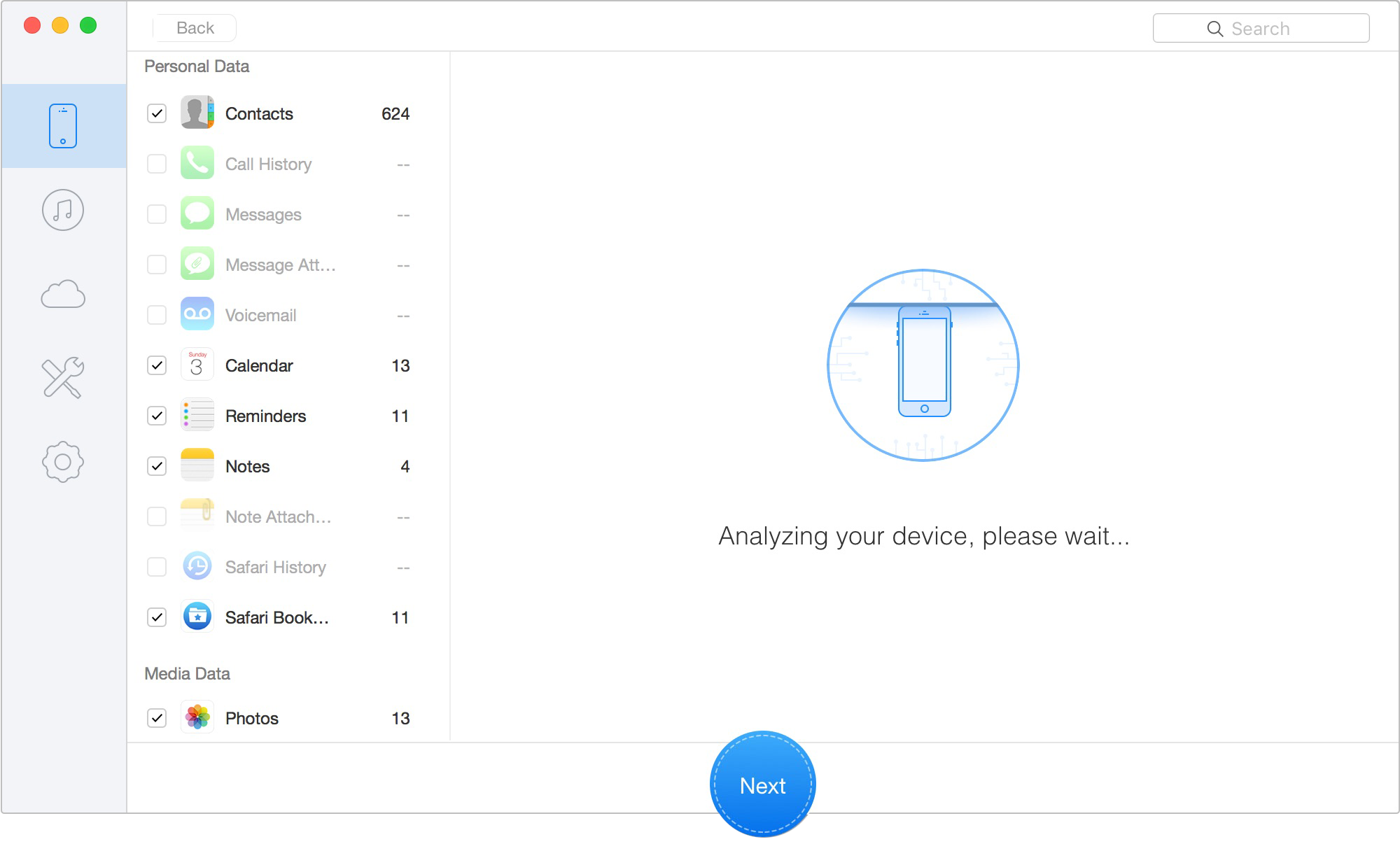
Scan Lost iOS Data on iOS Device
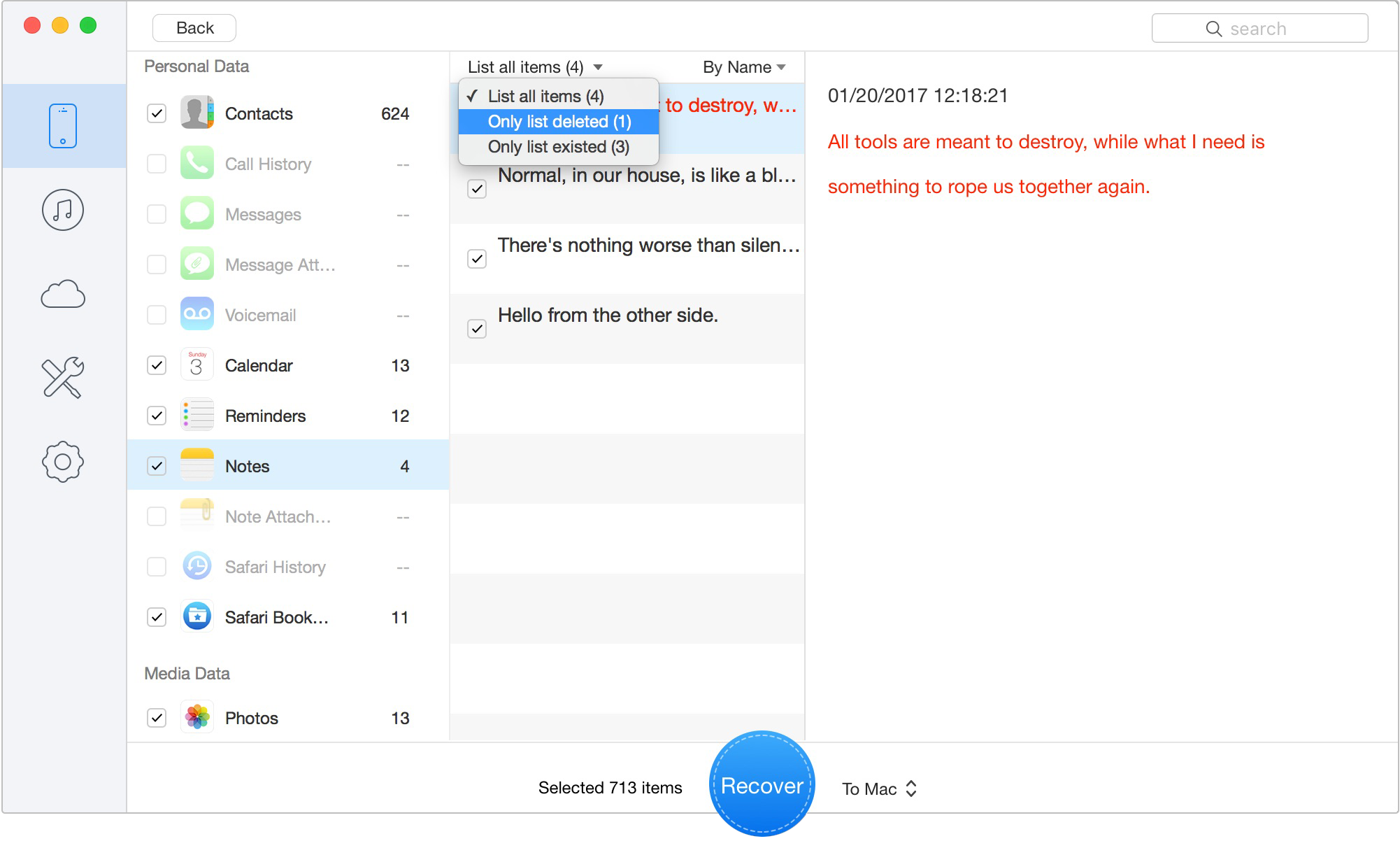
Preview the Scanned iOS Data
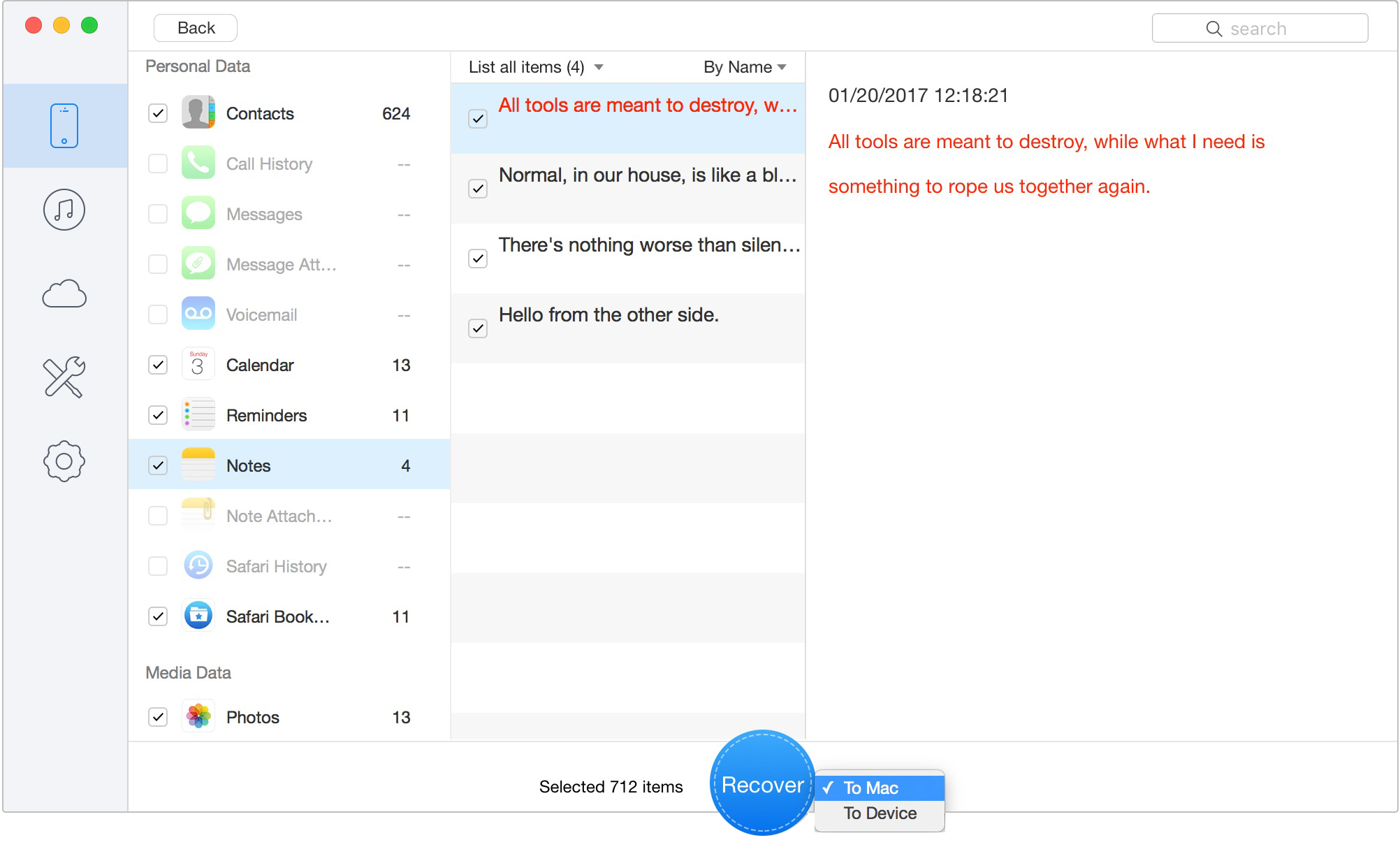
Retrieve Data to Computer or iOS Device
If you do not have access to a computer for the iCloud.com method, adjusting your Apple ID sync settings on your device is a common fallback procedure. This method forces your device to attempt a fresh download of your iCloud Contacts directly from Apple’s servers.
⚠️ WARNING: RISK OF DATA OVERWRITE ⚠️
Before you begin, you must understand the risks of sync confusion. If your phone has already automatically backed up the current “empty” state of your list to the cloud, forcing a re-sync might permanently overwrite your previously saved data on the server. Proceed with caution.
To attempt this method safely, follow these specific steps:
Open your Phone app to check if your missing entries have reappeared.
If cloud options fail, your next built-in option is to retrieve your data from iPhone backup files stored locally on your computer.
Many non-technical users run into a massive obstacle here: they cannot find their old backup directories. Apple hides these folders by default to prevent accidental deletion. Below, we have included the exact steps to navigate to these hidden folders so you can verify if a backup exists.
~/Library/Application Support/MobileSync/Backup/ and hit Enter.%appdata%\Apple Computer\MobileSync\Backup and press Enter.⚠️ CRUCIAL REMINDER: FULL DEVICE WIPE ⚠️
This method requires a complete device overwrite. Any new text messages, recent photos, notes, or documents created after the backup date will be permanently deleted during this procedure. Do not proceed unless you have backed up today’s critical data elsewhere.
When networking data vanishes, it is easy to assume it has been deleted forever. However, based on my hands-on experience, there is a very common scenario where your address book hasn’t actually been deleted at all—it’s just hiding.
If you recently added a new email address to your phone (like a corporate Exchange account or a new Gmail), iOS sometimes silently changes your “Default Account” for contacts. This means all the new clients you thought you were saving to iCloud were actually being saved to that specific email server. If you later deleted that email account, toggled off its sync settings, or changed its password, all the contacts associated with it will instantly disappear from your phone.
Before attempting any full device restores, check this setting:
Often, flipping that single switch will immediately flood your phone book back with your missing VIP clients.

Designed to fit effortlessly into your iPhone data recovery.
Download NowWhen dealing with sudden data loss, you likely have a few immediate questions. Below are clear answers to the most common concerns.
Yes. Depending on your backup history, you can retrieve them for free using iCloud.com’s web restoration tool, local computer backups, or by using dedicated third-party software designed to extract specific files directly from the device’s internal memory.
The safest way is to log into iCloud.com on a computer browser, navigate to the Data Recovery section, and select an automated archive to restore. Alternatively, you can toggle the sync setting off and on within your device’s settings app to force a data merge, though this carries a slight risk of overwriting your cloud data.
It depends entirely on the method you choose. If you use the built-in manual Apple methods, such as restoring from a full computer backup via Finder or iTunes, it will completely overwrite your current device data (including new texts and photos). If you use iCloud.com web recovery or a dedicated extraction software tool, your current data will remain safe and will not be overwritten.
When crucial business contacts disappear, the fear of making things worse with iCloud sync confusion or losing brand-new text messages can paralyze you. Especially when you cannot easily find an old backup, deciding on a safe procedure is vital to protect your livelihood and your remaining files. Fortunately, you do not have to accept data loss. We highly recommend starting with the iCloud.com Data Recovery tool, as it is the safest, free Apple-supported method that avoids a device wipe. If an archive isn’t available, checking your Default Account settings might reveal that your network is simply hiding. Finally, if you need targeted, selective recovery without endangering your current messages, scanning your phone with a tool like Primo iPhone Data Recovery allows you to see what is still retrievable before committing to a premium license. Take a deep breath, follow the steps that best protect your recent data, and restore your professional network with confidence.
Ansel A member of PrimoSync Support Team, passionate for mobile industry and ready to help you with Apple related issues.
Get Up-to-the-minute iPhone Tips & Enjoy Awesome Deals.



Design Simple and Beautiful Software
with Passion & Love

