
 by Ansel on Aug. 18, 2026 | NO COMMENT
The moment of panic is all too real. You recorded a once-in-a-lifetime event, but those priceless memories were accidentally deleted, and you just realized no backup exists. When an enormous 4K video vanishes from your device, it feels like it is gone for good. You are likely stressed, scouring the internet for a lifeline, and absolutely terrified of doing something that might permanently erase your device data.
Before you give up entirely or pay blindly for a service, you need a transparent, realistic solution. In this guide, we will walk you through exactly how to check your computer for hidden lifelines, and if those fail, how to safely extract deleted media directly from your iPhone’s physical memory.
🚨 CRITICAL EMERGENCY STEP: PREVENT STORAGE OVERWRITE NOW
If your videos are genuinely deleted and you do not have a backup, your recovery depends entirely on fragile, hidden data traces inside your iPhone’s flash memory. When you delete a file, iOS marks that physical space as “available.”
If you continue using your phone, any incoming data—a single text message, an automated app update, or a new photo—can permanently overwrite the exact memory blocks where your lost video is hiding. To prevent this:
Before downloading any third-party tools or scanning your device’s raw memory, your very first step must be checking your local systems. Many users firmly believe they have zero safety nets simply because iCloud syncing was turned off or full. However, automated local backups often exist without your direct knowledge.
If you have ever plugged your smartphone into a Mac or PC to charge it, update iOS, or transfer a single file, the computer may have generated a passive backup in the background. Checking for these takes only a few minutes and is completely free. The Free Manual Checklist:

Scan, preview, and recover available iPhone data without a full-device restore. Click Here to Free Download
If the manual checks above yield no results, your missing videos are genuinely gone from the visible operating system. Wasting time on generic cloud syncing tricks will only frustrate you further and risks overwriting your phone’s memory. At this stage, evaluating your next move is critical.
If you are proceeding without a backup, specialized software designed for deep physical memory analysis is your only remaining technical option. For this process, we recommend Primo iPhone Data Recovery.
We recommend this specific tool not as a blind sales pitch, but because it fulfills a strict set of criteria necessary for a safe recovery: it operates as a read-only scanner, it does not require you to factory reset your phone, and most importantly, it allows you to verify your files before you spend a dime.
A massive 4K video file is not stored in one neat little box on your iPhone. Large media files occupy significant space and are often scattered in fragments across the flash memory. When a file is deleted, the operating system removes the map to those fragments.
Primo bypasses the standard iOS file system and analyzes the raw flash memory, identifying the binary signatures of media files and piecing those massive fragments back together.
Expert Expectation: When recovering massive fragmented files, perfection is not always guaranteed. In my own testing, when I recovered a permanently deleted 2GB event video from the unallocated space, the video’s thumbnail was completely broken in the software interface. However, once exported to my Mac, the video file played perfectly from start to finish. Do not panic if the preview thumbnail looks glitched.
You understandably want proof before spending money. Primo allows you to download the software, scan your 256GB or 512GB device, and visually preview the exact recoverable files completely for free.
If—and only if—you see your videos intact and wish to export them to your computer, you will need to purchase a license. A standard lifetime license for Primo currently costs $39.99. If the scan turns up empty because the sectors were already overwritten, you simply uninstall the free trial and pay nothing.

Designed to fit effortlessly into your iPhone data recovery.
Download NowIf you have your phone in Airplane Mode and are ready to scan your raw memory, here is exactly how to execute the recovery.
Step 1: Connect Your Device
Launch Primo iPhone Data Recovery on your Mac or PC. Using a standard USB-C or Lightning cable, connect your iPhone to the computer. You do not need to put your phone into complicated DFU or Recovery modes; simply unlock your phone screen and tap “Trust This Computer” when prompted.

Recover from iOS Device
Step 2: Initiate the Deep Scan
On the left-hand sidebar, select Recover from iOS Device and click the prominent Scan button. The software will begin analyzing your physical flash memory.
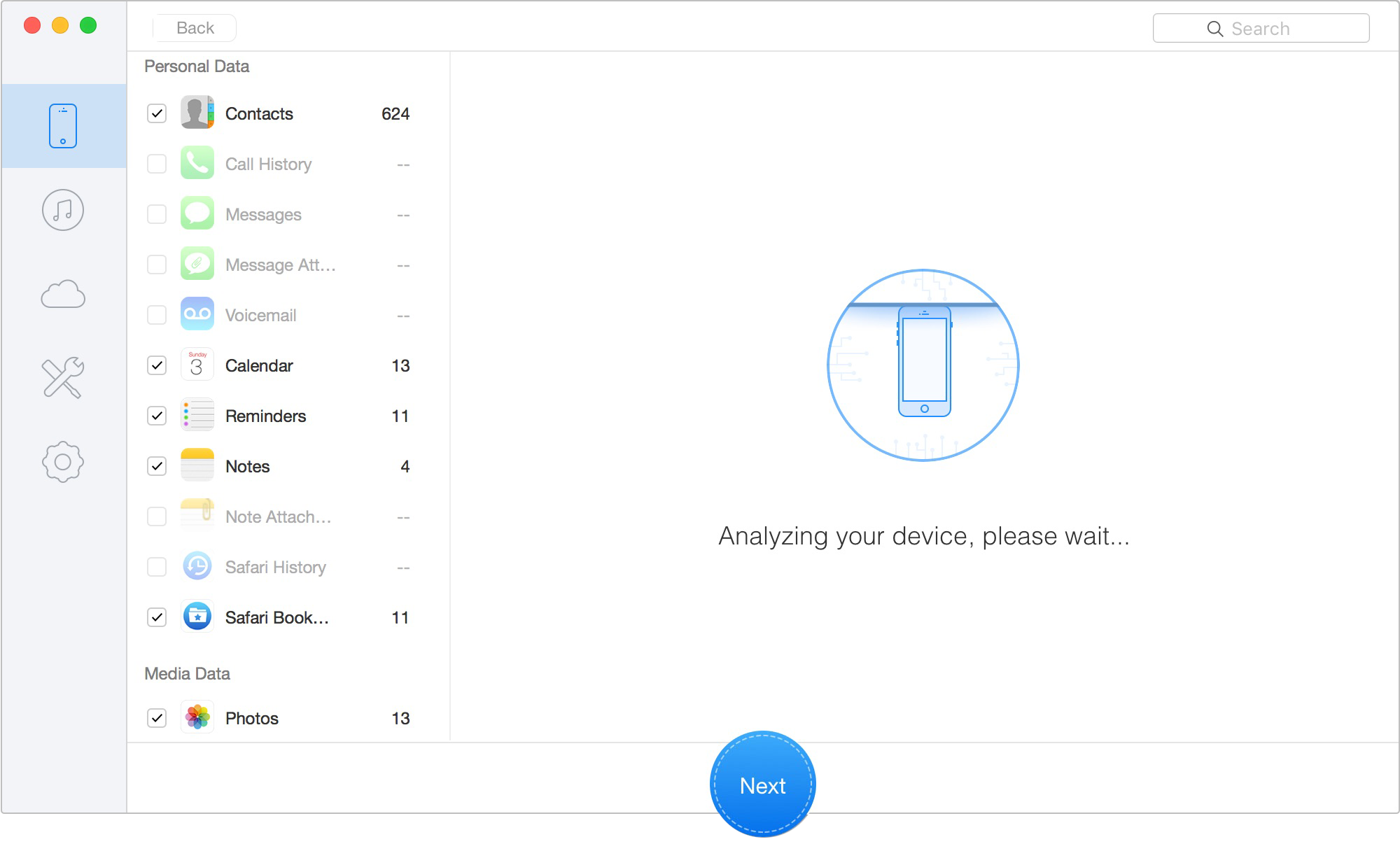
Scan Lost iOS Data on iOS Device
Step 3: Preview the Recovered Fragments
Once the scan is complete, the software will display a list of recoverable data. Navigate to the “App Video” or “Camera Roll” categories on the left. Here, you can visually preview the discovered files. Remember, large files might feature a broken thumbnail, but checking the file size (e.g., 1.5GB) is a great indicator that the video data is intact.
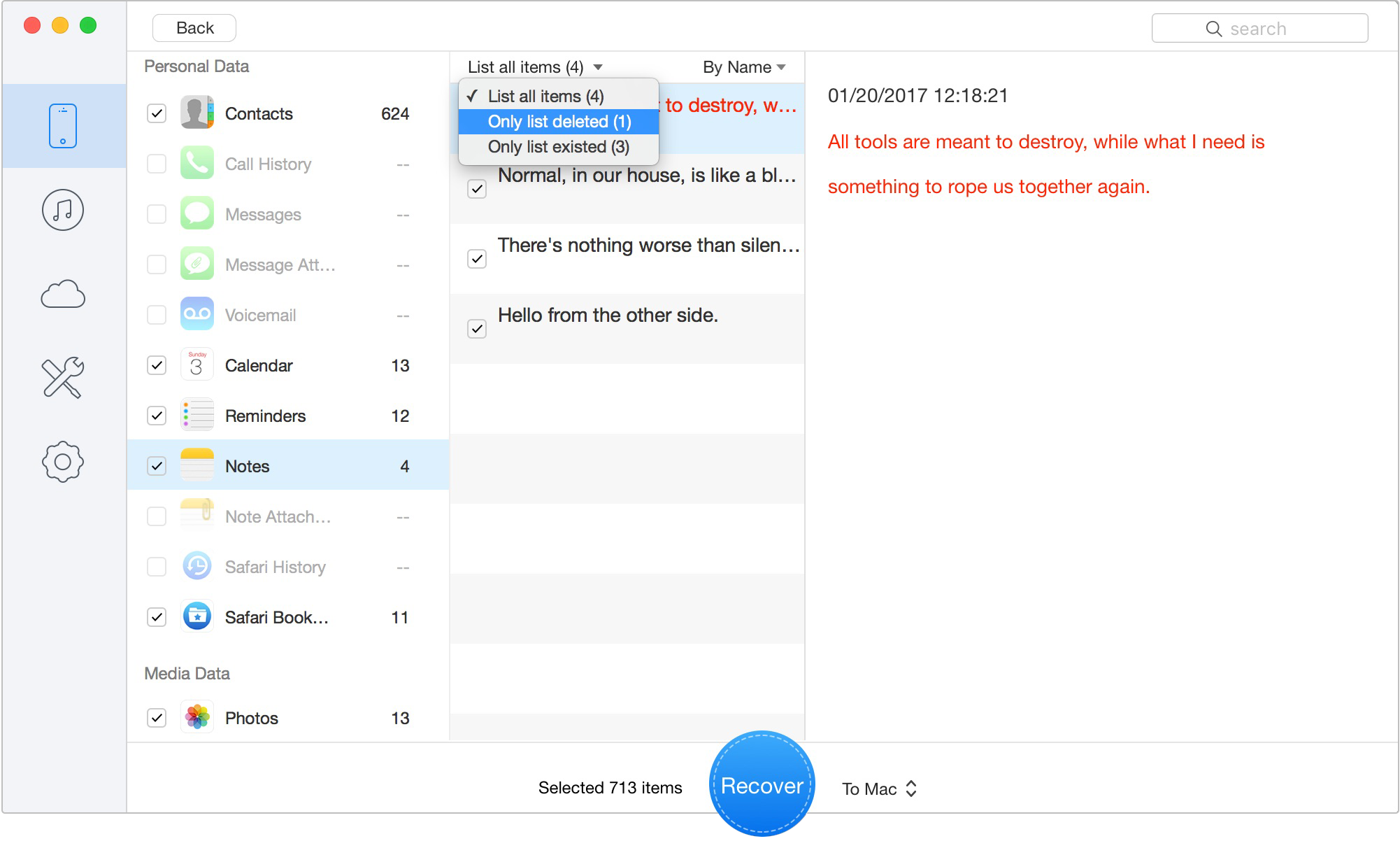
Preview the Scanned iOS Data
Step 4: Export to Your Computer
Check the boxes next to the videos you wish to save. Click the Recover button in the bottom right corner. The software will safely piece the fragments together and export the MP4/MOV files directly to a designated folder on your computer’s hard drive. Your current phone data remains completely untouched.
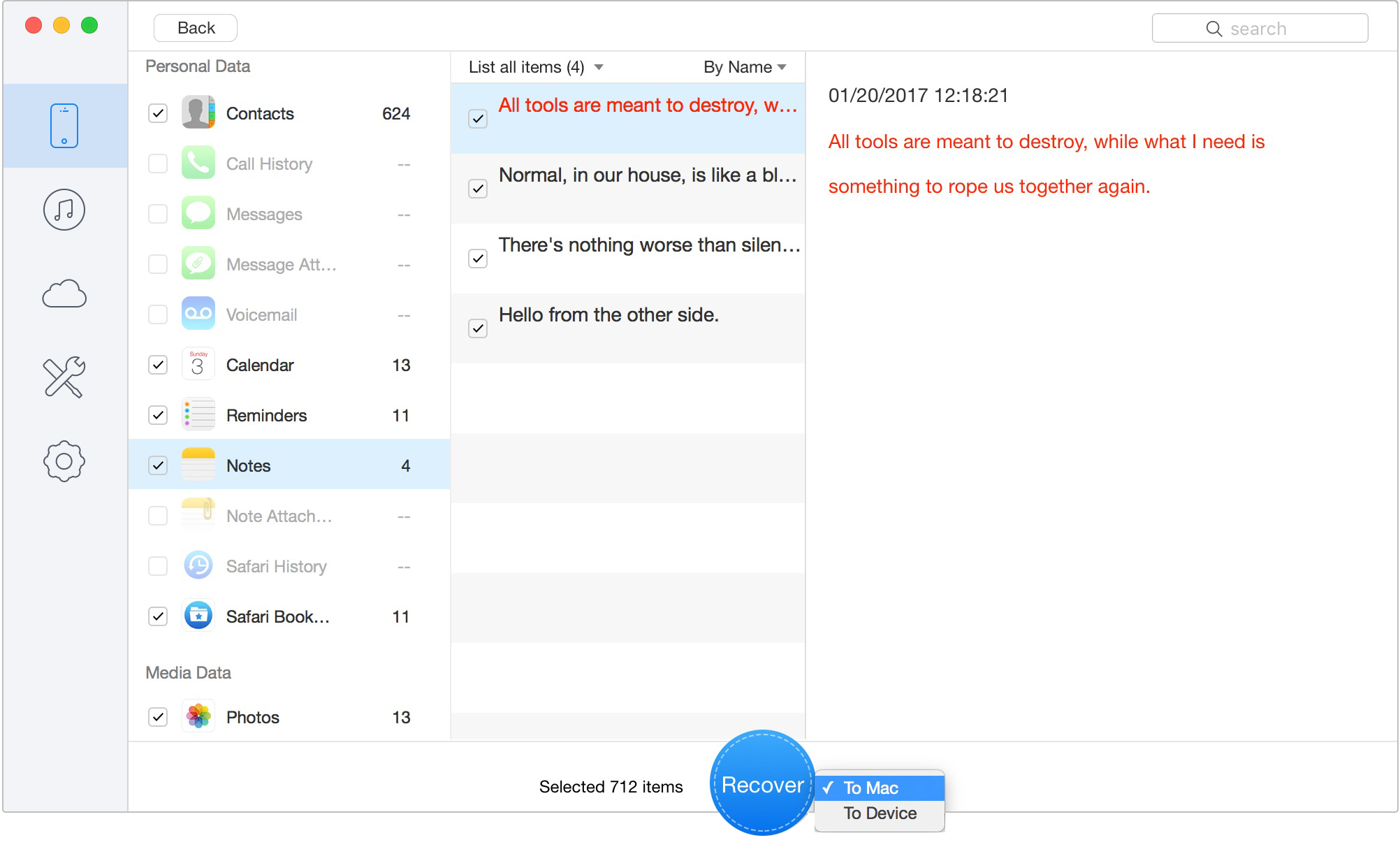
Retrieve Data to Computer or iOS Device
Q1: Can permanently deleted iPhone videos really be recovered without any backup?
Yes, but it is a matter of physics and timing. When a video is emptied from the Recently Deleted folder, the actual binary data remains hidden on the physical storage for a brief period. Specialized tools can extract these traces before they are overwritten by new phone activity.
Q2: How does iPhone video recovery software actually work?
It works through deep physical memory analysis. Recovery tools bypass the standard visible file system and scan the raw unallocated space of the device’s flash memory. They hunt for specific file signatures (like the headers of an MP4 or MOV file) and mathematically piece the fragments back together.
Q3: I need to root or jailbreak my iPhone to do this?
No. Reputable software like Primo uses secure developer protocols to read the memory without requiring a risky jailbreak, ensuring your warranty and device security remain intact.
Q4: Why did my scan fail to find the video?
If the software cannot find your video, it means storage overwrite has already occurred. If you continued to receive heavy group texts, downloaded an iOS update, or recorded new videos after the accidental deletion, the operating system overwrote the memory blocks where your old video lived. Once overwritten, the data is mathematically destroyed and cannot be recovered by any consumer or forensic tool.
Scan, preview, and recover available iPhone data without a full-device restore. Click Here to Free Download
Losing irreplaceable memories is a deeply stressful experience, but accepting defeat immediately is not your only option. By understanding the mechanics of your iPhone’s storage, you can take immediate action to protect your lost data. Always check your Mac or PC for a hidden local backup first. If you truly have zero safety nets, put your phone in Airplane Mode immediately to stop storage overwrite. Specialized raw memory scanning provides a realistic, secure avenue to retrieve those files without forcing you to erase your current device data. Take advantage of the free preview phases offered by tools like Primo iPhone Data Recovery. It ensures you only pay if your priceless videos are genuinely intact, giving you total control over your data crisis.
Ansel A member of PrimoSync Support Team, passionate for mobile industry and ready to help you with Apple related issues.
Get Up-to-the-minute iPhone Tips & Enjoy Awesome Deals.



Design Simple and Beautiful Software
with Passion & Love

