
 by Ansel on Aug. 18, 2026 | NO COMMENT
Recently, a reader named Emily wrote to me in a panic. She had cleared several thousand photos from her iPhone to free up storage space, only to realize later that a folder containing irreplaceable family memories had vanished with them. When she checked the Photos app, the Recently Deleted album was already empty.
If you have permanently deleted photos that hold sentimental or business value, the number of tools promising effortless recovery can feel overwhelming. The real question is not whether a program advertises a high recovery rate. It is whether your pictures still exist in a recoverable source—such as Recently Deleted, iCloud, a Finder/iTunes backup, or device-accessible data.
This guide takes a safer approach. We will check Apple’s free recovery options first, explain the difference between mobile recovery apps and desktop software, and then show how Primo iPhone Data Recovery can be used to scan, preview, and selectively recover available pictures without forcing a full-device restore.
If you have just realized that important pictures are gone, avoid unnecessary activity on the iPhone until you have checked your recovery options.
Do not immediately start downloading multiple recovery apps, recording new videos, or filling the phone with additional data.
For users trying to recover deleted photos from iPhone, acting quickly gives you the best chance of locating useful data through available recovery sources.
A few practical precautions can help:
This last point is especially important.
Many users search the App Store for an “iPhone photo recovery app,” but an ordinary mobile application does not have the same access to device and backup data as desktop recovery software.
Modern iOS applications operate within tightly controlled permissions. A desktop recovery program can instead communicate with the iPhone through an authorized computer connection, inspect supported device data, and analyze available Finder, iTunes, or iCloud sources.
That does not mean desktop software can magically recover every permanently deleted photo. Recovery still depends on whether usable data remains available.
Before installing anything, identify where your missing photos are most likely to exist.
There are four main recovery sources:
| Recovery Source | Best For | Cost | Current Data Risk |
| Recently Deleted | Photos deleted recently but not permanently removed | Free | Very Low |
| iCloud / iCloud Photos | Photos already synced or stored through Apple cloud services | Free | Low if downloading directly |
| Finder/iTunes Backup | Photos included in an older computer backup | Free with full restore | Higher if restoring the whole device |
| Desktop Recovery Software | Selective scanning or backup extraction | Free scan / Paid recovery | Low when exporting selectively |
The biggest mistake is treating all four methods as interchangeable.
A photo sitting in Recently Deleted is fundamentally different from one stored inside an old Finder backup. Likewise, extracting pictures from a backup is different from attempting to locate recently deleted information directly from an iPhone.
If you rely on local computer backups, it is also worth understanding whether your iTunes backup includes photos before assuming every image was saved there.
Use this order:
This approach minimizes unnecessary risk and keeps you from paying for software before confirming that Apple’s free methods cannot help.

Scan, preview, and recover available iPhone data without a full-device restore. Click Here to Free Download
Before using Primo or any other commercial recovery software, exhaust the native Apple options.
Open: Photos > Albums > Recently Deleted Authenticate with Face ID, Touch ID, or your passcode if prompted. If the missing pictures are still there:
They should return to your main photo library. If Recently Deleted is already empty, continue to your cloud and backup sources.
If you previously enabled iCloud Photos, your pictures may exist in your cloud photo library rather than inside a traditional device backup.
Open iCloud.com from a computer, sign in with your Apple Account, and inspect the Photos section.
Also check Recently Deleted on iCloud if available.
If the missing pictures appear there, download them directly rather than erasing or restoring your iPhone.
Go to:
Settings > [Your Name] > iCloud > iCloud Backup
Check the date of the most recent backup.
Before relying on this method, remember that an iCloud Backup does not necessarily contain every piece of data already synchronized separately through iCloud services.
This distinction is particularly important for photos.
If iCloud Photos was enabled, those images may be managed by the synchronized photo library rather than duplicated inside the normal device backup.
Connect the iPhone to your computer.
On a modern Mac, open Finder. On Windows or older macOS systems using iTunes, open iTunes and check the available device backups.
Look carefully at the backup dates.
You ideally need an archive created before the photos disappeared.
The major drawback: Apple’s standard backup restore is designed to restore an entire device state. If your only goal is retrieving several old pictures, replacing your current device with an older backup may be unnecessarily disruptive.
This is where selective backup extraction becomes useful.
If Apple’s free recovery options do not contain your photos—or if your pictures exist inside a backup but you do not want to perform a full restore—Primo iPhone Data Recovery provides another recovery path.
Rather than treating it as a magical “undelete everything” application, it is more useful to think of Primo as a recovery and extraction tool.
It provides three main wowrkflos:
Scan, preview, and recover available iPhone data without a full-device restore. Click Here to Free Download
You do not need to restore every available file. You can scan supported sources, preview available content, and choose the pictures you actually want.
When you export recoverable photos to the computer, you avoid replacing your entire current iPhone with an older backup.
Primo’s free version allows you to run a scan and preview detected data. Recovery or export requires a paid license.
This is particularly useful because you can determine whether relevant photos appear before deciding whether the software is worth purchasing.
If direct device scanning does not reveal the pictures, you can check an existing computer or cloud backup instead.
No legitimate recovery program can promise that every permanently deleted photo will be available.
The outcome depends on where the image was stored, whether a usable backup exists, what information remains accessible, and what happened to the device after deletion.
Larger devices and backups naturally contain more information to analyze, so you should expect the scanning process to take longer when dealing with large photo libraries.
The free version is primarily useful for scanning and previewing. The current PrimoSync purchase page lists a $39.99 Personal License for one computer, including lifetime upgrades.
That makes the most sensible workflow:
Scan first → verify the photos → purchase only if the results are useful.
If Apple’s free options did not solve the problem, you can use Primo to check your available recovery sources.

Recover from iOS Device
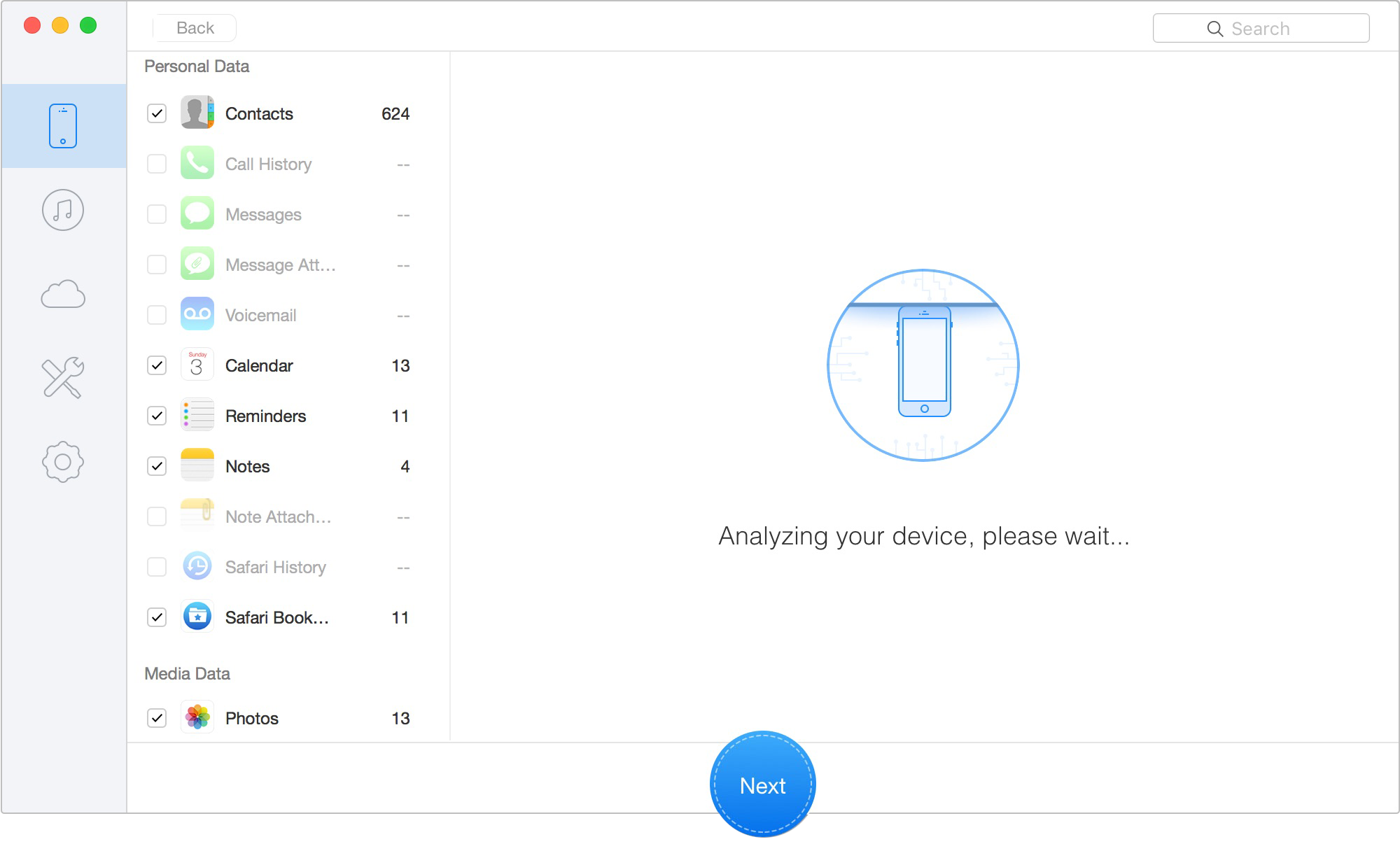
Scan Lost iOS Data on iOS Device
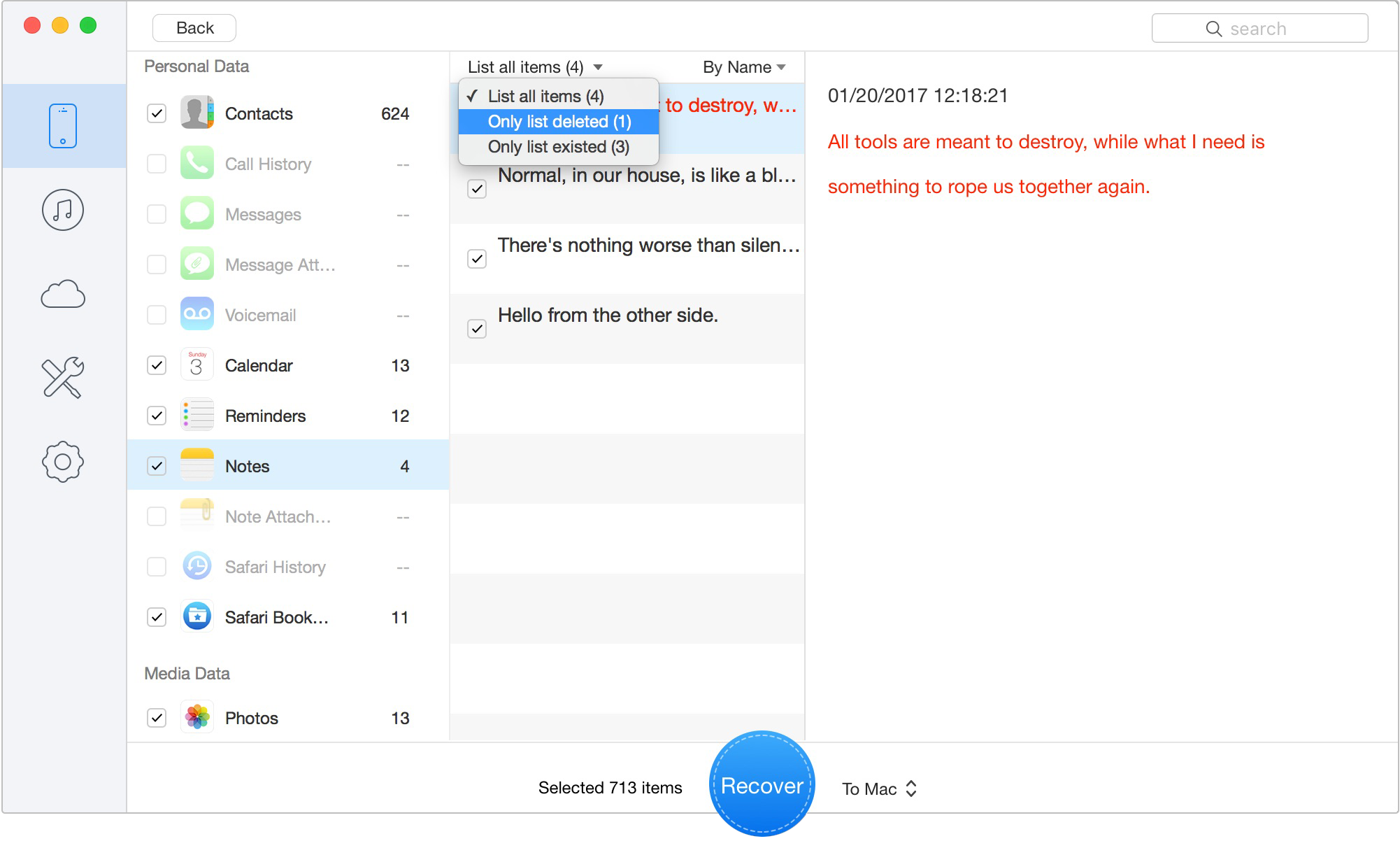
Preview the Scanned iOS Data
If the missing photos appear in the results:
After recovery, consider making an additional backup of those photos so you are not relying on a single device or storage location again.
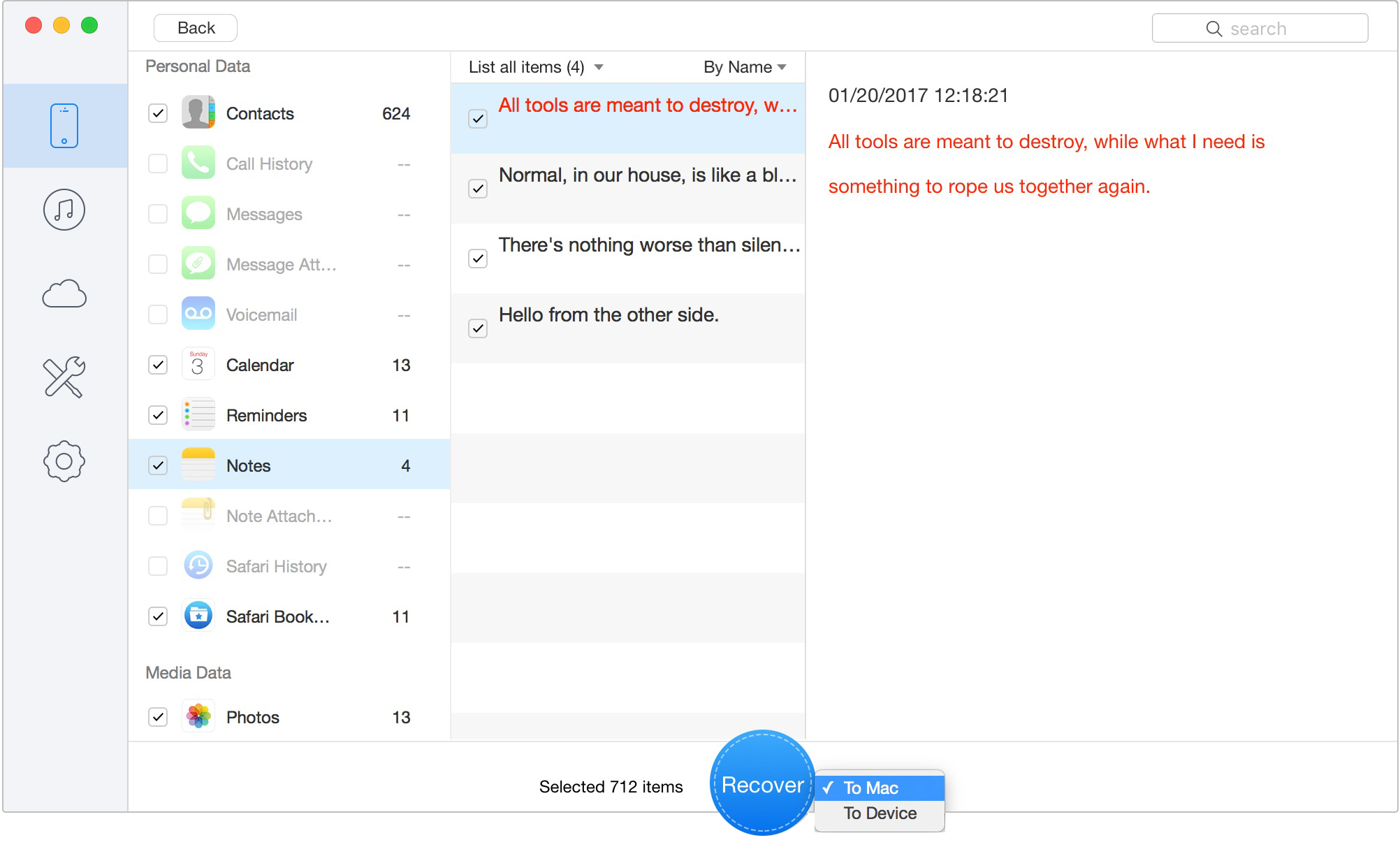
Recover Data to Computer or iOS Device
A standard App Store application generally cannot perform the same recovery workflow as dedicated desktop software because iOS limits how applications access other apps’ data and system-level storage. Before using any third-party tool, check Recently Deleted, iCloud Photos, and existing backups first.
Possibly. Once the images are no longer available in Recently Deleted, check whether they exist through iCloud Photos, an iCloud backup, or a Finder/iTunes backup. If those options do not contain the files, a desktop recovery scan may be worth trying, but successful recovery is not guaranteed.
The passage of 30 days does not automatically tell you whether every recovery source is gone. A photo may still exist in another synchronized library, computer backup, cloud backup, exported folder, or other available data source. The correct approach is to check each source rather than assuming the age of the deletion alone determines whether recovery is possible.
For a direct connected-device workflow, Primo primarily works with the iPhone connected to your computer. Cloud-based recovery naturally requires authentication to the relevant iCloud source. You should only enter account credentials when you intentionally choose that recovery mode.
Yes. This is one of the main reasons to use selective recovery or backup extraction software. Instead of restoring an entire archive to the iPhone, you can inspect supported data and export selected pictures to your computer while leaving the current device setup intact.

Designed to fit effortlessly into your iPhone data recovery.
Download NowLosing important photos is stressful, but the safest response is not to immediately download every recovery application you can find. Start with the simplest sources: Recently Deleted → iCloud Photos → iCloud/Finder/iTunes backup → selective recovery software. If Apple’s free methods contain the pictures, use them. If restoring an old backup would mean replacing valuable current data, a selective extraction tool becomes much more useful. Primo iPhone Data Recovery is a practical option for this kind of workflow because it allows you to scan available sources, preview detected photos, and decide whether recovery is worthwhile before paying for export. The key is maintaining realistic expectations. No recovery tool can guarantee every permanently deleted image. But by checking the right sources in the right order—and avoiding an unnecessary full-device restore—you give yourself the best chance of getting important photos back without creating a second data-loss problem.
Ansel A member of PrimoSync Support Team, passionate for mobile industry and ready to help you with Apple related issues.
Get Up-to-the-minute iPhone Tips & Enjoy Awesome Deals.



Design Simple and Beautiful Software
with Passion & Love

