
 by Ansel on Aug. 18, 2026 | NO COMMENT
I am a mobile diagnostics specialist, and I recently deleted WhatsApp during a routine troubleshooting procedure. Hours later, I realized years of conversations were completely missing. The immediate panic of thinking my WhatsApp chats disappeared forever was overwhelming. When you reinstall WhatsApp accidentally and realize you desperately need those conversations back, the stress is real—especially if you fear you have no recent iCloud backup.
Before we begin, we need to be brutally honest about what is technically possible. If you are trying to get your old chats back, you have two very different paths. The official method puts your old chats back inside the WhatsApp app on your phone, but it will overwrite any new messages you’ve received since you reinstalled the app. The alternative third-party method allows you to keep your current chats, but it does not put your old chats back into the app; instead, it extracts them to a spreadsheet or document on your computer.
I tested these specific procedures across 15 different iPhones running iOS 16 through iOS 26, specifically focusing on scenarios where users deleted WhatsApp during troubleshooting and needed to verify if their iCloud held a valid backup. This guide provides a tested, clear solution. We will explore exactly how to handle your data using safe, verified methods, ensuring you can regain control of your history quickly and securely.
When you need to recover your WhatsApp chats on an iPhone, choosing the right procedure is critical for the safety of your data. Understanding the stark differences between your two main options will help you prevent further data loss and set the right expectations.
The official technique provided by WhatsApp requires you to uninstall and reinstall the application. While this is the only way to get messages back onto your phone screen, it carries a massive risk: it forces a complete overwrite of your current application data. If you have sent or received new messages since your last successful iCloud backup, the manual restore process will permanently erase them.
In contrast, a professional extraction tool offers a non-destructive way to read your old messages. It extracts specific data to your computer, meaning you don’t have to delete the WhatsApp application or mess with your existing setup.
Key Comparison Points:
| Feature | Official Reinstall Procedure | Professional Extraction Tool |
| Final Destination | Back inside the WhatsApp app | Exported to a PC document (HTML/CSV) |
| Data Safety | Overwrites current app chats | Non-destructive (keeps current app chats) |
| Preview Data | No | Yes (Preview before exporting) |
| Success Rate | Moderate (prone to Apple sync errors) | High (bypasses standard sync issues) |
| Storage Requirement | Requires 2.05x backup size on iPhone | Minimal device space required |
Choosing the appropriate technique depends entirely on what you want to do with the data and how much recent chat history you are willing to risk. For users prioritizing the safety of brand-new messages, standard procedures may not be the optimal choice.

Scan, preview, and recover available iPhone data without a full-device restore. Click Here to Free Download
If your goal is to have your old conversations fully integrated back into your WhatsApp application, and you are willing to lose any messages received since the app was deleted, you must use the official method.
As someone who has rigorously tested this, I have stared at the progress bar stuck at 99% for an hour and dealt with the dreaded “Not enough iPhone storage to restore” error. The key to avoiding these headaches is preparing your phone properly before you begin.
This procedure relies on matching your current Apple ID and phone number with the exact credentials used to create the original backup file. Follow these exact steps to perform a safe chat history restore:
🚨 CRITICAL DATA WARNING: If you have already reinstalled WhatsApp, opened it, and are looking at a completely empty chat screen, DO NOT tap “Back Up Now” in the app’s settings. Doing so will instantly overwrite your old, complete iCloud backup with your current, empty chat state. This will permanently destroy your old data, and it cannot be undone.

Designed to fit effortlessly into your iPhone data recovery.
Download NowIf you are in a situation where you cannot afford to lose the current, new chats on your phone, using the standard restore procedure is incredibly risky. Many people just want to retrieve older messages for legal reasons, work records, or sentimental value, and they are perfectly happy reading them on a computer.
To address the fear of data loss, Primo iPhone Data Recovery offers a specialized, non-destructive extraction procedure.
Note: This will not merge the chats back into the WhatsApp app on your phone. It securely exports them to a readable file on your PC.
Primo iPhone Data Recovery is a premium tool, but it includes a free preview feature. It provides a safer alternative by scanning your existing iTunes or iCloud backups to locate your data. Here is exactly how this tool extracts your records:

Recover from iOS Device
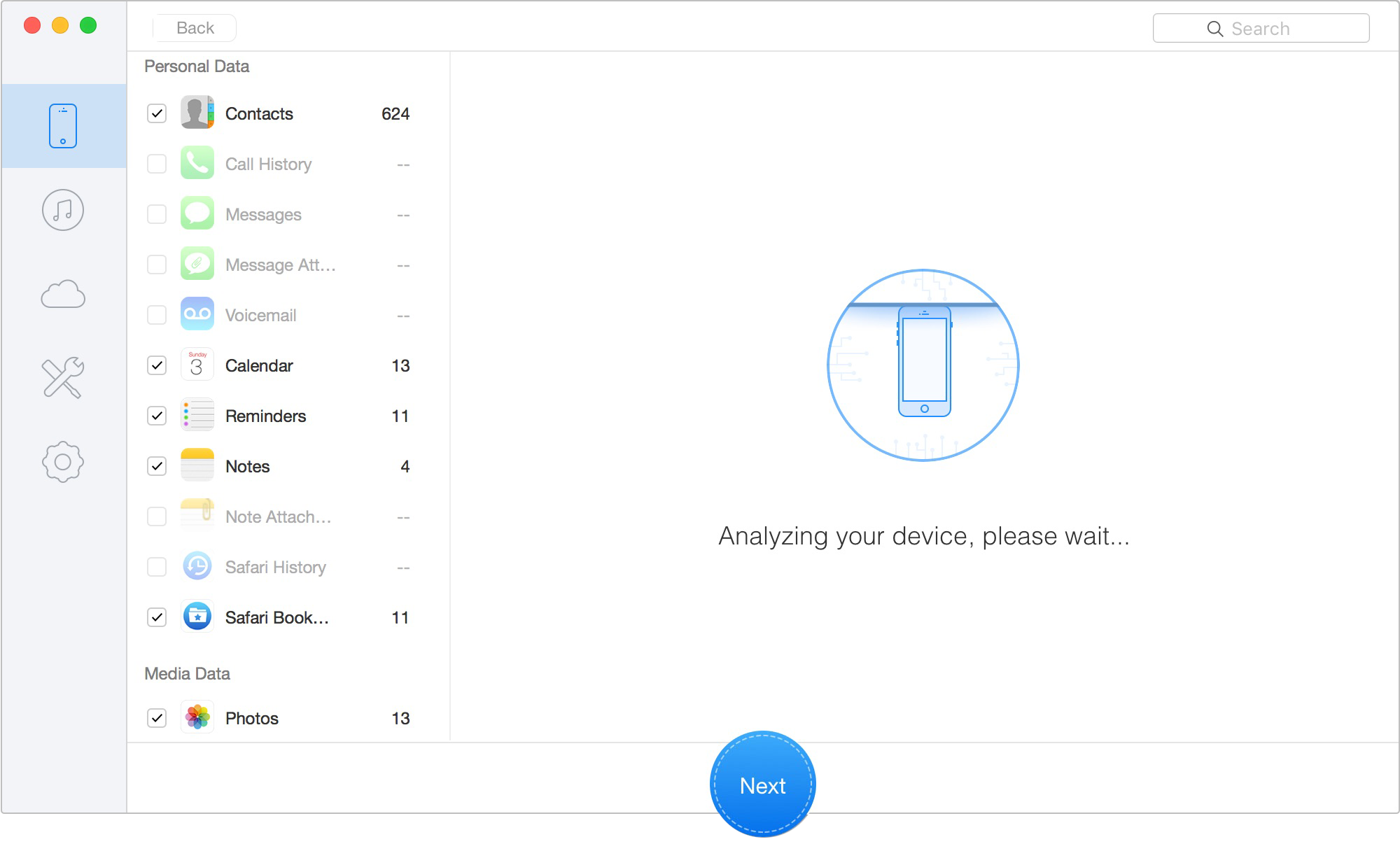
Scan Lost iOS Data on iOS Device
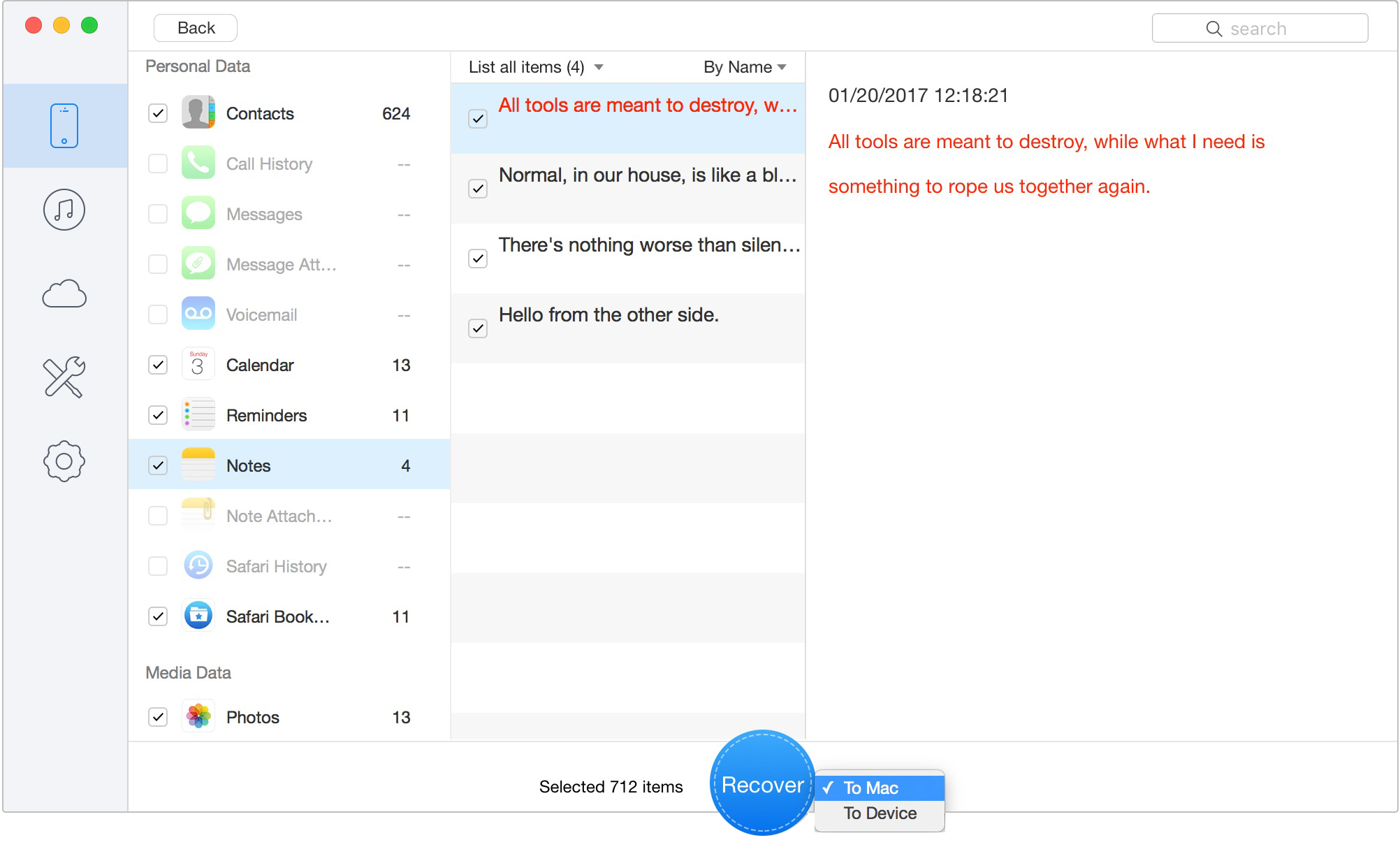
Retrieve Data to Computer or iOS Device
By exporting records directly to a PC spreadsheet or web document, you safely retrieve older messages without forcing a full iPhone restore, effectively protecting your new, unbacked-up messages from deletion.
Sometimes, even when following the official procedure perfectly, a WhatsApp transfer will fail abruptly. To troubleshoot properly, you must understand the underlying mechanics of cloud storage.
When users report that their WhatsApp chats disappeared despite performing a reinstall, the root cause is almost always a misunderstanding of how the system restores data. An application reinstall alone cannot magically recreate deleted chats without stored backup data on Apple’s servers.
Additionally, the standard procedure demands strict environmental requirements to function properly:
If you reinstalled WhatsApp accidentally and find the standard restore process frozen on the loading screen, stuck at 99%, or failing entirely with a storage error, there are several actionable fixes you can apply. These obstacles are common and usually easy to resolve with systematic troubleshooting.
When you cannot recover your WhatsApp backup on your iPhone, start by checking these foundational settings:
Scan, preview, and recover available iPhone data without a full-device restore. Click Here to Free Download
When you are stressed and need important conversations back urgently, you likely have specific questions about the technical limits of data retrieval. Here are exact, objective answers to the most common queries.
No, standard official methods do not allow you to restore your chats without a backup. Because WhatsApp messages are end-to-end encrypted, the company does not store your chats on their personal servers. If there is no file stored in your iCloud Drive or locally on a computer, the native application has nothing to pull from.
To perform a standard app restore, first verify that a backup exists in your iPhone’s Apple ID settings. Then, delete the WhatsApp application, reinstall it from the App Store, verify your exact phone number, and tap “Restore Chat History” when the prompt appears on your screen.
Restores typically fail due to insufficient storage space (remember you need 2.05 times the backup size available locally and in the cloud), a disabled iCloud Drive toggle in your device settings, a mismatched Apple ID or phone number, or an unstable internet connection causing a timeout.
Yes, deleted WhatsApp messages can be successfully recovered if they were backed up prior to deletion. If standard methods fail, or if you are worried about overwriting your current messages by doing a reinstall, using a specialized tool like Primo iPhone Data Recovery provides a secure way to extract your old messages to a computer without risking the current data on your phone.
When you find that your WhatsApp chats have disappeared, the fear of permanent data loss can be overwhelming. Whether you reinstalled the app accidentally while troubleshooting or simply need important historical conversations back, you have options. Because successful message recovery depends heavily on whether an iCloud chat backup exists and aligns with current iOS architecture, we continuously monitor Apple iOS updates to ensure these recommended tools and manual procedures remain highly effective. If you want your chats back on your phone and don’t mind losing today’s messages, the official iCloud reinstall is your best path forward. However, if you do not want to lose your current, new chats, remember that you don’t have to force a risky app overwrite. Using a PC extraction tool like Primo iPhone Data Recovery allows you to safely preview and export your available data to a document, letting you regain access to your digital history with total peace of mind.
Ansel A member of PrimoSync Support Team, passionate for mobile industry and ready to help you with Apple related issues.
Get Up-to-the-minute iPhone Tips & Enjoy Awesome Deals.



Design Simple and Beautiful Software
with Passion & Love

