
 by Ansel on Aug. 18, 2026 | NO COMMENT
The moment of panic hits hard. You were doing a routine storage cleanup on your device, and suddenly, you realize a handful of irreplaceable family photos are missing. Your first instinct is to check the trash, but finding your recently deleted folder entirely empty—or expired—is an incredibly stressful experience. You are immediately faced with the terrifying thought that those memories are gone forever, especially if you do not have an active cloud backup.
If you are in this frustrating situation and need to recover deleted photos from iPhone, you are in the right place. In this guide, I will walk you through tested, proven solutions to safely restore your pictures, while being completely transparent about the technical limitations of modern smartphone storage.
Before we attempt to recover a single file, we need to address a critical misunderstanding that traps most users. Here is an essential truth that most standard recovery guides miss, and it is something I learned the hard way: users often confuse iCloud Photos synchronization with traditional backup storage. Understanding this distinction is the key to successfully retrieving your files.
When iCloud Photos is enabled in your settings, your iPhone does not simply push a static, permanent copy of your images to the cloud for safekeeping. Instead, it acts as a real-time mirror across all your Apple devices.
If you delete a photo from your camera roll, that deletion command is immediately synchronized to Apple’s cloud servers. Consequently, logging into iCloud.com on your computer to look for that specific deleted file is often a dead end; the file was actively removed from the web server the moment you deleted it from your phone.
In contrast, a static local backup—such as an iTunes backup on a PC or a Finder backup on a Mac—acts as a frozen snapshot of your device at a specific point in time. If a photo existed on your phone when the backup was created, it remains safely stored in that backup file on your computer’s hard drive, regardless of what you delete from the physical device later.
Recognizing this difference explains why checking static, local archives is a far more reliable technique than relying on real-time cloud services.
When looking to restore missing files, users often assume there is only one way to get their data back. However, selecting the correct recovery method is critical for success.
The options generally fall into two categories: standard built-in Apple methods and professional recovery tools. Understanding the differences in success rate, time cost, technical skill, and financial cost will help you make an informed decision.
Built-in Apple methods, such as restoring a Finder backup, are entirely free and provided directly by Apple. However, they come with a significant safety risk: a full storage overwrite. When you restore a device from an Apple backup, the process replaces all current data on your device with the data from the backup file. Any new photos, text messages, or app data received since that backup was created will be permanently erased.
Conversely, professional recovery tools offer a safer technique by performing a targeted photo recovery scan. The primary advantage is selective recovery—you can extract only the missing items to your computer.
However, these tools are not magic, and they are not free. They require a paid license to export the files they find, and they are heavily limited by Apple’s hardware encryption, which we will discuss in detail below.
| Feature | Standard Apple Methods (iTunes/Finder) | Professional Tools (e.g., Primo Data Recovery) |
| Risk of Data Loss | High (Causes full storage overwrite) | None (Extracts data to computer) |
| Selective Recovery | No (All-or-nothing restore) | Yes (Choose specific photos) |
| Needs Existing Backup | Yes | No (Can scan device directly) |
| Cost | Free | Paid Premium License Required |
Your choice depends entirely on your current backup status, your tolerance for data loss, and your budget.

Scan, preview, and recover available iPhone data without a full-device restore. Click Here to Free Download
If you need to restore deleted camera roll photos quickly, Apple provides built-in methods. These should always be your first steps, provided you meet the necessary conditions.
The easiest procedure is checking Apple’s built-in 30-day safety net.
💡 PRO-TIP: If your Recently Deleted album is empty, it means the 30-day retention period has expired, or you manually emptied the folder to free up space. At this stage, your next free option is to check your computer for a local backup.
To recover missing data using this method, you must have previously plugged your device into your computer and created a backup before the photos were deleted. Crucial iOS Security Steps to Complete First: Before Apple allows you to restore a backup, you must bypass its anti-theft protocols.
The Recovery Steps:
🛑 CRITICAL WARNING: This procedure causes a complete device overwrite. All current data in your iPhone—including photos taken today, recent text messages, and new contacts—will be entirely erased and replaced by the contents of the old backup.
If you lack a recent backup, or if you cannot afford to lose the data created since your last sync, these standard methods will fall short, requiring a different approach to recover iPhone photos without backup.
If your Recently Deleted folder is empty, you have no local backup, and you refuse to wipe your current device data, your final resort is third-party recovery software like Primo iPhone Data Recovery.
The Honest Reality of iPhone Data Recovery:
Before proceeding, you need to understand the technical reality of modern smartphone storage. Modern iPhones (iOS 16 and newer) utilize a highly secure format called the Apple File System (APFS) with file-level hardware encryption.
When you permanently delete a photo from the trash, the iPhone immediately destroys the encryption key for that specific file and marks that sector of flash memory as available for new data.
No software on the market can magically bypass Apple’s hardware encryption to pull perfectly intact, high-resolution original files from overwritten flash memory.
So, what exactly are you paying these premium tools to do?
Professional software like Primo scans your phone’s physical memory and app caches for data fragments. While the original 4K photo might be encrypted and gone, the software can often locate unencrypted cached thumbnails, smaller resolutions of the photo saved in text message attachments, or copies synced to third-party apps like WhatsApp.

Designed to fit effortlessly into your iPhone data recovery.
Download NowPrimo iPhone Data Recovery is a paid desktop application designed to extract these surviving fragments directly to your computer.

Recover from iOS Device
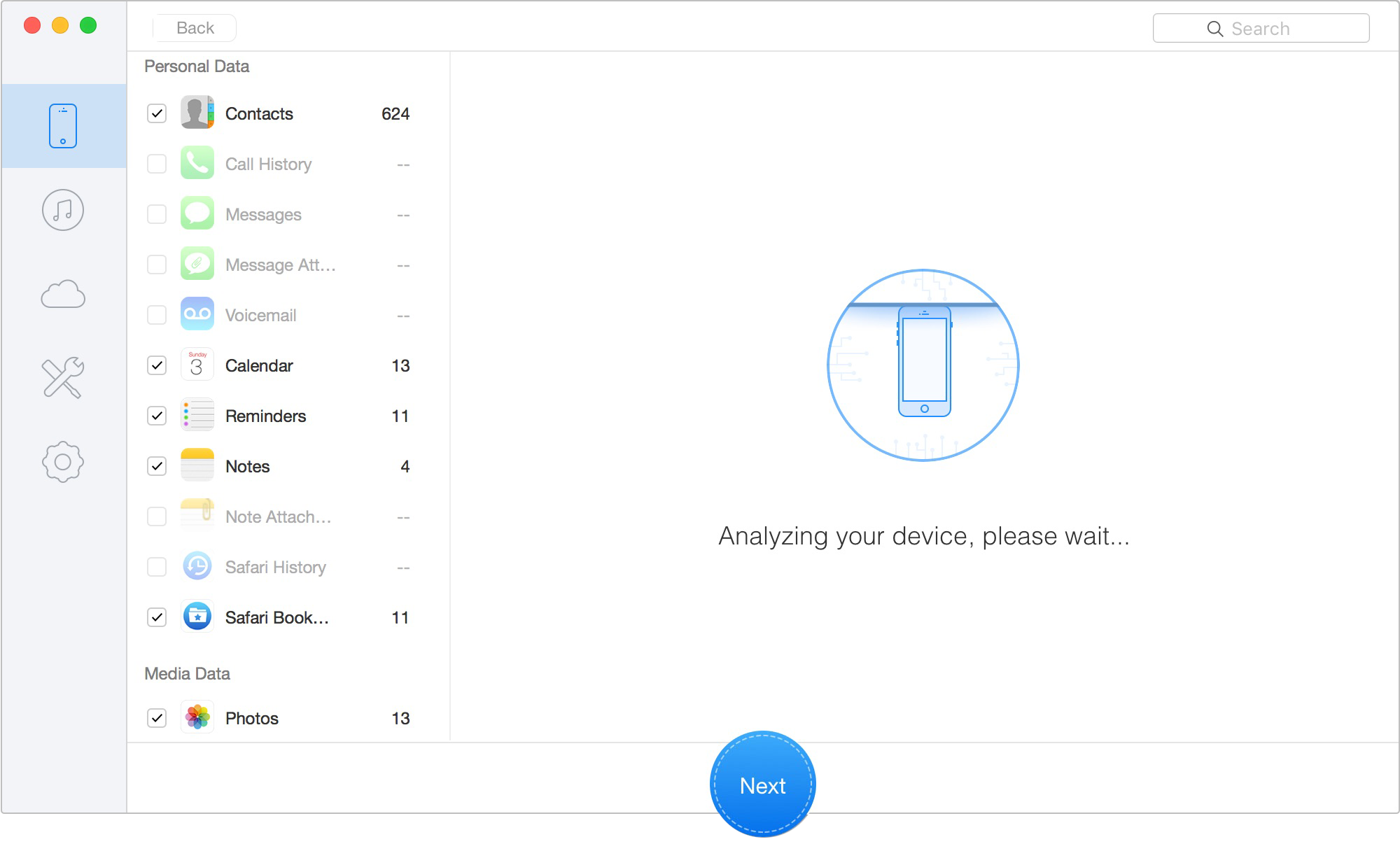
Scan Lost iOS Data on iOS Device
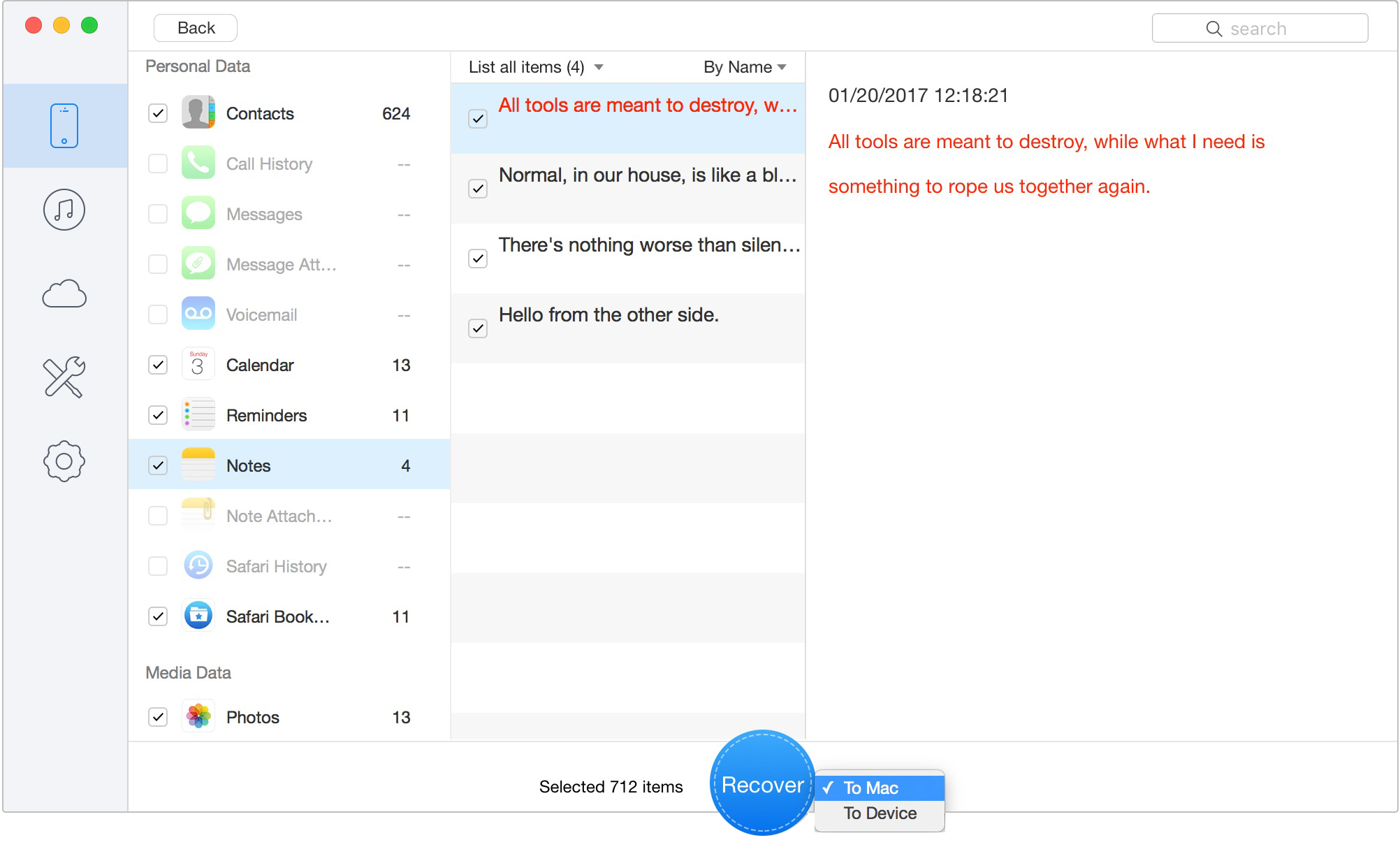
Retrieve Data to Computer or iOS Device
For my specific situation, running a deep scan allowed me to recover smaller, yet perfectly viewable, thumbnail versions of my missing family pictures from an app cache. Because the software extracts these files directly to your computer rather than the phone, it completely eliminates the risk of overwriting your current data.
Yes, but with caveats. If the images are no longer in the Recently Deleted album, your most reliable method is extracting them from an existing iTunes or Finder backup. If you lack a backup, you can use professional, paid software to scan your device’s memory for cached thumbnails and app data fragments, though recovering the original high-resolution file is highly unlikely due to Apple’s file-level encryption.
Apple stores deleted images in the Recently Deleted folder for exactly 30 days. After this period, the system permanently removes them from your active photo library and shreds the encryption keys for those files.
Absolutely. If you have no cloud archive available, check your computer for local Finder or iTunes backups. If none exist, your final option is to use a third-party extraction tool to scan your physical device for remnant data fragments, allowing you to recover iPhone photos without backup.
Yes. Restoring a local backup via standard Apple built-in methods causes a complete storage overwrite. Restoring an older backup will permanently erase any new files, messages, and photos created after the backup date.
Scan, preview, and recover available iPhone data without a full-device restore. Click Here to Free Download
Losing irreplaceable family photos during a routine device cleanup is a genuinely stressful experience. Navigating the confusing web of real-time iCloud syncing, encrypted local backups, and permanently deleted folders only adds to the frustration. If you find yourself with an expired Recently Deleted album and no local computer backups, you have a decision to make. You can attempt to find remnants of your files using a paid third-party tool like Primo iPhone Data Recovery, keeping in mind the technical limitations of iOS encryption and the potential loss of metadata. Alternatively, you can take this as a hard lesson in the importance of maintaining static, encrypted local backups on your computer. Whichever route you choose, always remember to verify your backup systems before executing your next storage cleanup.
Ansel A member of PrimoSync Support Team, passionate for mobile industry and ready to help you with Apple related issues.
Get Up-to-the-minute iPhone Tips & Enjoy Awesome Deals.



Design Simple and Beautiful Software
with Passion & Love

