
 by Ansel on May. 29, 2026 | NO COMMENT
You accidentally factory-reset your device before transferring critical work messages and photos to your new phone. Now you are staring at an old, encrypted Finder backup, realizing that running a standard Apple restore will completely overwrite your newly set-up device.
If you are facing a wiped device and desperately need your data, you are not alone. You need a way to pull specific files out of that backup without wiping your current phone. However, getting those files is rarely as simple as opening a folder.
In this guide, we bypass the standard Apple restore method. We will walk you through exactly how Apple structures these backups, address the frustrating realities of backup passwords, outline the privacy risks of third-party extraction, and show you exactly how to safely extract your messages and photos using a reliable tool.
Many users mistakenly assume that an iOS backup acts like a standard USB flash drive. They believe they can simply click a folder, find their images, and drag them to the desktop. Unfortunately, this is not the case. The modern Apple backup structure relies on a complex SQLite database layered with strict security protocols.
When your computer saves your device data, it strips away the familiar file names and replaces them with long, unreadable alphanumeric codes. If you try to force one of these files open with a text editor, you will be met with endless walls of gibberish or a corrupted file error. Parsing a 100GB SQLite backup database can take dedicated software 10 to 15 minutes; attempting to do this manually is virtually impossible for the average user.

Primo iPhone Data Recovery can help you retrieve your deleted messages on iPhone 7/7 Plus with or without backup. Click Here to Free Download
If you have an encrypted backup, Apple applies an additional military-grade AES-256 security layer. Encrypted backups are highly recommended because they store significantly more recoverable data, including saved passwords, Wi-Fi settings, and Health information.
However, we need to be entirely upfront about a common roadblock: If you forgot your password, your files are locked.
No legitimate third-party software can magically bypass Apple's backup encryption. If a tool claims it can instantly break your backup password, it is a scam. Without that exact password, the database remains completely inaccessible. If you are struggling to remember your password, do not buy extraction software yet. Instead, try these workarounds:
1. Try Old Passwords: Enter your current and old Apple ID passwords, your Mac user login password, and old device passcodes. Apple defaults to these in many cases.
2. Check Keychain Access: If you use a Mac, open the "Keychain Access" app and search for "backup." Your computer may have saved the password for you automatically.
3. Default Passwords: Try 1234 or 0000. In rare instances, users inadvertently set a basic PIN during the initial iTunes setup years ago.
If you have the password, you are ready to proceed. If not, you must exhaust every password guess before an extractor tool can help you.

Designed to fit effortlessly into your iPhone data recovery.
Download NowBefore you download any software to open your files, you must understand the privacy implications.
An iOS backup is a complete blueprint of your digital life. It contains your private texts, WhatsApp databases, browser history, financial app data, and health records. Granting a third-party application access to this unencrypted SQLite database carries inherent security risks.
When choosing an extraction tool, you must ensure it processes your data locally. A reputable tool will read the database entirely on your hard drive and export the files directly to your local machine. You should strictly avoid "free" online extraction services or unverified apps that require an internet connection to parse your data, as they may silently upload your private information to external servers.
Always look for commercial tools with clear privacy policies that guarantee zero data harvesting.
Must Read: How to Backup iPhone to Computer with/without iTunes
Before extracting files, you must first verify that your backup actually exists on your machine. The exact location of your backup database depends entirely on your computer’s operating system.
If you use a modern Mac, Apple has replaced iTunes with Finder for device management.
If you are on a Windows PC or an older Mac running macOS Mojave or earlier, your files are managed by iTunes.
[Image Placeholder: A photo of an actual computer screen displaying the raw, unreadable alphanumeric folder names inside a Mac's Finder backup directory. Alt-text: Screenshot of an iTunes backup directory highlighting why you need an iphone backup extractor software to read the data.]
⚠️ WARNING: DO NOT MODIFY RAW BACKUP FILES Modifying, moving, renaming, or deleting any of these alphanumeric files manually can permanently corrupt your entire backup database. If you corrupt the SQLite structure, you will lose the ability to restore your device or extract any data permanently. Only access this folder to verify the backup's existence; let dedicated software handle the extraction.
Once you verify the directory, you will see why manual extraction fails.
Primo iPhone Data Recovery can help you retrieve your deleted messages on iPhone 7/7 Plus with or without backup. Click Here to Free Download
To pull specific files without risking file corruption or overwriting your current device, you must use a dedicated extractor. Based on our evaluation of safety, local data processing, and user interface, we recommend Primo iPhone Data Recovery.
While Primo iPhone Data Recovery is a paid tool, it allows you to connect to your backup and preview your WhatsApp chats, messages, and photos for free. This means you do not have to pay a single cent until you visually confirm that your missing files are inside the backup. Furthermore, it features a unique direct-to-device restoration function that specifically solves the problem of not wanting to wipe your current phone.
Here is exactly how to use it:
Step 1: Connect and Select Your Local Backup
You do not need to move your backup files out of their hidden folders; the software is designed to find them automatically.
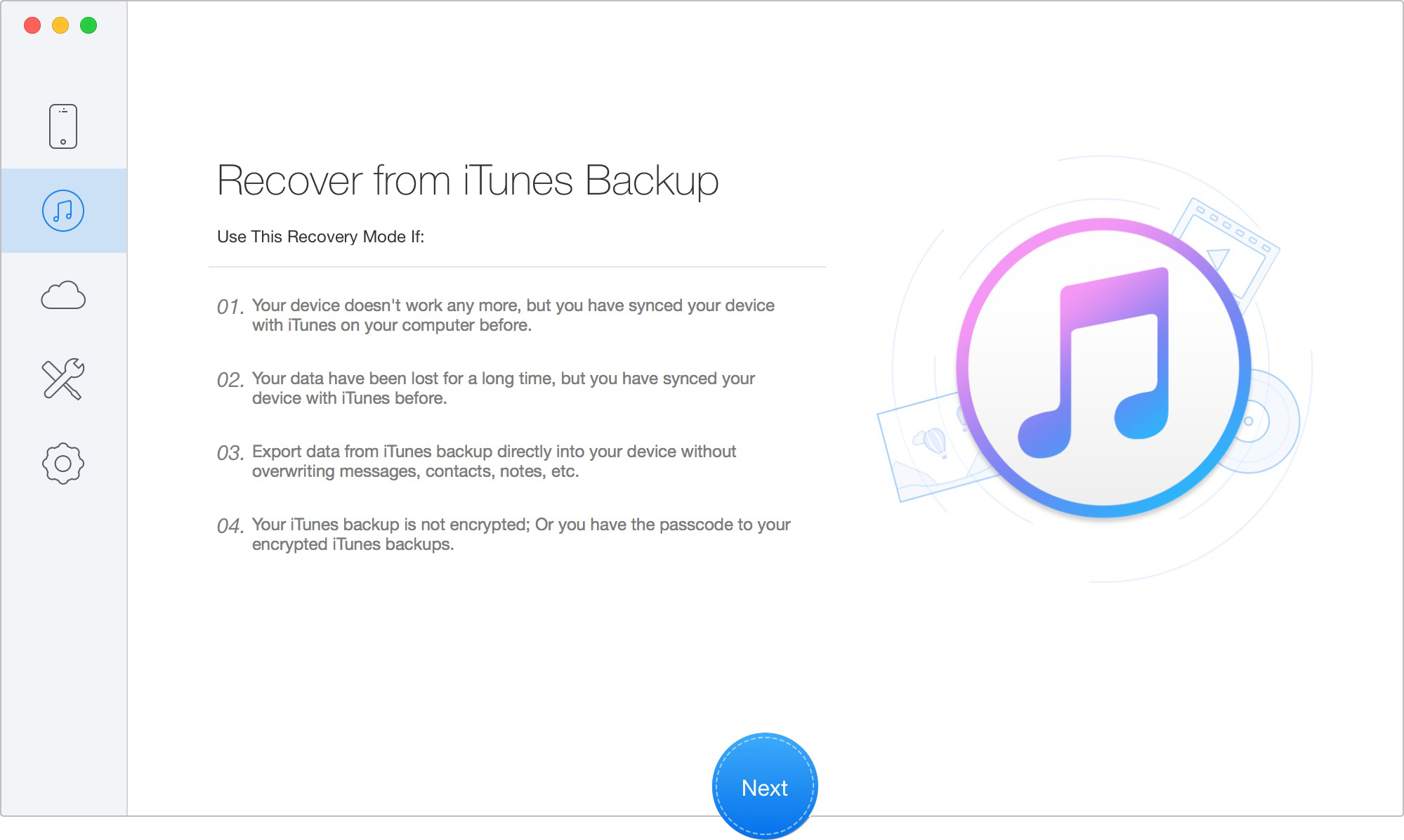
Choose the Recover Data from iTunes Backup
Step 2: Scan and Preview Your Files for Free
Rather than scanning the entire 100GB+ database, you can save time by performing a selective scan.
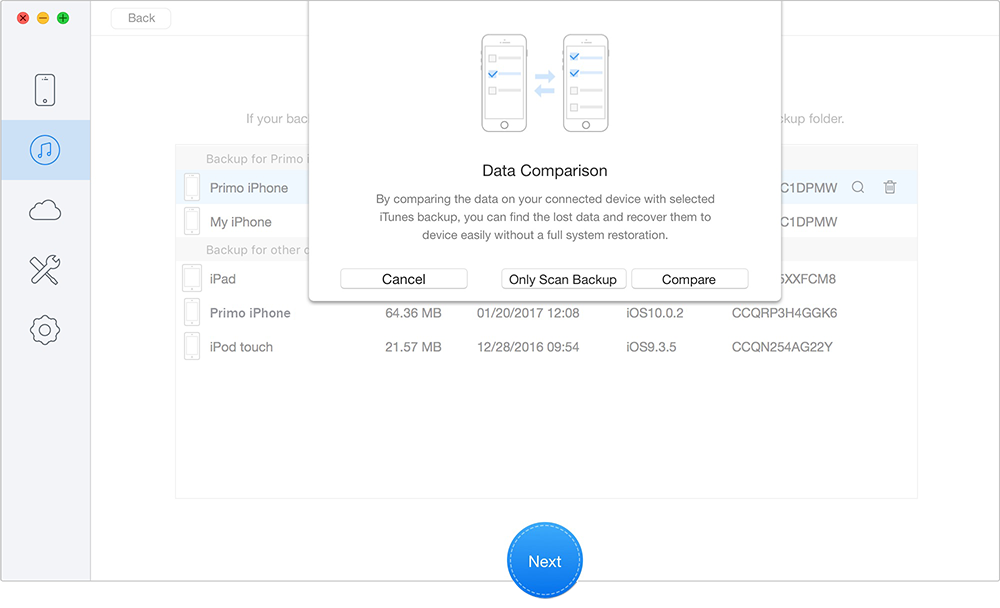
Scan Lost Data from iTunes Backup
Step 4: Extract to Computer or Recover to Device
This is where you bypass Apple's standard overwrite process. Select the specific checkboxes next to the photos or message threads you want to keep.
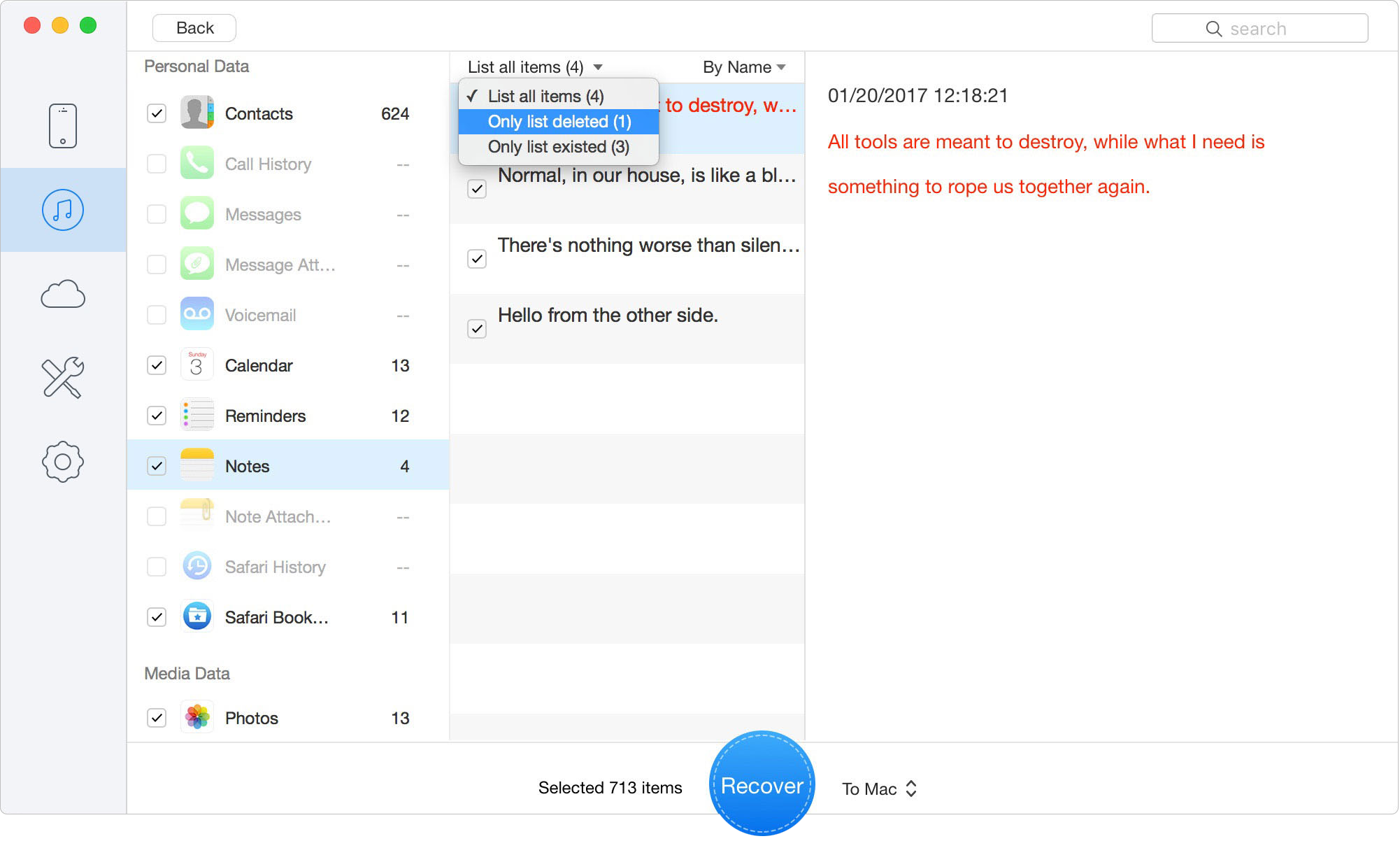
Recover Data to Computer or iOS Device
When performing data extraction, you also have the option to pull data from the cloud instead of a local machine.
Local extraction (as outlined above) relies on files physically stored on your computer's hard drive. Because the data is already local, parsing the database is generally much faster, and you retain complete control over your privacy since the data never leaves your machine.
However, if your local computer crashed, or if you simply do not have a local backup, you can use software to access your iCloud backups. A reputable iCloud backup extractor will securely connect to your Apple account, bypass the need to factory-reset your phone, and allow you to selectively download and view the contents of your cloud backup directly on your computer.
Can I preview my WhatsApp chats without wiping my current phone?
Yes. By using a specialized backup browser, you can scan your local backup directory and read your WhatsApp database directly on your computer screen without initiating an Apple system restore.
What exact error will I see if I try to open a backup file manually?
Because Apple removes file extensions (like .jpg or .pdf) and relies on an SQLite database, opening a raw backup file in a text editor like Notepad or TextEdit will display an endless screen of random symbols and alphanumeric characters. You cannot read or extract media this way.
Do I need to buy software just to see if my files are there?
No. Reputable tools offer a free scanning and preview feature. You can download the software, input your encryption password, and view your missing photos and texts. You only need to purchase a license when you are ready to export those files to your desktop or device.
Does third-party extraction software keep a copy of my data?
Professional, commercial extraction software processes the SQLite database locally on your own computer’s RAM and hard drive. It does not upload your contacts, photos, or passwords to external servers. Always read the privacy policy of the specific tool you choose to confirm local-only processing.
Can I extract just one specific text message thread?
Absolutely. Once the software parses the backup, it categorizes your data. You can navigate to the Messages section, locate the specific conversation by contact name, check the box next to it, and export only that thread as a PDF.
Losing vital data is incredibly stressful, especially when your only safety net is an unreadable database and you absolutely do not want to overwrite your newly set-up phone. By understanding the complexities of Apple’s encrypted SQLite structure, you can avoid the dangers of manual file corruption and the privacy risks of untrusted tools.
If you have your backup password, you have complete power over your data. By using a secure, local-processing solution like Primo iPhone Data Recovery, you can bypass Apple’s restrictive full-device restore. Take advantage of the free preview feature to ensure your files are safe, and rely on the selective extraction method to get exactly what you need—whether that is a single photo or years of work messages—without sacrificing your current device setup.
Ansel A member of PrimoSync Support Team, passionate for mobile industry and ready to help you with Apple related issues.
Get Up-to-the-minute iPhone Tips & Enjoy Awesome Deals.



Design Simple and Beautiful Software
with Passion & Love

