
 by Ansel on May. 29, 2026 | NO COMMENT
Losing a crucial work document or client proposal from the Files app right before a deadline can induce immediate panic. If you accidentally deleted an important document and emptied the Recently Deleted folder, you might assume those files contain hours of unrecoverable edits. You urgently need a reliable procedure to recover your deleted iPhone files, but you are likely afraid restoring a backup will erase your newer data.
Most recovery tools online seem unsafe or misleading, adding to the frustration when deleted files are no longer appearing in your search results. You need a method to restore your documents without resetting your device. This guide provides a tested, stress-free solution. Whether you need to recover deleted downloads or locate missing assets from iCloud Drive, we will walk you through the safest methods to retrieve your data without sacrificing your current device content.
Before you begin the document recovery process, you must select the appropriate method for your specific situation. Choosing the wrong procedure can trigger a file overwrite, making future recovery impossible. Below is an objective comparison of the three primary methods available for iPhone file recovery, evaluated by success probability, risk to your existing data, and required technical skill.

Primo iPhone Data Recovery can help you retrieve your deleted messages on iPhone 7/7 Plus with or without backup. Click Here to Free Download
If you accidentally deleted an important document, your first step should always be checking native folders. However, many users do not know whether their files were stored locally or in iCloud Drive.
One of the most critical expert insights to understand is that the Apple Files app acts as a visual front-end for multiple storage providers, rather than a single storage location. A deleted file may still exist inside Google Drive, Dropbox, or OneDrive despite disappearing from your main iOS screen. Many users mistakenly assume the file itself is permanently erased when only the Files app reference has been removed.
If you cannot find the Recently Deleted folder on your iPhone, follow these exact steps:
If the document is missing from the local trash, you must check your synced cloud services.
Pro-Tip: Understanding iCloud sync is crucial. If you delete a document on your phone, iCloud sync instantly removes it across all connected devices. Act fast before the cloud trash automatically empties.
Sometimes, you might lose downloaded PDFs, ZIP archives, or attachments from Safari or Mail and mistakenly believe they are gone forever. If you cannot remember which app originally created the deleted file, you need to understand how iOS manages app data.
Apple's operating system uses a security architecture called "sandboxing." Each application operates in its own isolated environment with dedicated storage. To recover deleted downloads, you must check these specific sandboxed folders.
If you need to recover a missing PDF or a lost Word document, try this technique:
1. Open the Files app and tap Browse.
2. Select On My iPhone (this represents your local storage).
3. Look for folders named after specific apps, such as Downloads (for Safari), Pages, Keynote, or Word.
4. Concrete Example: If you downloaded a client proposal PDF from Safari, it almost always defaults to the 'Downloads' folder under 'On My iPhone'—check there before assuming it has been deleted entirely.
5. Open the respective folder and check if the file was accidentally moved or saved there instead of being deleted.
Additionally, applications like Apple Notes have internal recovery systems. Open the Notes app, tap the Folders back-arrow, and scroll down to the Recently Deleted section.

Designed to fit effortlessly into your iPhone data recovery.
Download NowIf your files are entirely missing from all trash folders, traditional Apple documentation recommends an iCloud backup restore or a Finder backup restore (formerly known as an iTunes backup). However, this method carries significant risks.
Many users are confused by the difference between iCloud backup and iCloud Drive sync. As established, iCloud Drive syncs files in real-time. An iCloud backup, conversely, is a static, hidden snapshot of your entire device taken at a specific date and time. [Internal Link Suggestion: Link the preceding phrase to '/how-to-backup-iphone-to-icloud']
Warning: Restoring a backup will completely overwrite your iPhone's internal storage. Any text messages, photos, or documents created after the backup was made will be permanently erased.
Before taking this risk, verify if you actually have a backup containing the lost file:
1. Open the Settings app.
2. Tap your Apple ID name at the top.
3. Select iCloud, then tap iCloud Backup.
4. Look at the date and time under Last Successful Backup.
If the timestamp predates your file deletion, and you are entirely comfortable losing today's new data, you can proceed to Settings > General > Transfer or Reset iPhone > Erase All Content and Settings to start the restore procedure.
For users dealing with the worst-case scenario—you emptied the Recently Deleted folder, have no Finder backup, and desperately need to retrieve your files without resetting your iPhone—native iOS tools will not work.
When you cannot afford to wipe your phone and lose your recent photos and texts, the safest and most reliable procedure is using professional desktop recovery software like Primo iPhone Data Recovery. Unlike traditional iCloud restores that overwrite your current device, Primo iPhone Data Recovery performs a deep read-only scan of your iPhone, iTunes backup, or iCloud backup to locate recoverable files without erasing existing content.
One major advantage is its selective recovery capability. Instead of restoring your entire backup and risking newer data loss, you can preview deleted PDFs, ZIP files, Word documents, notes, photos, and app files individually before recovering only the items you actually need.
Primo iPhone Data Recovery is especially useful for users who:
Because the software uses a no-data-loss recovery process, it minimizes overwrite risks while maximizing the chances of retrieving deleted files before the storage sectors are reused.
Primo iPhone Data Recovery provides three recovery modes depending on your situation:
For most users trying to recover deleted documents quickly without data loss, "Recover from iOS Device" is the recommended option.
Because downloading apps directly to your phone can overwrite the exact file you are trying to save, this process must be done using a computer.
Step 1: Download the Software on your Mac or PC.
Step 2: Connect Your iPhone. Plug your iPhone into your Mac or PC using a reliable USB-to-Lightning or USB-C cable. Ensure your phone remains in Airplane Mode.
Step 3: Run a "No-Data-Loss" Scan. Launch Primo iPhone Data Recovery and select "Recover from iOS Device." The software will perform a read-only scan of your device's flash memory. This means it only looks for missing data and will never overwrite or erase your existing texts, photos, or settings.

Recover data from iOS Device
Step 4: Preview and Export. Once the scan is complete, Primo iPhone Data Recovery will display all recoverable files. You can preview your lost PDFs, Word documents, or photos. Simply select the specific files you need and choose to export them directly back to your iPhone or save them safely to your computer's hard drive.
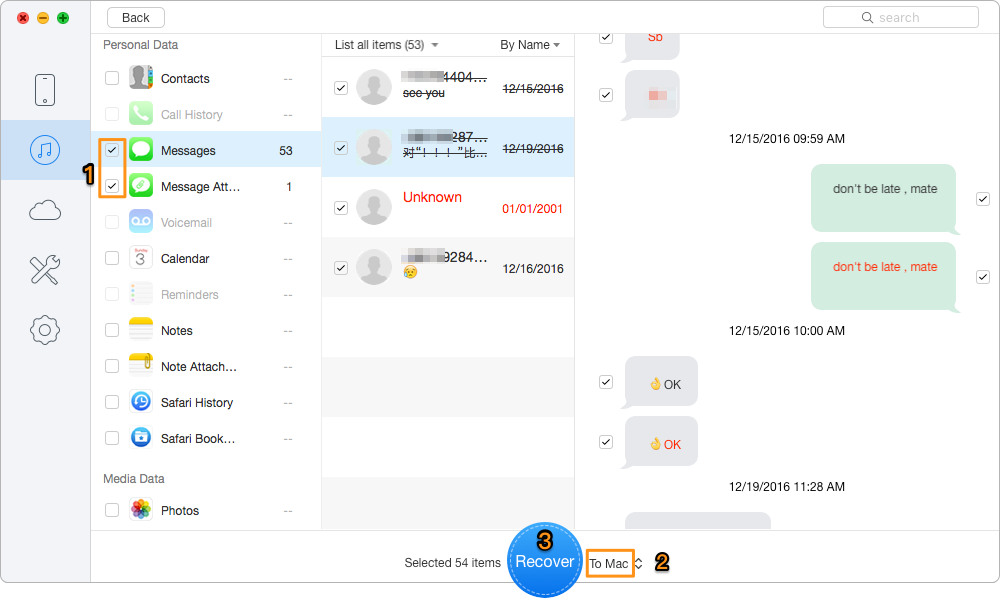
Choose data to export them directly back to your iPhone
This method gives you 100% control over the recovery process, allowing you to bypass the need for a risky, system-wide iCloud restore.
To maximize your chances of a successful recovery, it helps to understand what happens inside your device when you press delete.
When you move a document to the native trash folder, iOS places a 30-day countdown on it. Once that strict 30-day window expires—or if you manually empty the Recently Deleted folder—the operating system removes the master index reference to that file. You can no longer see it, but the file is not actually gone.
The raw data still physically exists on the flash memory chips inside your phone. Instead of wiping the data, iOS simply marks those specific memory sectors as "available" for new information. This is why turning on Airplane Mode immediately is so critical. If you continue taking photos, downloading apps, or receiving large group texts, that new data will be written directly over your hidden files. Once a file overwrite physically occurs on the flash memory, not even the most advanced data recovery software can bring it back.
You may Like: How to Recover Deleted Photos on iPhone.
How can I recover deleted files on my iPhone?
You can recover deleted files by checking the Files app's "Recently Deleted" folder, checking linked cloud service bins (like Google Drive or iCloud Drive), restoring a previous iCloud/Finder backup, or using specialized desktop data recovery software if no backup exists.
Where is the Recently Deleted folder in the Files app?
Open the Files app, tap the "Browse" tab at the bottom right, and look under the "Locations" menu. Tap "Recently Deleted" to view and restore your missing documents.
Can Primo iPhone Data Recovery recover deleted files without resetting my iPhone?
Yes. Primo iPhone Data Recovery can scan your iPhone directly and recover deleted files without requiring a factory reset or full backup restore. This allows you to recover important documents while keeping your current photos, messages, and app data intact.
What file types can Primo iPhone Data Recovery recover?
Primo iPhone Data Recovery supports recovering multiple file types, including PDFs, Word documents, Excel files, ZIP archives, notes, photos, videos, messages, attachments, and app-generated files stored on the iPhone.
Primo iPhone Data Recovery can help you retrieve your deleted messages on iPhone 7/7 Plus with or without backup. Click Here to Free Download
Accidentally deleting an important document from the Files app does not have to mean permanent data loss, nor should it cost you all your newly received photos and messages. Whether you simply couldn't find the Recently Deleted folder, forgot which app created the file in its sandbox, or are terrified a backup restore will wipe today’s data, you now have a safe procedure to move forward.
When you urgently need to recover work or school documents, relying on guesswork is too risky. By immediately turning on Airplane Mode, checking your third-party cloud bins on a computer, or using a dedicated desktop tool like Primo iPhone Data Recovery to scan your device's hidden memory sectors, you can regain control of your missing data and solve the problem in minutes. Restore your files safely, and get your peace of mind back.
Ansel A member of PrimoSync Support Team, passionate for mobile industry and ready to help you with Apple related issues.
Get Up-to-the-minute iPhone Tips & Enjoy Awesome Deals.



Design Simple and Beautiful Software
with Passion & Love

