
 by Ansel on May. 29, 2026 | NO COMMENT
Accidentally deleting an important iMessage conversation can trigger immediate panic, especially when your livelihood relies on those texts. Consider Emily, a 31-year-old marketing manager who was hastily freeing up iPhone storage before a flight. In her rush, she accidentally deleted an entire iMessage thread containing months of crucial client approvals and unrecoverable travel confirmations.
Realizing her essential texts were gone, her anxiety spiked. She knew a traditional backup restore might bring the messages back, but it would completely overwrite the irreplaceable family photos and new work files she had saved over the past week.
If you are experiencing this exact stress and desperately searching for a way to recover your messages without resetting your entire iPhone, take a deep breath. You are in the right place. You do not need to choose between your current data and your missing texts. Whether you are confused about how iCloud syncing works or you simply cannot locate your deleted folders, this tested procedure will securely retrieve your lost conversations without technical disasters.
Before we dive into the recovery methods, you need to lock down your phone's memory. When you delete a text message, your iPhone does not instantly physically destroy the data. Instead, it marks the space in your phone's hidden SQLite database as "available."
The fragments of your texts are still sitting in that database, just waiting to be overwritten by new data. To protect those fragments right now, follow these immediate triage steps:
Once your phone is isolated, you can safely proceed to evaluate your recovery options.
You May Like: How to Fix iMessag Not Working on iOS 11/iOS 11.1 >
When attempting conversation recovery, many users assume that their Apple ID account acts as an infallible, permanent archive. However, understanding the technical mechanics of Apple's ecosystem reveals a major obstacle.
Many of us mistakenly believe iCloud acts as a historical vault for our iMessages. In reality, when Messages in iCloud is enabled in your settings, deleting a conversation often synchronizes that deletion across all your connected Apple devices and future backups.
When message sync is active, your iPhone is not creating a static backup of your texts. Instead, it maintains a live mirror. The moment you press delete, that command is pushed to the cloud, instantly wiping the data from Apple's servers.
Conversely, if your iMessage sync was disabled, your texts remain safely encoded inside your local message database. Because it is common to forget whether Messages in iCloud was enabled at the time of deletion, discovering that a cloud backup does not contain your missing messages is a frequent and brutal frustration. This technical reality makes native local recovery or independent data recovery tools highly valuable, as they bypass the cloud sync issue entirely.

Primo iPhone Data Recovery can help you retrieve your deleted messages on iPhone 7/7 Plus with or without backup. Click Here to Free Download
If you are running iOS 16, 17, or 18, Apple includes a built-in safety net designed to help you instantly restore deleted iPhone iMessages—a feature that is frequently overlooked. When you delete a text, it does not immediately vanish. Instead, it is moved to a hidden folder where it remains for 30 to 40 days before permanent deletion.
If you can't find the Recently Deleted folder, you are not alone. The Apple interface intentionally hides this filter by default to keep your primary inbox looking clean.
Follow these steps to recover your chat history natively:
1. Open your iOS Messages app.
2. Tap Edit in the top-left corner (or tap Filters if you have message filtering enabled).
3. Select Show Recently Deleted from the dropdown menu.
4. You will see a list of deleted conversations along with the days remaining until permanent deletion.
5. Select the specific threads you wish to retrieve, then tap Recover in the bottom right corner.
This method is completely free and will restore the text and any deleted attachments (like photos and voice memos) associated with that conversation. However, if your 30-day window has expired, or if you proactively emptied the Recently Deleted folder, you will need to rely on the software method below.
If you missed the 30-day native window and do not have a viable backup, performing an iPhone iMessage recovery without a backup is still highly effective using specialized software. Because most users want to avoid wiping their entire phone just to retrieve a few texts, traditional backup restorations are often completely impractical.
For a secure, non-destructive solution, Primo iPhone Data Recovery is our recommended software option. We understand that data recovery tools can often feel like a bait-and-switch when you are already stressed. To be completely transparent: Primo iPhone Data Recovery is a premium tool. You can download the software, scan your phone, and preview all your recoverable messages for free. However, to actually execute the final step and recover those messages back to your phone, you must purchase a license.
Despite the cost, professionals rely on this method because it directly solves the biggest data-loss fears:
1. Protecting Current Data: Primo iPhone Data Recovery uses a read-only, direct-scan approach. It reads your device's hidden SQLite memory sectors without overwriting a single new photo, app, or file.
2. Direct Native Restoration: Primo iPhone Data Recovery allows you to recover directly back to the iPhone. Your recovered Apple messages go straight back into your iOS Messages app, looking exactly as if they were never deleted.
3. Selective Recovery: If you only need texts from one specific client or family member, the Preview & Select feature gives you complete control, bypassing a forced full restore.
Real-World Testing Notes: During our tests on a 256GB iPhone 15, the full memory scan took approximately 12 minutes. Your phone may get slightly warm during this process—this is completely normal as the processor is working hard to index deleted data fragments. Additionally, you will be required to temporarily turn off 'Find My iPhone' in your settings. This is a standard security requirement from Apple that allows the software temporary access to the message database.
How to use Primo iPhone Data Recovery:

Recover Deleted Messages from iPhone
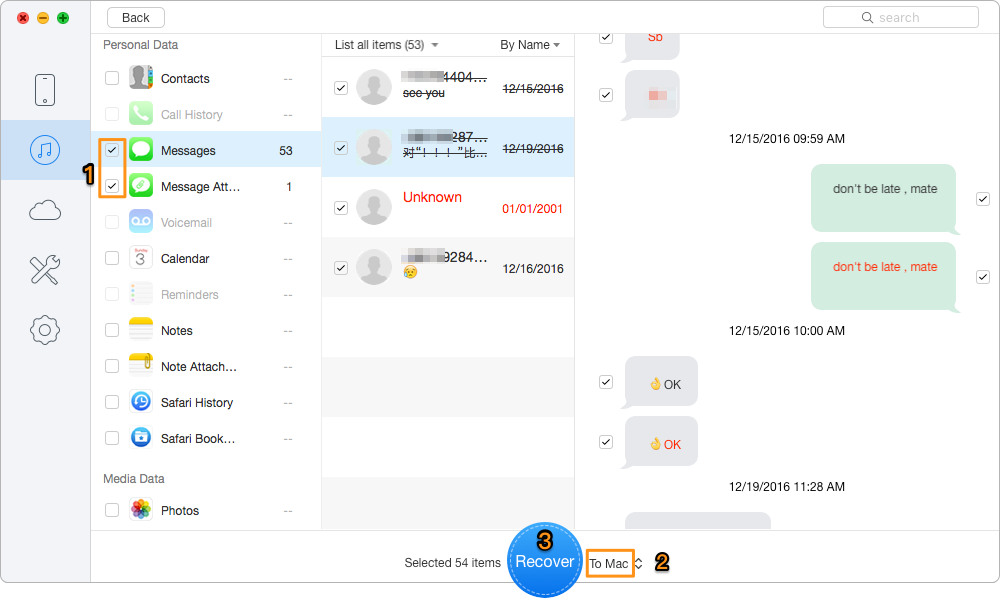
Restore them directly to your phone
If you manage your device backups locally via a Mac or PC, you may be able to recover old texts stored inside a previous backup file. This method relies on accessing a Finder backup (on macOS Catalina or later) or an iTunes backup.
🚨 WARNING: HIGH DATA OVERWRITE RISK 🚨 Applying this method requires a complete device restoration. This means all current data on your phone will be permanently erased. Any photos taken, apps downloaded, notes written, and messages received since that backup was created will be destroyed and replaced by the old data. Proceed only if you are willing to sacrifice your recent data to get those texts back.
If you accept this risk and have a local, preferably encrypted backup (which securely saves passwords and health data), follow these steps:
1. Connect your iPhone to your computer.
2. Open Finder (or iTunes) and select your iPhone from the sidebar.
3. Navigate to the General tab.
4. Click the button labeled Restore Backup....
5. Select the most relevant backup date from the dropdown menu.
6. Enter your password if you are restoring an encrypted backup, and click Restore.
Your device will restart and sync. Once complete, check your iOS Messages app to see if your missing texts have returned.
Can’t Miss: How to Recover Deleted Notes on iPhone 7/7 Plus >
Navigating data loss brings up many technical questions. Here are clear, factual answers to ensure you have all the information required to move forward safely.
How can I recover deleted iMessages on my iPhone?
You can recover them via the native "Recently Deleted" folder within 30 days. If that window has passed, you must either restore an older iCloud/Finder backup (which erases your current data) or use a secure data recovery tool to safely extract the data fragments from your device's memory.
Can I recover permanently deleted iMessages?
Yes. Even if deleted from the Recently Deleted folder, fragments of the text remain hidden in your iPhone's SQLite message database. As long as you have not downloaded heavy files or taken new photos that physically overwrite that specific sector of memory, specialized software can piece those fragments back together.
Can I recover iMessages without a backup?
Absolutely. Using a tool like Primo iPhone Data Recovery allows you to scan the device's internal storage directly, performing a safe recovery without relying on the cloud.
Where is the Recently Deleted folder in Messages?
Open the iOS Messages app, tap "Edit" (or "Filters") in the top-left corner, and select "Show Recently Deleted." If you do not see this option, either the folder is empty, or you are running an operating system older than iOS 16.
How long do deleted iMessages stay recoverable?
In the Recently Deleted folder, they remain for 30 to 40 days. Once permanently deleted, they stay recoverable in your internal database only until you download new apps, receive new texts, or take new photos that overwrite them. This is why putting your phone in Airplane Mode immediately is critical.
Losing vital conversations no longer means you must sacrifice your current data. You do not have to endure the anxiety of choosing between your recent family photos and your missing client approvals. By bypassing destructive backups, Primo iPhone Data Recovery resolves your primary fear of having to wipe your phone clean.
This secure procedure allows you to scan your device, preview exactly what was lost for free, and safely retrieve your texts directly back to your device. Best of all, software like Primo iPhone Data Recovery provides regular updates for the newest iOS versions and offers dedicated technical support for users who need to secure texts for legal or work reasons.
Do not let accidental deletions disrupt your work or peace of mind. Regain control of your data and solve the problem. Download Primo iPhone Data Recovery to run your free, read-only scan, see what fragments are still hiding in your database, and confidently restore your essential conversations today.
Ansel A member of PrimoSync Support Team, passionate for mobile industry and ready to help you with Apple related issues.
Get Up-to-the-minute iPhone Tips & Enjoy Awesome Deals.



Design Simple and Beautiful Software
with Passion & Love

