
 by Ansel on May. 29, 2026 | NO COMMENT
Upgrading to a new phone should feel exciting. But when you transfer your data, open your Messages app, and discover your search function is completely broken, that expensive new device suddenly feels incredibly frustrating.
If you recently upgraded your iPhone and restored thousands of conversations from iCloud, only to find that searching for a keyword yields partial results alongside the warning, "More results will be shown once messages finishes indexing," take a deep breath.
Apple provides very limited troubleshooting guidance for this, leaving many users wondering if their texts are deleted forever. Restarting your iPhone often does nothing, and simply "waiting it out" isn't a practical answer if you rely on those message records for daily work.
Your messages are likely safe, but the system is stuck in a background bottleneck. This guide strips away the generic advice to provide a tested, step-by-step procedure to resolve this indexing error, verify your data is safe, and get your missing records back.
Before you start changing settings on your iPhone, you need to understand why this error is happening. Here is a critical piece of technical insight that most troubleshooting guides miss: Spotlight search and Messages database synchronization are entirely separate background processes.
When you transfer to a new device or restore a large backup, it is natural to assume the local search feature is frozen. However, the real bottleneck is almost always iCloud message synchronization.
If your conversations are filled with large photos, videos, and GIFs, this media-heavy library delays your iCloud message download heavily. Your local search cache cannot index what has not yet downloaded. Therefore, until the cloud-to-device synchronization finishes, you will continue to see the alert.

Primo iPhone Data Recovery can help you retrieve your deleted messages on iPhone 7/7 Plus with or without backup. Click Here to Free Download
Instead of guessing if your phone is stuck, you can verify exactly what it is doing:
1. Open your Messages app.
2. Scroll to the very bottom of your most recent conversation list.
3. Look for a tiny progress text. It will likely say "Syncing with iCloud..." or "Downloading Messages from iCloud..."
If you see this progress bar, your messages are not deleted; they are just taking a long time to download. Recognizing this difference prevents unnecessary panic and stops you from performing a factory wipe when your system simply needs more time to process massive files.
Also Read: How to Retrieve Lost Data on iPhone after Upgrading to iOS 11 >
If you have confirmed that your messages are stuck downloading or indexing, follow this prioritized diagnostic flowchart. These free steps progress from basic requirements to system resets, helping you address the problem safely without risking your data.
Low device storage actively prevents the search database from building. If your phone is entirely full, the Spotlight rebuild process will pause indefinitely because it physically lacks the space to create the index cache.
1. Navigate to Settings > General > iPhone Storage.
2. Ensure you have at least 5GB to 10GB of free space.
3. If you are low on space, delete unused apps or clear out large video files to allow the indexing procedure to complete successfully.
Often, the connection between your device and the cloud stalls silently in the background. Toggling the sync forces the Messages app to re-establish the connection and resume downloading your message history.
1. Go to Settings > [Your Name] > iCloud > Show All > Messages.
2. Turn off Sync this iPhone.
3. Wait roughly 30 seconds, then toggle the sync switch back on.
⚠️ WARNING: Read Before Toggling When you turn off "Sync this iPhone," iOS may pop up a prompt asking what you want to do with the currently downloaded messages. Always choose to "Keep on My iPhone" or "Download".
What if the prompt doesn't appear? Don't panic. Sometimes iOS simply turns the switch off without asking. Your master database is still safely stored in iCloud. However, be aware that forcing a re-sync of a massive database can take several hours to resume, so only perform this step when you are connected to a fast, stable Wi-Fi network.
You may be thinking: "I've already waited days, why is it still indexing?"
The answer is that iOS background indexing aggressively pauses itself to save your bandwidth and battery life. It does not run 24/7. The iOS indexing process prioritizes heavy database building only when the device is:
1. Locked (screen off)
2. Plugged into a wall charger
3. Connected to a fast, stable Wi-Fi network
If you've been using your phone constantly on cellular data for the past few days, the indexing process hasn't actually been running. Connect to Wi-Fi, plug it in, and leave the screen locked to give it dedicated processing time.
If the sync bar is finished but search is still broken, try a forced restart to clear temporary system glitches.
1. For iPhone 8 and newer: Press and quickly release the Volume Up button.
2. Press and quickly release the Volume Down button.
3. Press and hold the Side power button. Keep holding it until the screen goes completely black and the Apple logo appears, then let go.
This hard reset flushes temporary memory without erasing your data.
If nothing else works, you can force the iOS system to completely drop its old, potentially corrupted search index and build a brand-new one specifically for the Messages app.
1. Go to Settings > Siri & Search.
2. Scroll down the app list and tap Messages.
3. Toggle off every single switch on this screen (e.g., Show App in Search, Show Content in Search, Show on Home Screen, Suggest App).
4. Restart your phone normally.
5. Return to the same menu and toggle all those switches back on.
💡 WHAT TO EXPECT: Will this delete my search cache? Yes. Toggling these switches off instantly tells iOS to delete the current Spotlight search cache for Messages. It does not delete your actual text messages. When you turn the switches back on, it acts as a manual trigger, forcing the system to begin cataloging your texts from scratch.
Also Read: How to Retrieve Lost Data after iOS 11 Update >

If you absolutely cannot wait for the background process to finish and need to find a critical conversation right now, third-party software can bridge the gap.
Primo iPhone Data Recovery is a professional iOS data recovery and extraction tool designed specifically for situations where Apple's native indexing or sync systems become stuck. Instead of relying on the iPhone's incomplete Spotlight cache, the software performs a direct read-only scan of your downloaded message database. This means you can search conversations, attachments, and message keywords immediately on your computer—even while your iPhone still says "Messages is indexing."
Unlike a factory reset or full iCloud restore, Primo iPhone Data Recovery does not erase your current device setup. It allows you to selectively preview and export only the conversations or attachments you actually need. Instead of waiting for the cache to build, Primo iPhone Data Recovery uses a read-only scan to locate your downloaded data directly from your device's internal memory.
A highly practical feature for users dealing with a frozen search loop is the ability to preview your raw database on a computer monitor. You can easily search for the exact keyword or attachment you are looking for. Instead of forcing a full factory reset, you can selectively export just the critical work conversations you need as readable PDF or HTML files.
While Primo iPhone Data Recovery is a paid desktop application, it offers free preview features so you can physically verify your target data is accessible before purchasing. It provides a secure, immediate workaround for users who cannot afford to wait days for Apple's native indexing to resolve.
Step 1: Install Primo iPhone Data Recovery
Download and install Primo iPhone Data Recovery on your Mac or Windows computer. Avoid installing additional apps directly on your iPhone while indexing is incomplete.
Step 2: Connect Your iPhone
Use a stable USB cable to connect your iPhone to the computer. Launch Primo iPhone Data Recovery and select "Recover from iOS Device."

Recover from iOS Device
Step 3: Start a Read-Only Scan
The software will analyze your locally downloaded message database directly from the device memory without relying on Spotlight indexing.
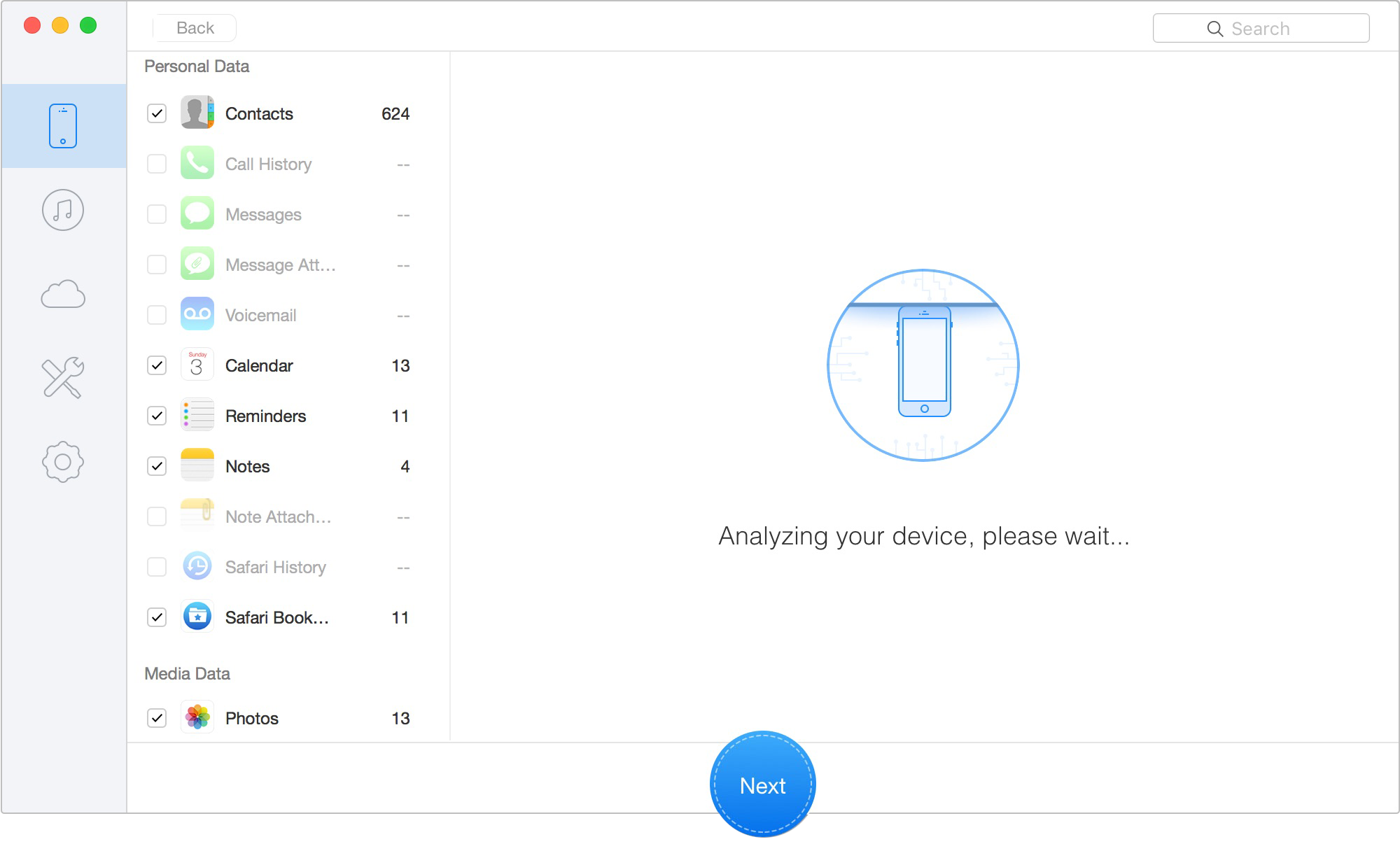
Scan Lost iOS Data on iOS Device
Step 4: Preview and Search Conversations
Once the scan finishes, you can manually search conversations, keywords, attachments, phone numbers, and message history directly inside the software interface—even if your iPhone search still shows incomplete results.
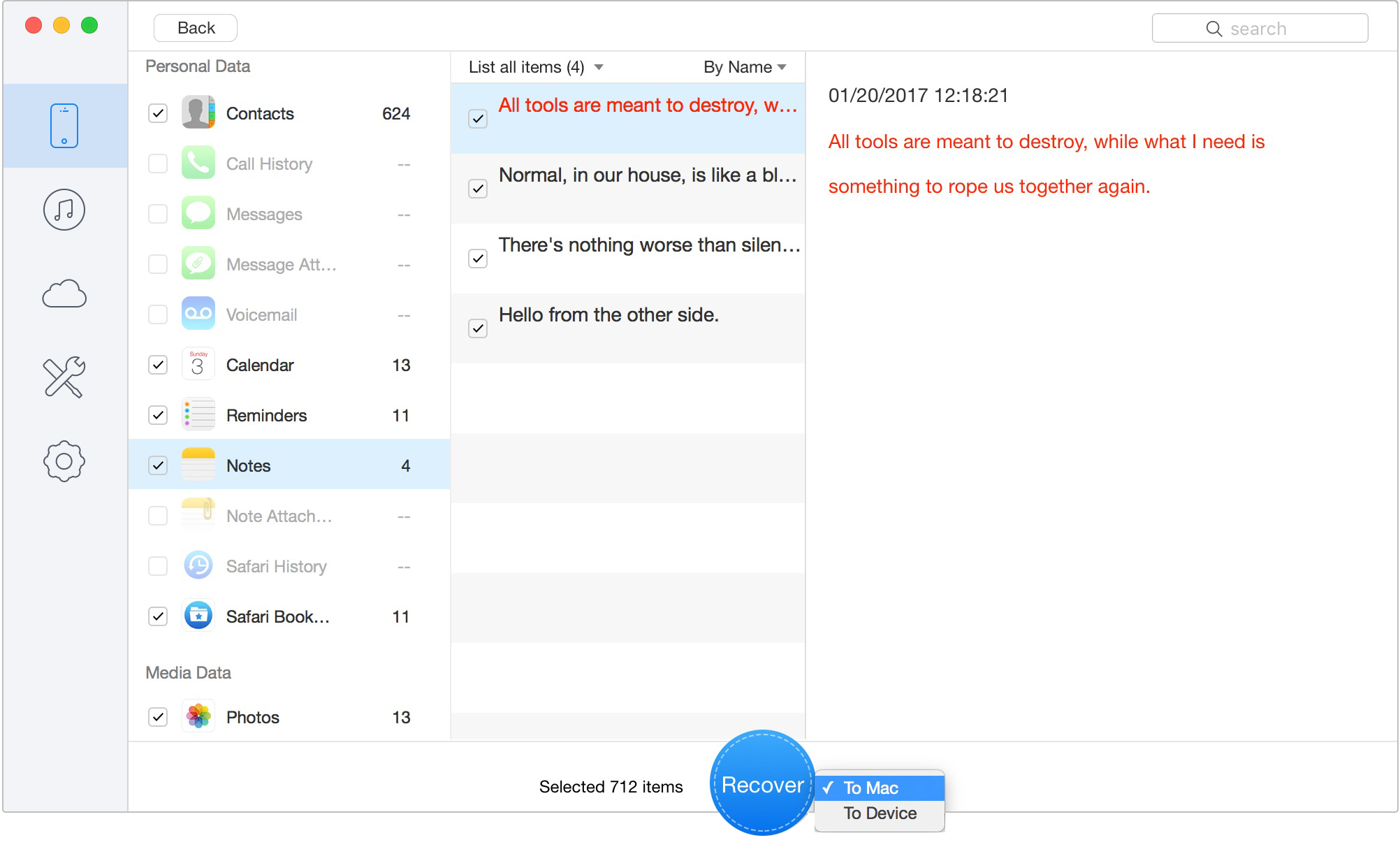
Preview the Scanned iOS Data
Step 5 Export Critical Messages
Select the conversations you need and export them as readable PDF, HTML, or TXT files to your computer. You can also recover selected data back to your device without wiping your current setup.
Why does my iPhone say more results will be shown once Messages finishes indexing?
This alert indicates that your iPhone is currently building its internal search catalog. It typically happens after a major iOS update, a device transfer, or when restoring a backup. It means the system is actively processing your downloaded message history so you can easily search for keywords.
Did my messages get deleted or are they still indexing?
If you can manually scroll through a conversation and visually read the texts, they are definitely not deleted. The local indexing process simply hasn't cataloged those specific words for the search bar yet. If you don't see the messages at all, check the bottom of the Messages app to see if they are still "Syncing with iCloud."
How long does Messages indexing take on iPhone?
We often hear promises of "a few hours," but realistic timelines vary heavily based on your database size. For a basic 5GB message history on fast Wi-Fi, it might take 2-4 hours. However, for a 50GB+ history with thousands of videos and GIFs, it can legitimately take 3 to 5 days of intermittent background syncing before the local indexing can even begin.
Why did message search stop after an iOS update?
Major iOS updates often restructure how the operating system organizes file directories. To ensure compatibility and prevent corruption, the system drops the old search cache and builds a completely new one in the background, temporarily making your search results unavailable.
Will resetting my iPhone fix indexing problems?
A simple restart or the forced restart mentioned above can clear temporary glitches safely. However, a full "Erase All Content and Settings" factory reset should be your absolute last resort. A factory wipe forces the entire downloading and indexing process to start over from zero, practically guaranteeing another massive delay.
Primo iPhone Data Recovery can help you retrieve your deleted messages on iPhone 7/7 Plus with or without backup. Click Here to Free Download
Losing the ability to search your own text messages is incredibly disruptive, especially when you rely on those records for your daily life. Dealing with an iPhone where indexing seems stuck forever is frustrating, but you no longer have to guess whether your messages are deleted or trapped in a background loop.
By checking your iCloud sync status bar, ensuring you have enough local storage, and selectively triggering a Spotlight rebuild, you can safely jumpstart Apple's background processes. Remember to keep your phone locked, plugged in, and connected to Wi-Fi to give it the optimal environment to finish the job. If waiting simply isn't an option, read-only extraction tools like Primo iPhone Data Recovery provide a safe bypass to access your crucial conversations immediately.
Apple's background indexing behaviors change slightly with every major iOS update, so bookmarking this page for your next phone upgrade is a smart strategy to ensure your message history transitions smoothly.
Ansel A member of PrimoSync Support Team, passionate for mobile industry and ready to help you with Apple related issues.
Get Up-to-the-minute iPhone Tips & Enjoy Awesome Deals.



Design Simple and Beautiful Software
with Passion & Love

