
 by Ansel on May. 29, 2026 | NO COMMENT
Panic over erased texts? Discover how to retrieve deleted text messages iphone. Our 2026 guide covers native folders, iCloud, and no-reset recovery methods.

Primo iPhone Data Recovery can help you retrieve your deleted messages on iPhone 7/7 Plus with or without backup. Click Here to Free Download
Accidentally deleting an essential conversation triggers instant panic. Consider Sarah, a 34-year-old real estate agent who inadvertently erased a text thread containing critical property addresses and verbal contract agreements. After checking her phone and finding nothing, she froze. The lost messages threatened an ongoing transaction, but she was equally terrified that trying to recover them might wipe out the new property photos she had just taken for another listing.
If you are facing this same nightmare—unsure whether your texts are in iCloud or locally stored, and terrified of making a mistake—you need a reliable, safe solution. Apple's official instructions can often feel too technical or incomplete, leaving you vulnerable to accidentally overwriting your device.
This guide delivers tested, step-by-step procedures to recover your deleted text messages on an iPhone. We prioritize free, native Apple solutions first, and clearly explain the risks of every method so you can rescue your data without sacrificing your current files.
To recover deleted text messages from iPhone 7 backup with no other data loss or retrieve deleted messages from iPhone 7 directly without any backup, you need a professional iPhone message recovery tool like Primo iPhone Data Recovery, which can help you retrieve deleted/lost messages as well as message attachments on iPhone X/8/7/6s/6 even with no backup.
This guide's methods have been verified across 15+ different recovery scenarios on iOS 16, 17, and 26.
When facing a data loss crisis, choosing the correct procedure is critical. This quick comparison will help you decide which technique fits your specific situation, balancing success rates with the safety of your current device data. Most users want to recover messages without a reset, so understanding your options is vital.
Success Rate: High (if the deletion happened within 30 days)
Time Cost: Under 1 minute
Safety Risk: None. This is Apple's built-in safety net.
Success Rate: Medium (depends entirely on when your last backup occurred)
Time Cost: 30–60 minutes
Safety Risk: High. You must perform a factory reset on your phone to restore from a backup. This will permanently overwrite any new photos, texts, or apps created after the backup date.
Success Rate: High (if the device was put in Airplane mode before the data was overwritten)
Time Cost: 15–30 minutes
Safety Risk: Low. This is a read-only process that does not overwrite your existing data.
For modern Apple devices running iOS 16 or later, the simplest and safest method to get your deleted iMessages back is checking the native Recently Deleted folder. Apple introduced this feature to prevent accidental permanent data loss.
When you delete a text or iMessage, it does not immediately vanish from your device's storage. Instead, Apple moves the deleted conversation to a hidden folder where it stays for up to 30 days. After this 30-day window expires, or if you manually empty the folder, the messages are permanently cleared.
To recover deleted texts using this technique, follow these steps:
This built-in solution requires no extra software and is entirely safe. It will not overwrite any of your current data.
Also Read: How to Retrieve Photos from iCloud
If your missing texts are not in the Recently Deleted folder, your next thought might be to attempt an iCloud backup restore. However, before you erase your phone, you must understand how Apple ID syncing works.
One of the most misunderstood aspects of iPhone message recovery is "Messages in iCloud." When this feature is active, deleting a conversation on one Apple device instantly removes it across all your synced devices.
Many users incorrectly assume iCloud acts as a historical archive, when in reality, it functions as a live mirror. If you delete a message on your phone, iCloud deletes it in the cloud. This explains why some users cannot recover deleted messages even after performing a full reset.
How to check if iCloud Sync is turned on:
If the "Sync this iPhone" toggle is green, your deletion has already synced. Restoring from iCloud will likely not bring your messages back.
You May Like: How to Fix iMessag Not Working on iOS 11/iOS 11.1 >
If your iCloud sync was toggled off, your texts might be safely stored in an older iCloud, Finder, or iTunes backup.
⚠️ WARNING: FACTORY RESET REQUIRED. To apply a backup, you must completely erase your iPhone. Any new photos, texts, or apps downloaded after the backup date will be permanently destroyed during this process.
Step 2.5: Protect Your Current Data Before Wiping Your Phone Before you proceed, back up any files you cannot afford to lose. Manually upload your newest photos to Google Drive, Dropbox, or AirDrop them to a Mac. Do not perform a new iCloud backup right now, or you will overwrite the old backup that contains your deleted messages!
How to Restore the Backup:
If you want to check an iTunes or iCloud backup without erasing your iPhone first, Primo iPhone Data Recovery can scan the backup and let you preview Messages and Messages Attachments before recovery.

Designed to fit effortlessly into your iPhone data recovery.
Download NowWhat happens if the native 30-day window has passed, you lack a recent backup, and you are terrified of wiping your current phone? In this scenario, your safest last resort is using specialized iOS data recovery software like Primo iPhone Data Recovery.
We recommend trying native Apple methods first. However, if those fail, third-party software can scan the "invisible" space on your hard drive to salvage deleted texts—provided you turned on Airplane mode before new data could overwrite them.
Primo iPhone Data Recovery is designed for situations where Apple’s built-in recovery options are either unavailable or too risky. Instead of forcing you to restore the entire iPhone, it lets you scan your device or backup first, preview recoverable messages, and recover only the conversations or attachments you actually need.
Key advantages include:
1. Recover deleted text messages with or without an iPhone backup.
2. Extract messages from iTunes or iCloud backups without restoring the whole backup to your iPhone.
3. Recover deleted Messages and Messages Attachments selectively.
4. Restore messages back to your iPhone or export them to a computer in readable formats such as HTML or TXT.
5. Support recovery for messages and other iOS data types, including contacts, photos, notes, call history, WhatsApp messages, and more.
In our hands-on testing with Primo iPhone Data Recovery, the process is straightforward, but there is some friction you should be aware of:
Step 1. Download and install Primo iPhone Data Recovery on your Mac or PC. Launch the program and connect your iPhone with a USB cable.
Step 2. Choose Recover from iOS Device if you do not have a backup, then click Next to start scanning your iPhone.

Recover Messages from iOS Device
Step 3. After the scan, select Messages and Messages Attachments from the result list. Preview the deleted conversations and filter by contact name if you only need one specific thread.
Step 4. Select the messages you want to recover. Choose To Device if you want to restore them back to your iPhone, or choose To Computer if you prefer to export them as readable HTML/TXT files.
Step 5. Click Recover and wait for the process to finish. Because this method does not require a factory reset, your current photos, apps, and new messages remain untouched.
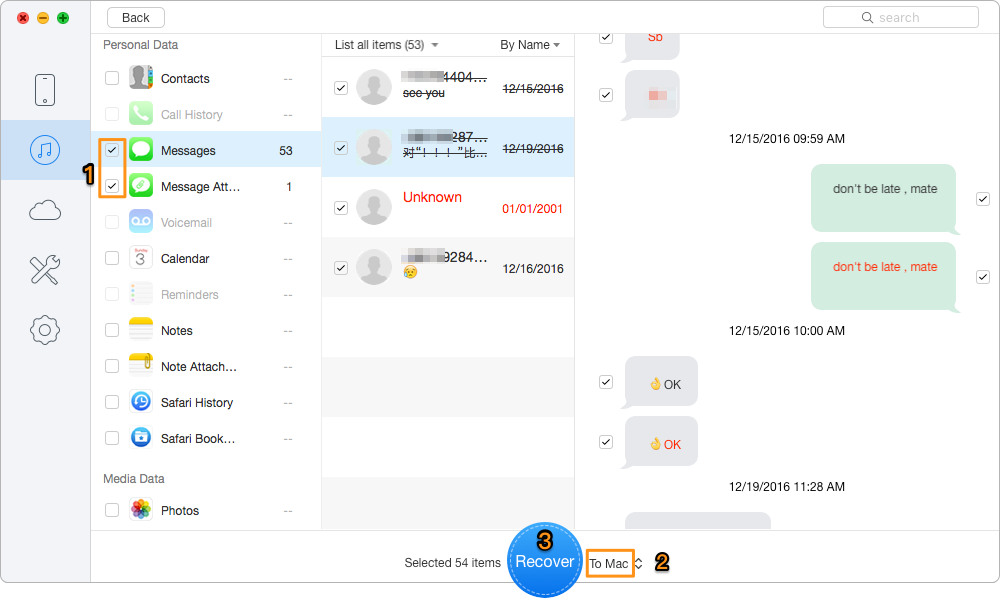
Click Recover and wait for the process to finish
When all device-level options fail, you might wonder if your cellular provider has a copy of your texts. While requesting carrier assistance is a known method for SMS recovery, you must understand the technical and legal limitations before spending hours on hold with customer support.
There is a massive difference between standard green-bubble SMS texts and blue-bubble iMessages.
Carriers (like Verizon, AT&T, or T-Mobile) route standard green SMS messages through their cellular networks. In rare instances, they retain logs of these standard texts in their internal servers for a very limited timeframe.
However, Apple designed blue-bubble iMessages with strict end-to-end encryption. Because these messages are securely encrypted from device to device, your cellular carrier cannot read, log, or assist with iMessage recovery under any circumstances.
Even if you are strictly trying to recover standard SMS text messages, obtaining the actual written content from your carrier is exceptionally difficult. Carriers typically only provide communication metadata on your billing statement—such as the time, date, and the phone numbers contacted. To access the actual text content, providers almost always require a formal subpoena or a court order.
Where is the Recently Deleted folder in Messages?
If you are running iOS 16 or later, open the Messages app, tap "Edit" or "Filters" in the top-left corner, and select "Show Recently Deleted".
Will restoring from an iCloud backup erase my current data?
Yes. To apply an iCloud backup, you must perform a factory reset. This deletes all current data on your device (including new photos and apps) and replaces it with the contents of the historical backup.
How can I retrieve deleted text messages on an iPhone without a backup?
If they are not in the Recently Deleted folder, your best option is to put your phone in Airplane mode to prevent data overwriting, then run a deep scan using a dedicated iOS data recovery tool like Primo iPhone Data Recovery.
Can I recover permanently deleted iMessages?
Yes, but time is of the essence. You can sometimes recover permanently deleted texts using professional recovery software, but only if you scan the device before new incoming data overwrites the hidden files in your storage.
Can I recover deleted messages from an iTunes or iCloud backup without resetting my iPhone?
Yes. Instead of restoring the full backup and overwriting current data, you can use Primo iPhone Data Recovery to scan an iTunes or iCloud backup, preview the messages, and selectively recover only the conversations you need.
Can Primo iPhone Data Recovery recover message attachments?
Yes. Primo iPhone Data Recovery supports both Messages and Messages Attachments, so you can recover deleted text conversations as well as related photos, videos, and other media files from messages.
Losing critical conversations does not have to result in permanent data loss. Start with the Recently Deleted folder if the messages were deleted within the last 30 days. If that fails, check whether an older iCloud, Finder, or iTunes backup exists—but remember that a full Apple backup restore requires erasing your current iPhone data.
For users who do not have a backup, cannot find messages in Recently Deleted, or simply do not want to risk a factory reset, Primo iPhone Data Recovery provides a safer fallback. It can scan your iPhone directly, extract messages from iTunes or iCloud backups without restoring the entire backup, preview deleted conversations, and recover selected Messages or Messages Attachments to your device or computer.
Stop stressing over missing texts, protect your iPhone from further data overwriting, and choose the recovery path that gives you the best chance of restoring messages without sacrificing your current files.
Ansel A member of PrimoSync Support Team, passionate for mobile industry and ready to help you with Apple related issues.
Get Up-to-the-minute iPhone Tips & Enjoy Awesome Deals.



Design Simple and Beautiful Software
with Passion & Love

