Share with your friends!
Don't forget to install it on your computer after downloading.
OK, Back to ArticleHow to recover deleted contacts from iPhone 7 (Plus) easily and quickly? This article will tell you the detailed solutions to recover lost contacts on iPhone 7 whether or not you have a backup.
Don’t have Primo iData Recovery? Download it now prior to reading this guide and it will save you quite a lot of time. Click Here to Free Download
As we all know, the contacts on iPhone are so important in our daily life because we always rely on those contacts to call, message and FaceTime our relatives, and friends etc. Especially for iPhone 7 that comes with iOS 10, which is attached with improved iMessage app and built-in dual cameras, this makes us communicate with others in a more interesting way, and share more high quality photos. However, we may encounter serious situation – lose contacts on iPhone 7 due to upgrade failure, accidental deletion or failed jailbreak etc.
When it comes to how to get back lost contacts on iPhone 7, most of us would think of iTunes /iCloud backup. Yes, it is, but this is limited to that you have made a recent backup in advance. However, what if you haven’t made any backup? Or what if you don’t want to fully restore iPhone with all data in the backup? Therefore, we recommend Primo iData Recovery to solve all your concerns.
Next, you will read a brief introduction to Primo iData Recovery. You will know some top features of it and see why it can help recover lost contacts on iPhone 7 with/without backups.
1. Supports recovering 25+ kinds of data on iPhone: You can get back contacts as well as other data such as messages, notes and photos etc.
2. Supports recovering data directly from iDevice: Even if you don’t have any backup, you can still retrieve deleted contacts on iPhone 7 (Plus).
3. Supports extracting data from iTunes/iCloud backup directly: You don’t need to restore iDevice with iTunes/iCloud backup. This means you can get back lost contacts from the backup without any data loss.
4. Helps recover lost contacts from iTunes/iCloud backup without iOS restoration and data loss.
5. Primo iData Recovery will instantly scan all your data on iPhone. And you can view all the contacts in advance, and recover what you want selectively.
After losing contacts from iPhone 7, only to find you haven’t made any backup? At this time, normally, you will find it hard to recover deleted contacts on iPhone 7 any more. Don’t worry. We offer you a method to recover lost contacts directly from your iPhone 7 with Primo iData Recovery. Now follow us to retrieve deleted contacts on iPhone 7 without any backup.
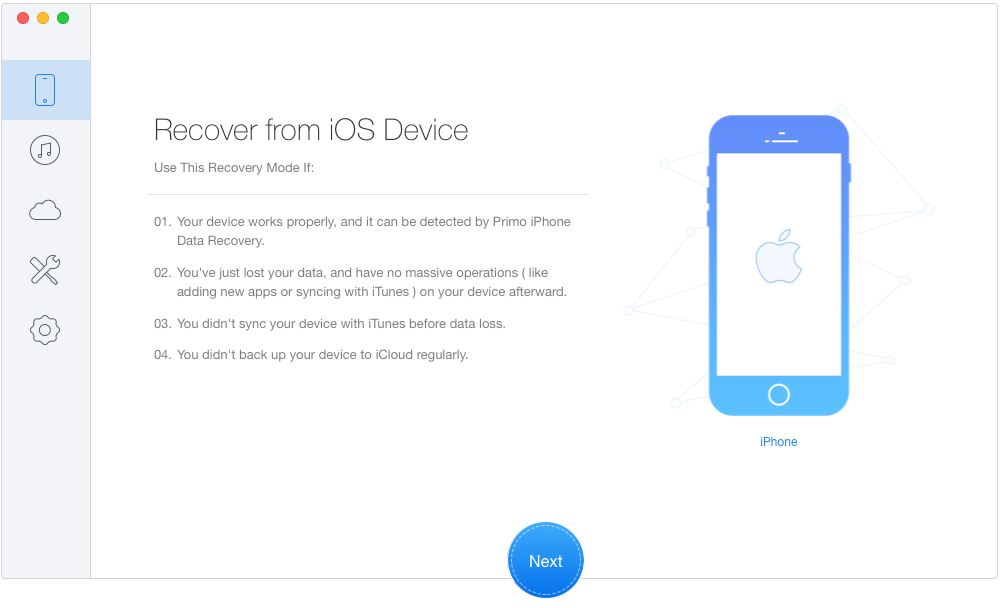
Step 1. Download and install Primo iData Recovery and open it on your computer > Connect your iPhone 7 (Plus) to computer > Click Recover from an iOS Device.
How to Recover Deleted Contacts from iPhone 7 (Plus) Directly– Step 1
Step 2. Choose Contact > Click Start Scan.
How to Recover Lost Contacts from iPhone 7 (Plus) without Backup– Step 2
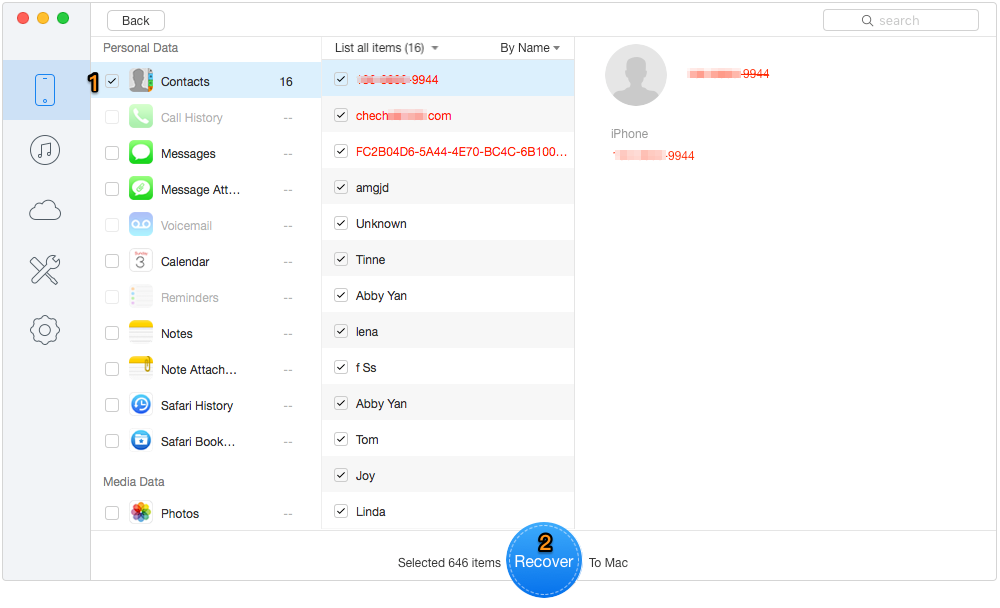
Step 3. Preview the scanned results and click Only Show Deleted, then choose what you want to recover > Click Recover button to recover deleted contacts.
How to Retrieve Deleted Contacts from iPhone 7 Directly– Step 3
As long as you have made an iTunes backup before losing contacts on iPhone 7, you can use Primo iData Recovery to extract deleted contacts from the backup without restoring iDevice. And during this process, all data and settings on your iPhone 7 will be safe. Next, let’s start with the detailed steps to recover lost contacts on iPhone 7 with iTunes backup.
Step 1. Download and Install Primo iData Recovery and open it on computer > Click Select an iTunes Backup.
Get Back Lost Contacts from iPhone 7 (Plus) with iTunes Backup– Step 1
Step 2. Choose a backup you want to recover (you can select the right backup according to backup date, serial number and size) > Click Next.
How to Recover Missing Contacts from iPhone 7 (Plus) with iTunes Backup– Step 2
Step 3. Choose Contact only > Click Start Scan.
How to Retrieve Deleted Contacts from iPhone 7 with iTunes Backup– Step 3
Step 4. Preview the details of contacts and you can click Only Show Deleted to choose what you want to recover > Click Recover to get back your lost contacts.
How to Get Back Missing Contacts from iPhone 7 (Plus) with iTunes Backup– Step 4
This section will tell you how to retrieve missing contacts from iCloud backup with Primo iData Recovery. And during this process, you needn’t to restore your iDevice, and just recover your wanted contacts instead of the whole backup. Now follow us to recover lost contacts from iPhone 7 with iCloud backup.
Step 1. Download and install Primo iData Recovery and open it on your computer > Click Select a Restore Entry on the interface.
Recover Deleted Contacts from iPhone 7 (Plus) with iCloud Backup– Step 1
Step 2. Choose iCloud Backup to recover lost contacts > Click Enter.
How to Recover Lost Contacts on iPhone 7 from iCloud backup – Step 2
Step 3. Login your Apple ID and password > Click right arrowhead icon.
How to Retrieve Lost Contacts from iPhone 7 with iCloud backup – Step 3
Step 4. Select one backup from all and download it (you can select the right backup according to backup date, serial number and size) > Click Start Scan to continue.
How to Recover Missing Contacts from iPhone 7 (Plus) with iCloud Backup– Step 4
Step 5. Choose Contact > Click Start Scan.
How to Retrieve Lost Contacts from iPhone 7 (Plus) with iCloud Backup– Step 5
Step 6. Preview the details of your contacts and you can click Only Show Deleted to choose what you want > Click Recover button to recover contacts.
How to Retrieve Deleted Contacts from iPhone 7 with iCloud Backup– Step 6
If you have synced your iPhone 7 with iTunes, you can recover lost contacts on iPhone 7 from iTunes backup using iTunes. However, this may lead to losing some data on your iPhone. And you cannot preview your contacts on iTunes. In view of those limitations, we recommend using Method 2 to extract lost contacts on iPhone 7 from iTunes backup to avoid losing data.
Step 1. Make a backup of your contacts on iPhone 7 (If you have already made one backup of your contacts, you can skip to step 2):
Connect your iPhone 7 to computer > Launch iTunes > Click Device tab > Click Summary > Choose This Computer in Backups column > Click Back Up Now.
Restore Contacts on iPhone 7 from iTunes Backup Using iTunes
Step 2. Connect your iPhone 7 to the computer > Open iTunes > Click Device tab > Click Summary > Choose This Computer in Backups column > Click Restore Backup > Turn off Find My iPhone on your iPhone 7 > Choose the backup you have made > Click Restore.
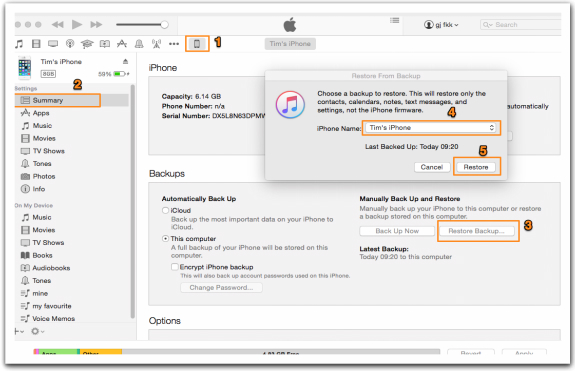
Recover Contacts on iPhone 7 from iTunes Backup Using iTunes
This method requires that you have enabled iCloud backup, your iPhone 7 is connected to the Internet over Wi-Fi and a power source as the restoration takes a long time. Just as restore from iTunes, you may also lose some data and settings on your iPhone 7 when recovering deleted contacts from iCloud backup. If you don’t want to risk losing data, you can follow Method 3.
Step 1. Settings > General > Reset > Erase All Content and Settings > Erase iPhone > Select Restore from iCloud Backup > Enter your Apple ID and password.
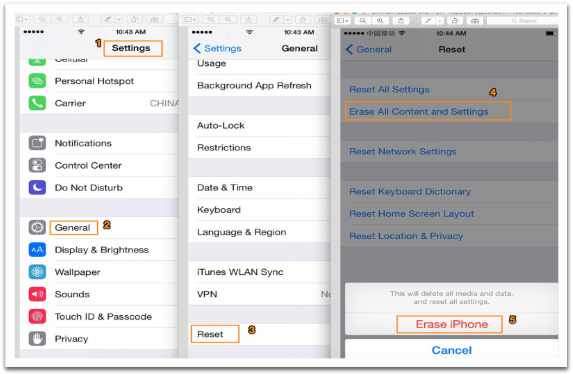
Get Back Deleted Contacts on iPhone 7 via iCloud Backup
Designed to fit effortlessly into your iPhone data recovery.
Download NowBesides contacts, Primo iData Recovery also supports recovering other iDevice contents like photos, notes, call history and messages on your iPhone 7 etc. And you can get deleted contacts back to device directly. Now Download Primo iData Recovery and Try it.
If you have any related questions when you use Primo iData Recovery to recover deleted contacts on iPhone 7, you can share with us by leaving a comment.
Ivy Member of @PrimoSync team, passionate and progressive, hope to help more iOS users solve various kinds of related issues by writing professional iOS-how-to guides.