
 by Ansel on Jun. 23, 2026 | NO COMMENT
Navigating how iCloud text messages operate can feel like walking through a technical maze. Whether you are setting up a brand-new iPhone and panicking because your historical text threads are missing, or you accidentally deleted a crucial conversation and are desperately looking for a way to get it back, you are not alone.
Many users log into iCloud.com expecting to see their conversations displayed neatly, only to find nothing. You might be unsure whether your conversations are actively synced or safely backed up, or perhaps you worry that deleting a text on your iPad automatically erases it everywhere.
This guide gets straight to the point. We provide a clear, tested procedure to help you recover recently deleted threads, understand whether your messages are synced or backed up, fix missing message sync issues, and restore lost data using native Apple options or third-party recovery tools like Primo iPhone Data Recovery. For a related recovery case, see how to recover deleted iMessages and text messages before choosing a full restore.

Preview and recover available iPhone data from your device, iCloud, or an existing backup. Click Here to Free Download
Before diving into complex settings or full device restores, always start with the simplest and safest method. Apple includes a Recently Deleted folder in the Messages app, which works similarly to a trash bin.
If you accidentally deleted a thread, it does not instantly disappear from your phone. Instead, it may remain recoverable for 30 to 40 days.
Your messages will immediately reappear in your main inbox. If the Recently Deleted folder is empty or the recovery window has expired, you will need to rely on the backup and sync methods below.
The most common first instinct when messages go missing is to log into iCloud.com and check the servers directly. A frequent question is: can you view text messages in iCloud online?
The straightforward answer is no. Unlike Photos, Mail, Notes, or iCloud Drive, Apple does not provide a Messages app on iCloud.com for browsing your message history. This often causes panic, but it is not a sign that your data is gone. If your goal is to read or save conversations on a desktop, follow this tutorial on how to view iPhone text messages on computer instead.
Your iMessages and standard SMS conversations are protected by Apple’s security system and end-to-end encryption. Only trusted Apple devices, such as your iPhone, iPad, or Mac, can decrypt and display those messages. A normal web browser is not treated as a trusted device for reading message content.
The key point is this: not seeing messages on iCloud.com does not automatically mean they are lost. It only means you need to recover or sync them through the correct Apple device, backup method, or recovery tool.
Understanding the difference between Messages in iCloud and iCloud Backup is the most important part of this guide. These two features sound similar, but they behave very differently.
Messages in iCloud is a real-time sync system. If it is enabled, your messages stay updated across all devices using the same Apple Account.
This means if you delete a message on your iPhone, that deletion can sync to your iPad and Mac as well. The system is designed to keep your inbox consistent everywhere.
This is convenient, but it also means Messages in iCloud should not be treated like a separate backup archive. It is more like an active mirror.
iCloud Backup is different. It is a static backup of your device data created at a specific time. If Messages in iCloud is turned off, your messages may be included in your daily iCloud Backup.
In this case, recovering permanently deleted messages usually requires restoring your iPhone from an older backup. The risk is that this process erases your current device and replaces it with the older backup state.
Knowing whether your messages are synced through Messages in iCloud or stored inside an iCloud Backup determines which recovery method makes sense.
When setting up a new iPhone, many users worry because old message threads do not appear right away. In many cases, the issue is caused by Messages in iCloud being disabled, delayed, or stuck during sync.
If the toggle is already on but messages are still missing, you can try forcing a re-sync. Turn Sync this iPhone off, choose Disable and Download Messages, wait a few minutes, then turn it back on.
Be careful with this step. If you have years of messages with photos, videos, and attachments, downloading messages to your device can require a large amount of local storage. Make sure your iPhone has enough free space, a stable Wi-Fi connection, and sufficient battery power before forcing a full message download.
When your text messages vanish and the Recently Deleted folder is empty, your next step matters. Some methods are safe and non-destructive, while others can overwrite current data.
Use this comparison to choose the safest recovery path.
| Recovery Method | Best For | Success Condition | Data Risk | Recommended Order |
| Recently Deleted Folder | Messages deleted within the last 30–40 days | The thread is still listed in Recently Deleted | Very low — no reset or overwrite required | Try first |
| Messages in iCloud Re-Sync | Missing threads on a new iPhone, iPad, or Mac | Messages in iCloud was already enabled | Low to medium — sync deletions may affect all devices | Try after Recently Deleted |
| iCloud Backup Restore | Older messages saved before deletion | Backup date is earlier than the deletion date | High — requires full erase and overwrites current data | Use only if backup date is safe |
| Primo iPhone Data Recovery | Selective recovery without wiping the whole iPhone | Data is still recoverable from device, iTunes backup, or iCloud backup | Low — preview before recovery, no full-device restore required | Use when you need targeted recovery |

Designed to fit effortlessly into your iPhone data recovery.
Download NowIf your messages were not actively syncing, they may be stored inside your daily iCloud Backup. To recover them this way, you must restore your iPhone from a backup created before the messages were deleted.
Before proceeding, check whether you actually have a viable backup. Go to Settings > [Your Name] > iCloud > iCloud Backup and look at the date of the last successful backup.
If the backup was created after you deleted the messages, this method will not help. It may simply restore a version of your phone where the messages are already gone.
Step-by-Step iCloud Restore Process
This method can work, but it is risky. It restores the whole device, not just your messages. Any new photos, app data, messages, or settings created after the backup date may be overwritten.
Many users face a difficult situation: the Recently Deleted folder is empty, but they do not want to erase the entire iPhone just to retrieve a few missing conversations from an iCloud Backup.
If you want to avoid a full factory reset, a third-party recovery tool can be a better option. Primo iPhone Data Recovery is one option designed for recovering iPhone data from the device, iTunes backups, or iCloud backups.
Instead of relying on Apple’s all-or-nothing restore process, Primo lets you scan available data sources and preview recoverable messages before deciding what to recover.

Recover from iOS Device
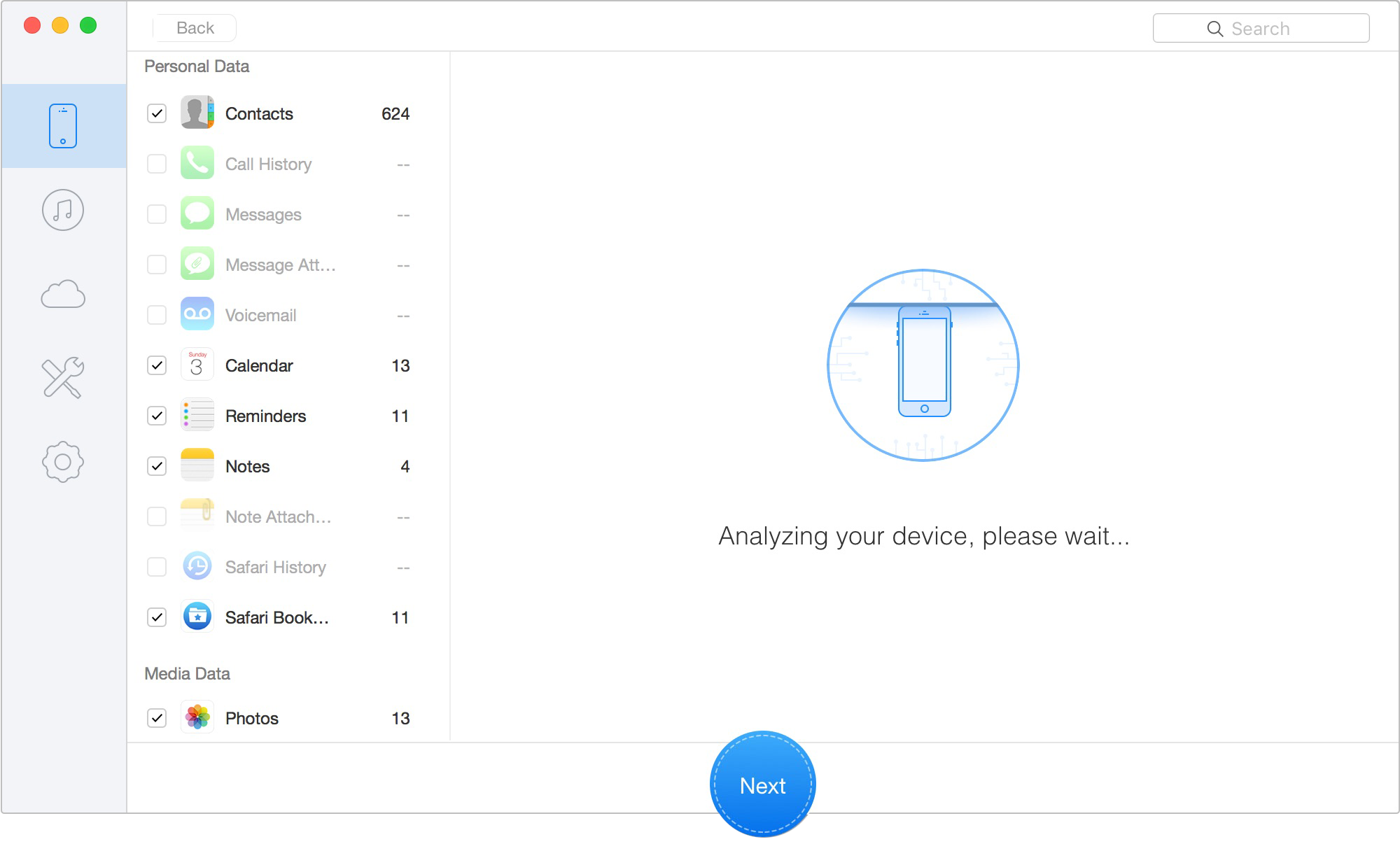
Select Messages and Message Attachments
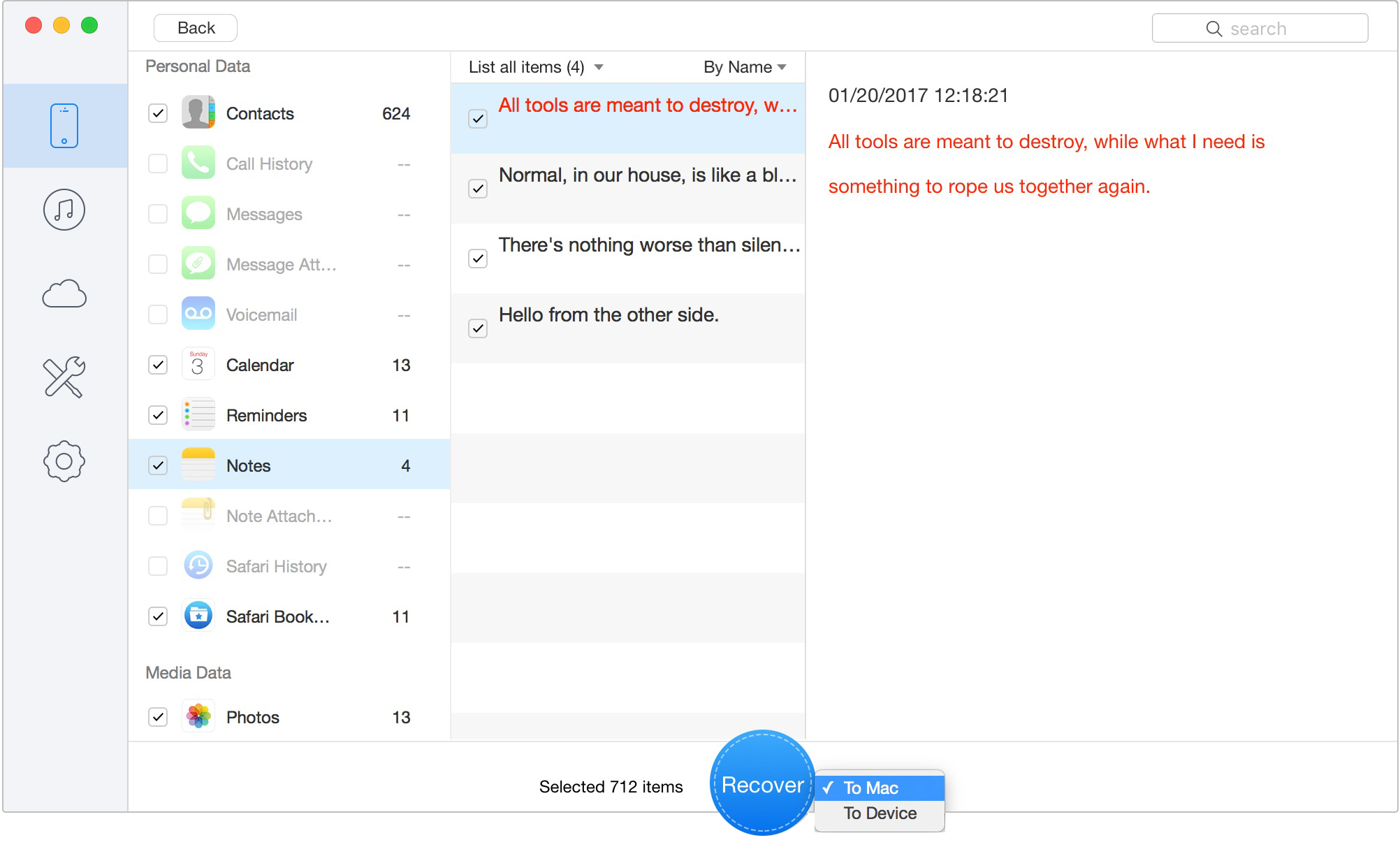
Retrieve Data to Computer or iOS Device
Primo is useful when you only need a few missing conversations and want to avoid restoring your entire iPhone. However, recovery is never guaranteed if the deleted data has already been overwritten by new activity. Always scan first and confirm the messages are visible before purchasing a license.
Preview and recover available iPhone data from your device, iCloud, or an existing backup. Click Here to Free Download
Are my text messages stored in iCloud?
Yes, but the exact method depends on your settings. If Messages in iCloud is active, your texts are synced continuously across Apple’s servers and your trusted devices. If the sync feature is disabled, your texts may be stored inside a daily iCloud Backup, assuming iCloud Backup is enabled.
Can I view iCloud text messages online?
No. Apple does not allow users to read message history through iCloud.com. Because messages are encrypted and tied to trusted devices, you need an iPhone, iPad, or Mac to view them through Apple’s native Messages app.
What is the difference between Messages in iCloud and iCloud Backup?
Messages in iCloud is a real-time sync system. It keeps your inbox consistent across your iPhone, iPad, and Mac. iCloud Backup is a static snapshot of your device data at a specific time. If Messages in iCloud is enabled, messages are generally managed through sync rather than stored as a separate part of the full iCloud Backup.
If I delete a message on my iPhone, will it delete from iCloud?
Yes, if Messages in iCloud is enabled. Deleting a message on one device can remove it from the server and other synced devices. Your first recovery option is the Recently Deleted folder, if the message is still within the recoverable window.
Why did my messages not transfer to my new iPhone?
This usually happens when Messages in iCloud is disabled, the old device did not finish syncing, or the new iPhone has not completed downloading message data. Make sure both devices are connected to Wi-Fi, plugged into power, and using the same Apple Account.
Do standard SMS messages sync the same way as iMessages?
Yes, Apple can sync both green-bubble SMS/MMS and blue-bubble iMessages through Messages in iCloud. However, third-party apps like WhatsApp, Signal, and Telegram use their own backup systems and are not managed through Apple’s native Messages sync.
Recovering iCloud text messages depends on one key question: were your messages synced, recently deleted, or stored inside an older iCloud backup? Start with the safest option first — check the Recently Deleted folder, then confirm whether Messages in iCloud is enabled, and only consider a full iCloud Backup restore if the backup date is earlier than the deletion date.
If you only need a few missing conversations, a full restore may be too risky because it can overwrite your current data. In that case, Primo iPhone Data Recovery gives you a more targeted option. It can scan your iPhone, iTunes backup, or iCloud backup, preview recoverable messages and attachments, and recover selected texts without forcing a full-device wipe.
The safest recovery path is simple: try Recently Deleted first, verify your iCloud sync and backup status, avoid unnecessary factory resets, and use Primo when you need selective message recovery instead of an all-or-nothing restore.
Ansel A member of PrimoSync Support Team, passionate about the mobile industry and ready to help with Apple-related issues.
Get Up-to-the-minute iPhone Tips & Enjoy Awesome Deals.



Design Simple and Beautiful Software
with Passion & Love

