
 by Ansel on Jun. 23, 2026 | NO COMMENT
Many users find themselves incredibly frustrated when trying to manage their Apple data. A common scenario involves upgrading to a new iPhone and wanting a secure way to save old photos, notes, and documents to a laptop before reducing a monthly cloud storage plan. You log in, expecting a straightforward way to download your files, only to find a confusing maze of settings and no obvious export option.
This guide strips away the confusion. We will show you exactly how to navigate Apple's ecosystem, provide the missing instructions for Mac and Windows users, clarify what happens to your text messages, and explain how to safely break the sync loop so you never accidentally wipe your own data.

Preview and recover available iPhone data from your device, iCloud, or an existing backup. Click Here to Free Download
Before following any steps, you need to know exactly where your data lives. Because Apple splits your information between live syncing and encrypted device archives, your retrieval method depends entirely on the data type. If you are unsure what Apple stores in the encrypted archive, check what data is saved to iCloud Backup before choosing a download method.
Use this matrix to determine how to get your specific files:
| Data Type | Storage Location | Can I download it for free natively? | Native Access Method |
| Photos & Videos | iCloud Photos (Synced) | Yes | iCloud.com, Mac Photos App, iCloud for Windows |
| Documents & Files | iCloud Drive (Synced) | Yes | iCloud.com, Mac Finder, Windows File Explorer |
| Contacts & Calendars | Synced Data | Yes | iCloud.com (Export as vCard / ICS files) |
| Notes | Synced Data | Yes (Manual) | Mac Notes App, or copy/paste from iCloud.com |
| Text Messages (iMessage / SMS) | Synced Data or Backup Archive | No (Cannot export as standard files) | View only via Mac Messages App. (Paid tool required for PC export) |
| App Data, Layouts, & Settings | Backup Archive | No | Full device restore only. (Paid tool required for selective extraction) |
By looking at this table, you can see that for most media and documents, Apple's free native tools are all you need. Below are the step-by-step instructions to safely download this data directly to your computer.
The most common goal is saving your photos and documents locally before canceling or downgrading a storage plan. Here are the exact steps for every platform, complete with warnings about common real-world friction points.
Using a web browser is the most universal method, but it comes with limitations you need to be prepared for.
⚠️ Real-World Friction Warning: The .zip Timeout: If you select hundreds or thousands of photos at once, Apple will compress them into a .zip file. However, Apple's web servers frequently time out during this process. Do not try to download your entire library at once. Select files in batches of 500 or fewer to prevent the download from stalling.
The official Microsoft Store app is great, but it introduces the danger of "live syncing."
Macs have iCloud built directly into the operating system, making this process slightly more streamlined but requiring the same caution regarding live syncing.
A massive source of frustration is figuring out how to save text messages. Apple does not offer a native "export to PDF" or "save to PC" feature for your conversations.
First, you must determine where your messages are currently stored:
On your iPhone, go to Settings > [Your Name] > iCloud.
Tap Show All under the "Apps Using iCloud" section.
Tap Messages in iCloud.
If this is toggled ON: Your messages are live-syncing (like your photos). They are not included in your encrypted device backup. You can view them on a Mac by logging into the Messages app, but you cannot download them as readable files to a Windows PC using Apple's software.
If this is toggled OFF: Your messages are trapped inside the encrypted "shipping container" of your daily iCloud Backup.
In either scenario, if your goal is to save a readable copy of your text messages to your computer hard drive (perhaps for legal reasons or sentimental value), Apple’s free native tools cannot do this. You will either need to manually screenshot every conversation, or use specialized third-party software.

Designed to fit effortlessly into your iPhone data recovery.
Download NowIf you specifically need to download text messages, extract app data without overwriting your current phone, or if you simply want a one-click bulk export without managing .zip limits and sync folders, native methods are insufficient.
To bridge this gap, professional extraction tools like Primo iPhone Data Recovery allow you to peek inside the encrypted backup archive and export files in readable formats.
Follow these quick steps to save selected iCloud backup files to your computer:
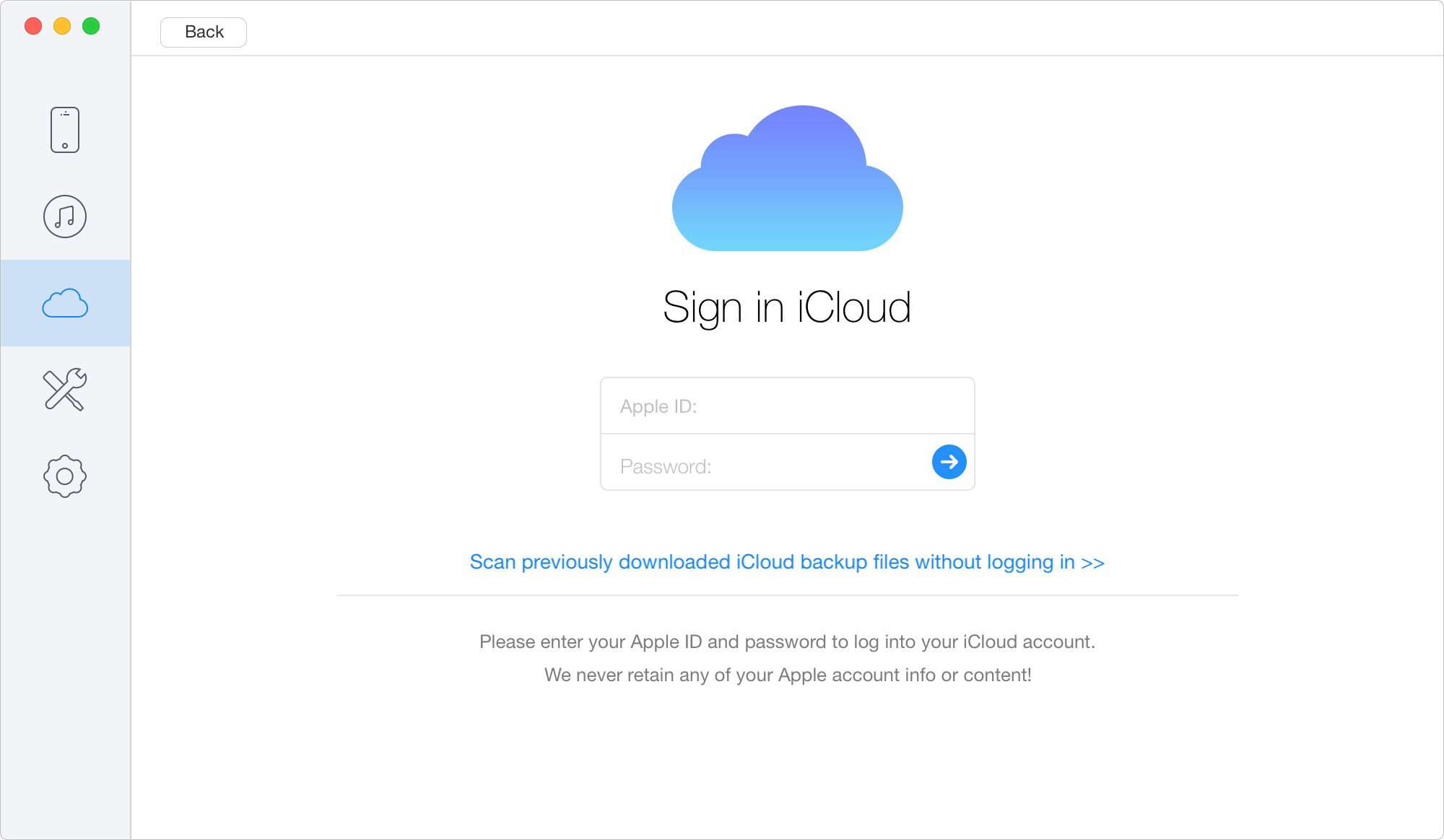
Launch Primo iPhone Data Recovery and choose Recover from iCloud.
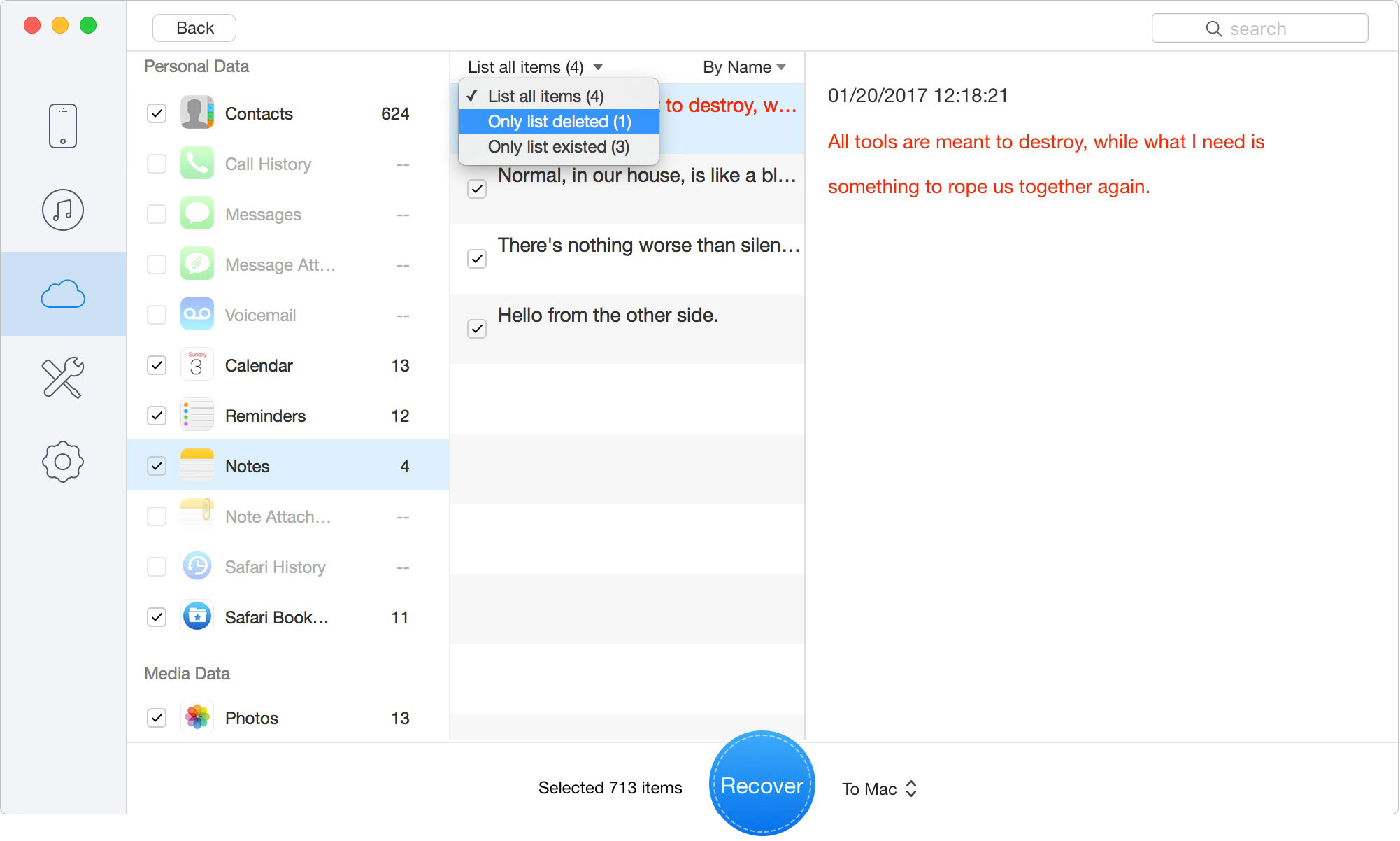
Preview the backup data and choose the messages, contacts, notes, photos, or app files you need.
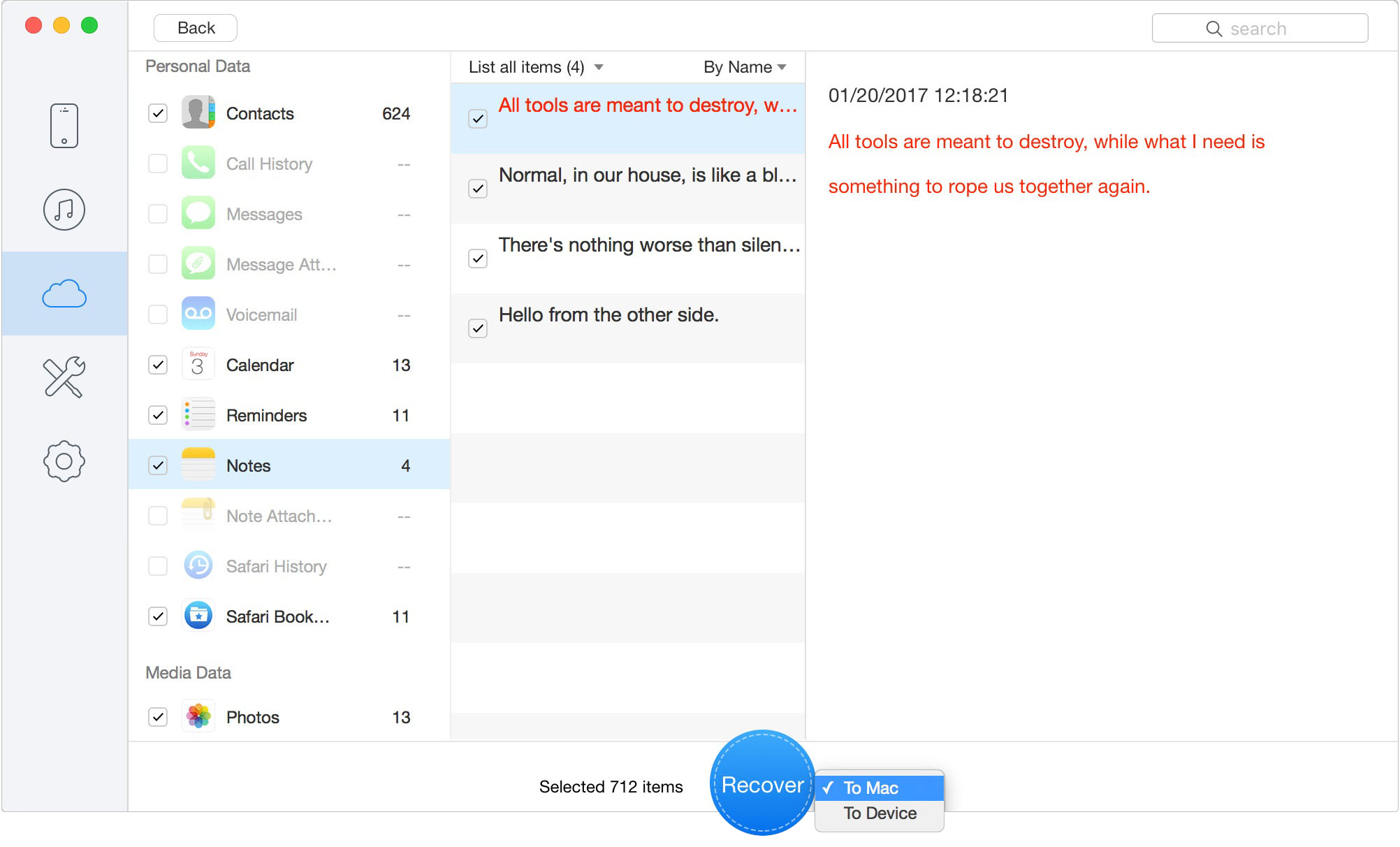
Click Recover to export the selected files to your PC or Mac.
Primo iPhone Data Recovery is a premium tool. While it requires a financial investment, it frequently saves hours of manual labor and includes a 60-day money-back guarantee to ensure commercial transparency.
If you do not want to download files to a computer, but instead want to clone your old phone's exact layout, app data, and settings onto a brand-new iPhone, you must perform a traditional device restoration.
This method pulls the encrypted backup archive from Apple's servers directly onto the hardware. If you choose the full restore route instead of selective extraction, follow this tutorial on how to restore iPhone from backup before continuing.
To execute a full restoration from iCloud Backup, follow these steps:
Can I download a full iCloud backup to my PC as a folder?
No. Apple heavily encrypts device backups. Natively, they can only be applied directly to an iPhone or iPad to restore the operating system.
How do I make sure I don't lose photos when turning off iCloud?
Before disabling iCloud or deleting files from your phone, you must download the files to a computer and move them to a local, non-syncing folder (like your physical desktop). Once the files are safely isolated on your hard drive, you can safely delete them from the cloud without the live-sync feature erasing your desktop copies.
Where can I see what is exactly inside my backup?
In your iPhone settings, you can only see the date and size of the backup. To actually view the individual files (like specific app data or saved text messages) inside the archive, you must use a third-party extractor tool like Primo iPhone Data Recovery.
Can I restore my backup to an older iPhone?
You can restore a backup to any compatible iOS device, provided it has enough physical storage space. However, the target device must be running an iOS version that is equal to or newer than the iPhone that originally created the backup.
Preview and recover available iPhone data from your device, iCloud, or an existing backup. Click Here to Free Download
The realization that there is no magic button to download your entire Apple backup to a computer is initially incredibly frustrating. However, once you understand the vital difference between your locked backup archive and your accessible synced data, reclaiming your digital life becomes straightforward.
For photos, documents, and contacts, rely on the free native methods via iCloud.com or desktop apps—just remember to move your files to a local folder to break the sync loop safely. If you are dealing with the frustration of trapped text messages, or if you need to extract specific app data without a full-device overwrite, leverage a professional tool like Primo iPhone Data Recovery. By routing your strategy by data type rather than looking for a universal download button, you can secure your files, downgrade your storage plan with confidence, and finally regain control of your data.
Ansel A member of PrimoSync Support Team, passionate about the mobile industry and ready to help with Apple-related issues.
Get Up-to-the-minute iPhone Tips & Enjoy Awesome Deals.



Design Simple and Beautiful Software
with Passion & Love

