
 by Ansel on Jun. 23, 2026 | NO COMMENT
Facing a sudden hardware failure when you need your device the most is incredibly stressful. Imagine you are in Brian's situation: you drop your phone at work, and the screen goes completely black. The device still vibrates and rings, but without a recent manual backup or an active cloud sync, it feels like an expensive paperweight.
His immediate panic was losing his daughter's birthday photos, followed by a confusing triage process: should he test different charging cables, pull out the SD card, or risk taking it to a repair shop that might erase his data?
When you need to know how to recover photos from a broken phone without a backup, you don't need marketing fluff or false hope; you need a safe, realistic, step-by-step diagnostic procedure. Being overwhelmed by software tools that promise the impossible is common, but you can regain access. This guide provides a field-tested method to extract your files safely before the physical damage worsens.

Preview and recover available iPhone data from your device, iCloud, or an existing backup. Click Here to Free Download
Before applying any specific data extraction technique, take a breath and evaluate your device's physical state. For users dealing with hardware failures, deciding between manual hardware workarounds, cloud checks, and professional repair requires an objective look at what the phone can actually still do.
For Android devices, the primary obstacle is enabling USB debugging or inputting a passcode while navigating a shattered display. For Apple devices, the equivalent limitation is approving the "Trust This Computer" prompt securely.
| Triage Method | Best For | Technical Skill | Safety Risk |
| Cloud & SIM Swap | Bypassing the 2FA trap on dead screens | Low | Low |
| OTG Mouse Workaround | Androids with broken screens but working internals | Medium | Low |
| Extraction Software | iPhones previously trusted by your computer | Low | Low |
| Temporary Screen Swap | Devices with dead motherboards or severe physical damage | High | Medium |
When dealing with a broken screen, Brian initially assumed his black display meant total data loss. If your iPhone still powers on but shows nothing on the display, check this guide on how to fix iPhone stuck on black screen before assuming the photos are gone.
However, as long as the device storage is physically intact and the motherboard powers on, you have options. By isolating Android limitations from iOS restrictions, we can select the method that won't make things worse.
Let’s be completely transparent about using software to recover photos from a broken iPhone without a backup. Many tools claim to bypass security constraints, leaving users frustrated when they hit a wall. Modern encrypted iPhones require successful authentication. If your iPhone screen is dead and it has just rebooted, no software can magically bypass the passcode.
However, if your phone still powers on (e.g., it vibrates or receives calls) and you can connect it to a computer that you have previously trusted, you have a strong chance of recovery. Because the "Trust This Computer" handshake is already established, specialized extraction software can communicate directly with the device without requiring you to tap anything on the broken screen.
For this specific scenario, Primo iPhone Data Recovery offers a highly transparent and reliable solution. Instead of forcing a full, risky backup extraction, it provides a Preview & Select feature. You maintain 100% control to review recoverable items before moving them to your PC. For a related photo-focused walkthrough, see how to recover deleted photos from iPhone with a selective recovery workflow.
Follow these steps if your broken iPhone still powers on and can connect to a previously trusted computer:

Recover from iOS Device
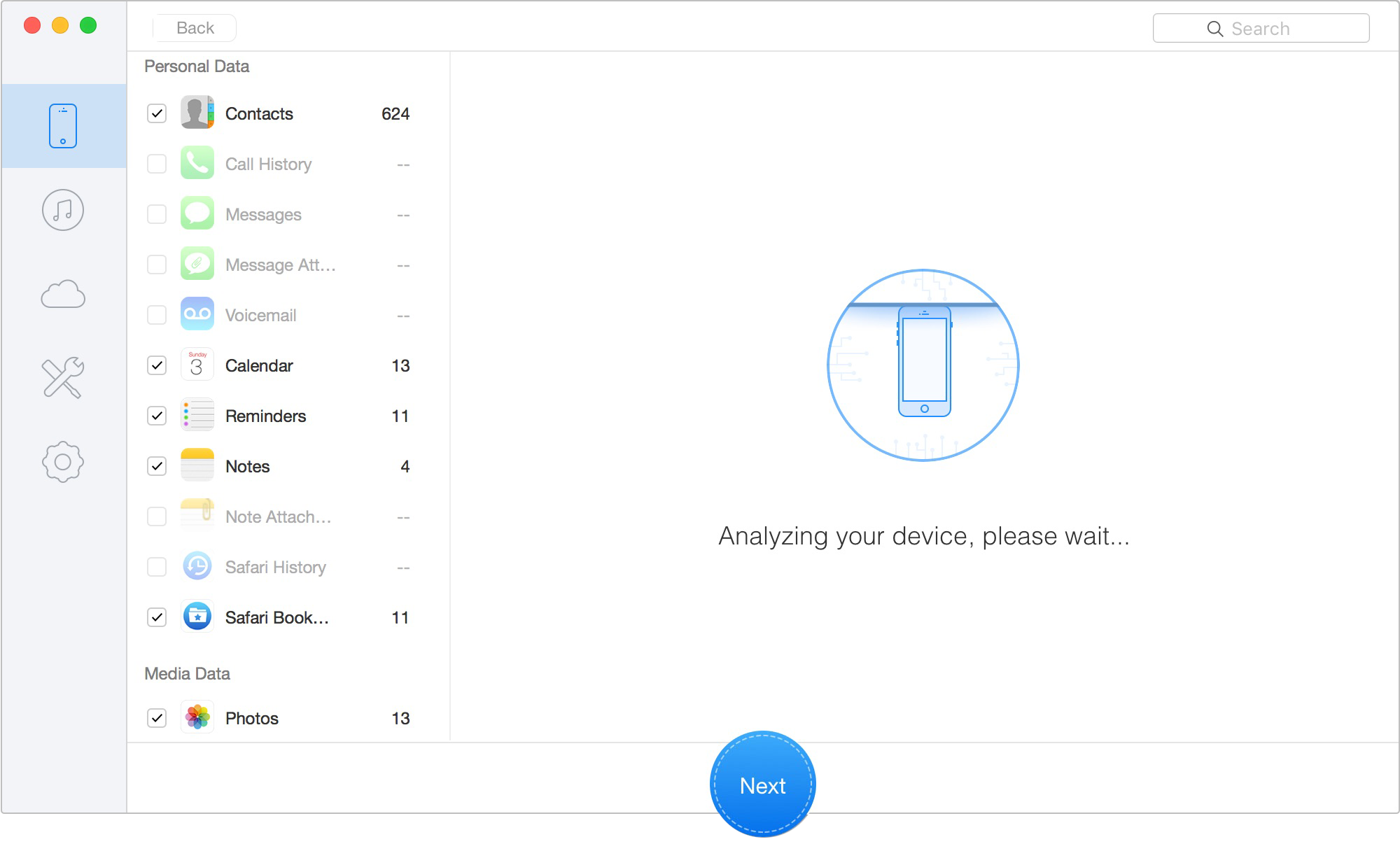
Start scanning the available data source
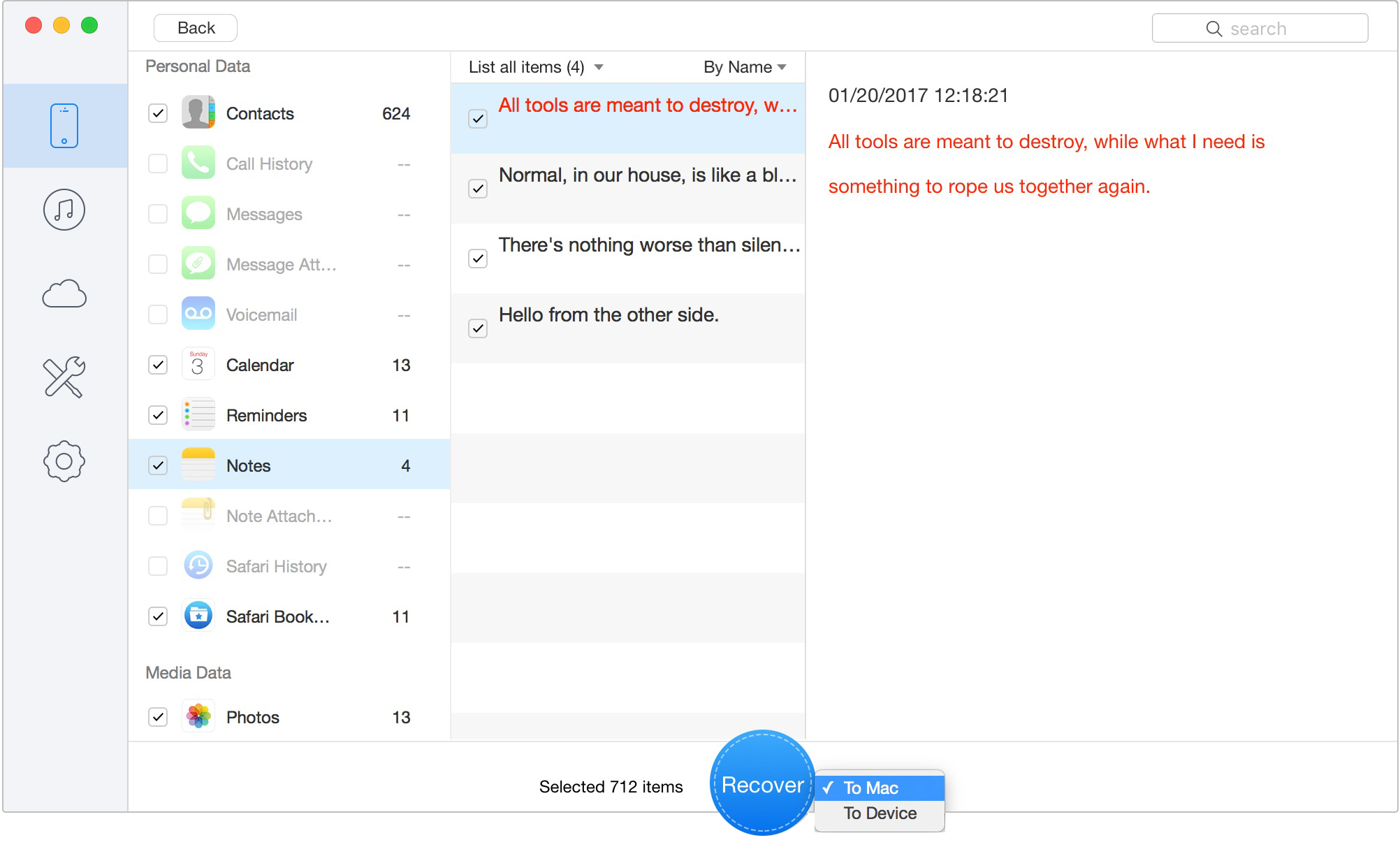
Recover data to your computer
It is engineered to locate missing files directly on the logic board through established trusted connections. The Recover Directly Back to iPhone/iPad feature allows you to restore critical files immediately to a replacement device. As a bonus for longevity, Primo offers ongoing software updates to remain compatible with the latest iOS versions, ensuring that even if you upgrade your device after this incident, you have a reliable, long-term support system.

Designed to fit effortlessly into your iPhone data recovery.
Download NowTo retrieve photos from a broken Android phone without relying on PC software, an OTG (On-The-Go) mouse adapter provides a highly practical hardware solution. In Brian's situation, this exact technique resolved his data access issue. His Samsung Galaxy had a completely dead display, but the system still played notification sounds.
Because he could not tap his screen to authorize an MTP file transfer directly, he connected a standard USB mouse to his device using an inexpensive OTG adapter.
However, drawing a pattern blindly on a black screen is nearly impossible. Here is the technician's trick to make this work:
Once the device unlocks, you can connect it to a secondary monitor via a USB-C hub, or swap the mouse out to connect the phone directly to a PC to pull your photos. If your Android photos were deleted or missing rather than only blocked by the broken screen, follow this tutorial on how to recover deleted photos from Android.
Before organizing hardware repairs, you must verify automated storage locations. Many people assume they lack a backup, only to discover that their phone was auto-syncing over Wi-Fi in the background.
Checking Google Photos or iCloud Photos on a desktop browser is the safest first step, especially for water damage, as powering on a wet motherboard causes irreversible short circuits.
Here is the massive real-world hurdle most guides skip: when you try to log into iCloud or Google on a new computer browser, they will text a 2FA security code to your broken phone. If the screen is dead, you can't read it.
Another common oversight is the physical SD card. If your photos are saved here, the broken phone's condition doesn't matter. However, do not just pull the SD card out of a phone that is powered on. Doing so while the phone is ringing or active can corrupt the data on the card.
If your phone does not power on, or if you cannot unlock it using the OTG mouse trick or a trusted computer, you must face a hard truth: on modern encrypted phones, a successful boot and unlock is the most critical recovery variable. If the logic board cannot supply power and decrypt the storage, software extraction methods will fail.
For severe physical damage, implementing a repair before recovery strategy is the most effective path forward.
🚨 CRITICAL WARNING: Protecting Your Data at a Repair Shop Many users fear that taking a phone to a repair shop means losing their data to a factory reset. To prevent this, you must give the technician highly specific instructions.
Tell them you want to pay for a temporary screen swap strictly for data extraction. A technician can open your phone, unplug your shattered screen, and plug a working screen into the motherboard without fully installing it. This allows you to type in your passcode, trust a computer, and back up your photos. Once the data is safe, they can remove the temporary screen, and you avoid paying for a full, expensive hardware repair if the phone is otherwise ruined.
This objective approach protects your logic board from further stress while ensuring the encryption keys remain accessible for final extraction.
Can I recover photos if my phone screen is broken and black?
Yes. If the device still vibrates or rings, it is powered on. You can use an OTG mouse with a paper grid guide, connect it to a previously trusted PC, or ask a repair shop for a temporary screen swap to perform data extraction safely.
What if I can't get past the 2FA code to check my iCloud/Google backup?
Eject the SIM card from your broken phone and place it into a spare or borrowed phone. The 2FA text message will arrive on the working phone, allowing you to log into your cloud storage on a computer.
Can a repair shop recover photos without erasing the phone?
Yes, but you must advocate for yourself. Explicitly request a "temporary screen repair strictly for data access." Instruct the technician not to perform a factory reset, software flash, or logic board replacement.
Can I get photos from a broken Android phone without USB debugging?
Yes, by using an OTG mouse to navigate the interface and unlock the phone, or by safely powering down the device and reading the external SD card via a computer card reader.
Can I recover photos from a broken iPhone if I never trusted my computer?
Honestly, no. Modern iOS encryption requires authentication. If the screen is dead and the computer is untrusted, your best and safest option is the temporary screen swap at a local repair shop so you can physically tap the "Trust" prompt.
Preview and recover available iPhone data from your device, iCloud, or an existing backup. Click Here to Free Download
Dealing with a broken screen where the phone still vibrates shouldn't mean permanently losing your daughter's birthday photos or critical documents. Whether you were caught without a cloud sync, stuck behind a 2FA prompt, or terrified a repair shop would wipe your logic board, a structured diagnostic procedure is your best defense.
By carefully evaluating whether your phone powers on, you can bypass overwhelming and risky options. Try the SIM-swap trick for cloud checks, use the paper-grid method for your OTG mouse, and never be afraid to ask a technician for a temporary screen swap.
For iOS users whose phones still power on and have a trusted computer connection, Primo iPhone Data Recovery remains a transparent, reliable way to view and extract those files safely. Regain control of your digital life today by following these realistic steps, taking a deep breath, and addressing the hardware limitations head-on.
Ansel A member of PrimoSync Support Team, passionate about the mobile industry and ready to help with Apple-related issues.
Get Up-to-the-minute iPhone Tips & Enjoy Awesome Deals.



Design Simple and Beautiful Software
with Passion & Love

