
 by Ansel on May. 29, 2026 | NO COMMENT
Locked out of your device? Learn how to backup locked iPhone data safely before doing a factory reset. Discover proven recovery methods to save your files.
Staring at an "iPhone Unavailable" or "Security Lockout" screen is terrifying. When you desperately need access to your device, your immediate panic probably isn't about the hardware itself, but the fear that erasing the phone will permanently delete your family videos, messages, contacts, photos, or work files. If you are searching for how to back up a locked iPhone before a factory reset, you are not alone.
Before we go any further, we need to clear up a major source of confusion: Backing up, Recovering, Restoring, and Unlocking are completely different actions.
This distinction matters because a locked iPhone cannot always be backed up from scratch. If your computer was not trusted before the lockout, Finder or iTunes will usually ask you to unlock the device first. In that case, the realistic path is not creating a new backup, but checking iCloud and recovering data from existing backup sources.
Do not click "Restore" yet. This guide explains what actually works, what does not, and how to protect recoverable data before taking destructive actions.
Before taking any action that could permanently wipe your disabled iPhone, perform a structured data audit. Many users jump straight into Recovery Mode or factory reset out of panic, only to realize afterward that they had not checked their iCloud data or older backups.
The determining factor for creating a new local backup is not only whether the iPhone is locked. It is whether your computer was previously trusted by that iPhone. Without a prior "Trust This Computer" relationship, creating a brand-new local backup through USB is usually blocked by Apple's security design.
Use this checklist to identify your actual options:
1. Audit Your iCloud Sync Status: Did you enable iCloud Photos, Contacts, Notes, Messages, iCloud Drive, or other iCloud sync features before the lockout? Even without a full device backup, some important data may already be stored in iCloud.
2. Check Whether an iCloud Backup Exists: If iCloud Backup was enabled, you may be able to restore your data after erasing the locked iPhone. This does not help you preview everything directly in Apple’s standard interface, but it can still be a valid recovery source.
3. Verify Previous Computer Trust: Have you ever connected this iPhone to a specific Mac or Windows PC and tapped "Trust" while the device was unlocked? If that trusted connection is still valid, Finder or iTunes may be able to create a new encrypted local backup.
4. Look for Existing iTunes/Finder Backups: Even if you cannot create a new backup now, older backups stored on your computer may still contain recoverable photos, messages, contacts, notes, app data, or other files.
5. Use Data Recovery Software Only for Recovery: Primo iPhone Data Recovery can help recover data from iCloud, iCloud backups, or existing iTunes/Finder backups. It cannot unlock your iPhone, bypass the passcode, or create a new backup from a fully locked, untrusted device.
Understanding these options prevents unnecessary data loss. If no iCloud data, iCloud backup, trusted computer, or existing local backup exists, local-only data on the locked iPhone may not be recoverable.

Primo iPhone Data Recovery can help you retrieve your deleted messages on iPhone 7/7 Plus with or without backup. Click Here to Free Download
Choosing the correct method requires understanding the difference between Apple’s backup tools and professional data recovery software. Finder and iTunes are useful when a new backup is still allowed. Primo iPhone Data Recovery is useful when you need to recover available data from iCloud or existing backups instead of creating a new backup from the locked device.
| Evaluation Criteria | Manual Apple Methods (Finder / iTunes / iCloud) | Data Recovery Software (Primo iPhone Data Recovery) |
| Main Purpose | Create or restore official iPhone backups. | Recover available data from iCloud, iCloud backups, or existing iTunes/Finder backups. |
| MWorks on a Locked iPhone? | Only if the computer was trusted before the lockout, or if iCloud backup/sync was already enabled. | Yes for recovering from available cloud or backup sources; no for creating a new backup directly from an untrusted locked iPhone. |
| Can Create a New Backup? | Yes, but only under strict conditions, usually requiring a previously trusted computer. | No. Primo is a recovery tool, not a locked iPhone backup creator. |
| Can Unlock the iPhone? | No. Restoring can erase the device and remove the passcode, but it deletes local data. | No. Primo does not unlock, bypass, or remove the passcode. |
| Data Control | Limited. Apple restore is often all-or-nothing. | Better control. You can preview recoverable data and selectively recover what you need. |
| Data Safety | Safe if you choose "Back Up Now" and do not accidentally click "Restore." | Safe for recovery because it scans available iCloud or backup data sources without modifying the locked iPhone. |
| Best For | Users with a previously trusted computer or an existing iCloud backup. | Users who need to recover selected files from iCloud or existing backup data before or after resetting the locked iPhone. |
The safest approach is simple: first check whether a real backup option exists. If a new backup is blocked, move to data recovery from existing sources instead of trusting tools that promise impossible locked-device backup results.
To understand why some methods work and others fail, you need to understand Apple’s device security model. A locked, disabled, or unavailable iPhone does not allow every computer to freely access its internal data.
When you connect an iPhone to a new computer, iOS normally requires you to unlock the device and tap Trust This Computer. This trust step creates a secure relationship between the iPhone and that computer. If the iPhone later becomes locked or unavailable, only a computer that was already trusted may still have a chance to communicate with the device for backup purposes.
Without this pre-existing trust relationship, Finder or iTunes usually cannot create a new backup from scratch. The software may detect the iPhone, but it will still ask you to unlock it before accessing data. Since the passcode is forgotten or the device is unavailable, the backup cannot proceed.
This is why many locked iPhone backup attempts fail when:
Beware of scams: Any unverified software that promises to back up, unlock, or fully extract data from any locked iPhone without a passcode may be misleading you. A trustworthy tool should clearly explain what it can and cannot do.
Primo iPhone Data Recovery does not claim to bypass Apple’s lock screen or create a new backup from a locked, untrusted device. Its role is more realistic: it helps you recover available data from iCloud, iCloud backups, and existing iTunes/Finder backups.
A major question during an iPhone lockout is whether your data is already safe in iCloud. You do not need to unlock the unavailable iPhone to check synced iCloud data. You can perform a remote data audit from another device.
However, one real-world issue may appear: How do you get your Two-Factor Authentication code if your main trusted device is locked?
If you have another trusted Apple device, use it to receive the verification code. If not, you may be able to receive the code by SMS through your trusted phone number.
If your locked iPhone uses a removable physical SIM card, remove the SIM card and insert it into another phone temporarily. When signing in to iCloud, choose the option to receive the verification code by SMS. The code should arrive on the phone using your SIM card.
This method does not apply to every situation. It may not work if your iPhone uses eSIM only, your carrier blocks SMS on another device, or you no longer have access to the trusted phone number.
Once you can sign in, follow these steps:
1. Access iCloud: On another smartphone, tablet, or computer, go to iCloud.com and sign in with the Apple ID used on the locked iPhone.
2. Inspect Synced Data: Open "Photos," "Drive," "Notes," "Contacts," "Calendar," and other available iCloud apps. If your recent files appear there, they are synced to iCloud and should remain available after the iPhone is erased.
3. Check Backup Availability: Review your iCloud storage and backup information to confirm whether an iCloud Backup exists. If a recent backup is available, you may be able to restore it after resetting the locked iPhone.
4. Save Critical Files Separately: If you can see important photos, documents, or notes in iCloud, download or export the most critical files to your computer before erasing the device.
If your crucial data is visible in iCloud, you can move forward with much less risk. If it is not visible, check your computer for existing iTunes or Finder backups before using Recovery Mode.

Designed to fit effortlessly into your iPhone data recovery.
Download NowIf you are fortunate enough to have a computer that your iPhone previously trusted, you may still be able to create a local backup. Finder and iTunes can sometimes back up a locked iPhone, but only if the "Trust This Computer" security handshake was completed before the lockout.
The Restart Caveat: There is one major exception. If your locked iPhone recently ran out of battery, restarted, or was force-rebooted, this method may fail. Apple often requires the passcode after a restart before allowing data access. Even a previously trusted Mac or PC may ask you to unlock the iPhone first.
If your phone has remained on and the trusted relationship still works, follow this procedure to create an encrypted local backup:
1. Connect the Device: Plug your locked iPhone into the previously trusted Mac or Windows PC using a reliable USB cable.
2. Open Finder or iTunes: On a Mac running macOS Catalina or newer, open Finder. On Windows or an older Mac, open iTunes.
3. Locate the iPhone: Look for your iPhone in the Finder sidebar, or click the small iPhone icon in the top-left area of iTunes.
4. Choose Local Backup: In the "Backups" section, select the option to back up all data to this computer.
5. Enable Encrypted Backup: Check "Encrypt local backup" if available. This helps include saved passwords, Health data, Wi-Fi settings, and other protected information.
6. Start the Backup: Click "Back Up Now" and wait for the process to finish.
7. Confirm the Backup: After the backup completes, check the latest backup time in Finder or iTunes to make sure it was created successfully.
🚨 CRUCIAL WARNING: Do not click "Restore iPhone" during this procedure. "Back Up Now" saves data. "Restore iPhone" erases the device. Accidentally choosing Restore before confirming your data can permanently delete local files.
After the backup is complete, you can either restore it through Apple’s official process or use Primo iPhone Data Recovery to scan the existing backup and recover selected files.
When users realize they cannot create a new backup from a locked iPhone, they often need another path. This is where Primo iPhone Data Recovery can be useful — but its role must be understood correctly.
To be completely transparent: Primo does not back up a locked iPhone, unlock the device, bypass the passcode, or break Apple’s USB security restrictions. It is not a magic tool for pulling fresh local data out of an unavailable iPhone that has never trusted your computer.
Instead, Primo is designed for data recovery. According to the official Primo iPhone Data Recovery guide, the software provides recovery modes for iOS device data, iTunes backup data, and iCloud data. It also supports many common data types, including contacts, call history, messages, message attachments, notes, calendars, reminders, photos, videos, voice memos, app documents, WhatsApp data, and more.
This makes Primo useful when standard Apple methods feel too limited. For example, Apple’s restore process usually restores a full backup to a device. Primo gives you more control by allowing you to scan available data sources, preview recoverable files, and recover selected items.
Follow these simple steps to recover available data from iCloud or an existing iTunes/Finder backup:
● Launch Primo and Choose Recover from iTunes Backup
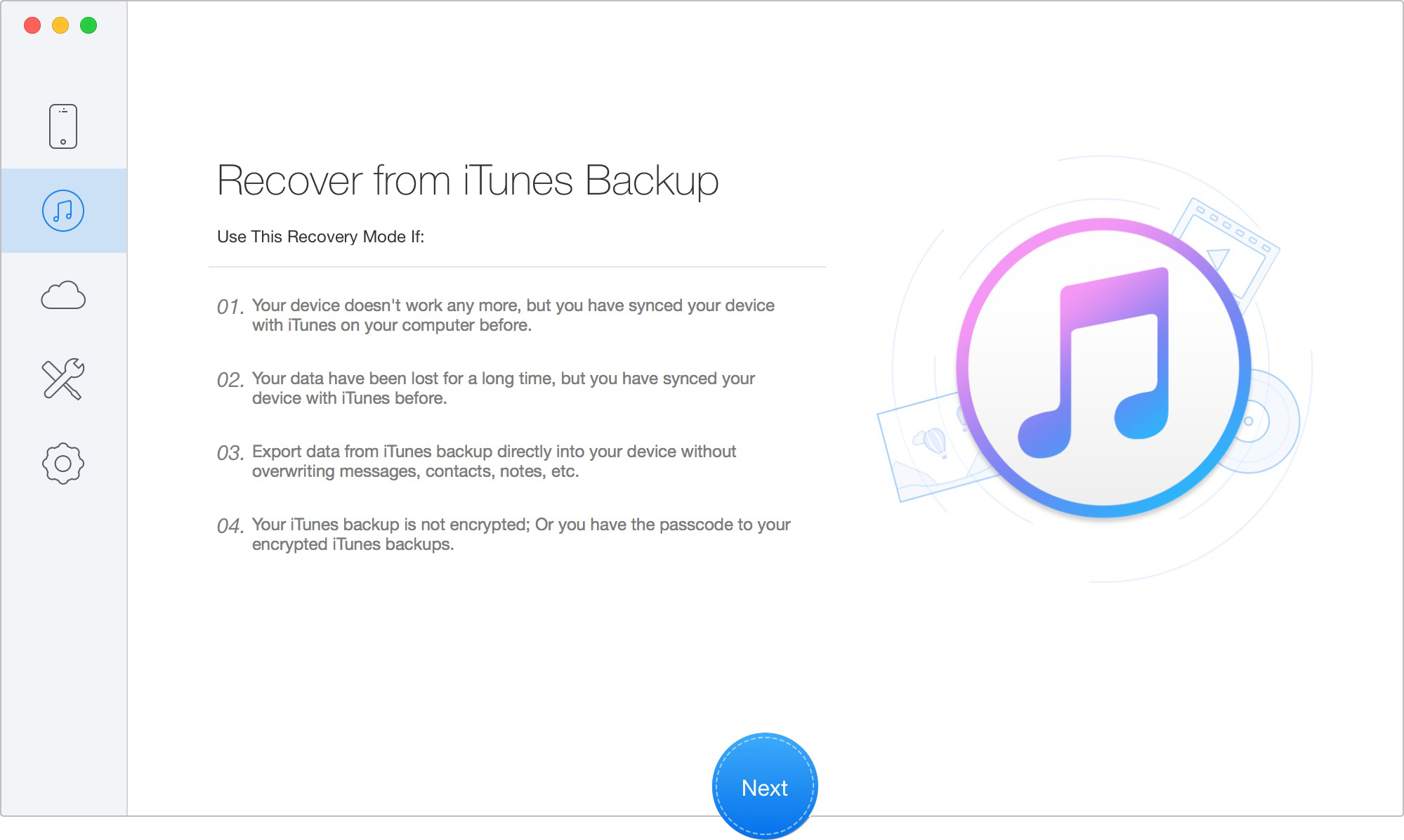
Choose the Recover Data from iTunes Backup
● Scan and Select an available iTunes/Finder backup from the list
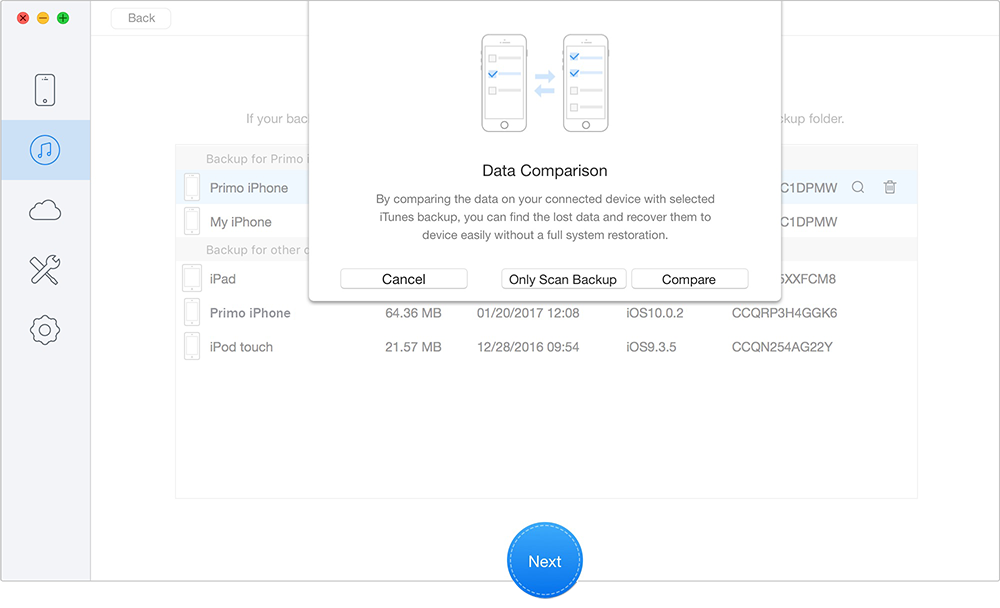
Scan Lost Data from iTunes Backup
● Preview and Select Recoverable Data
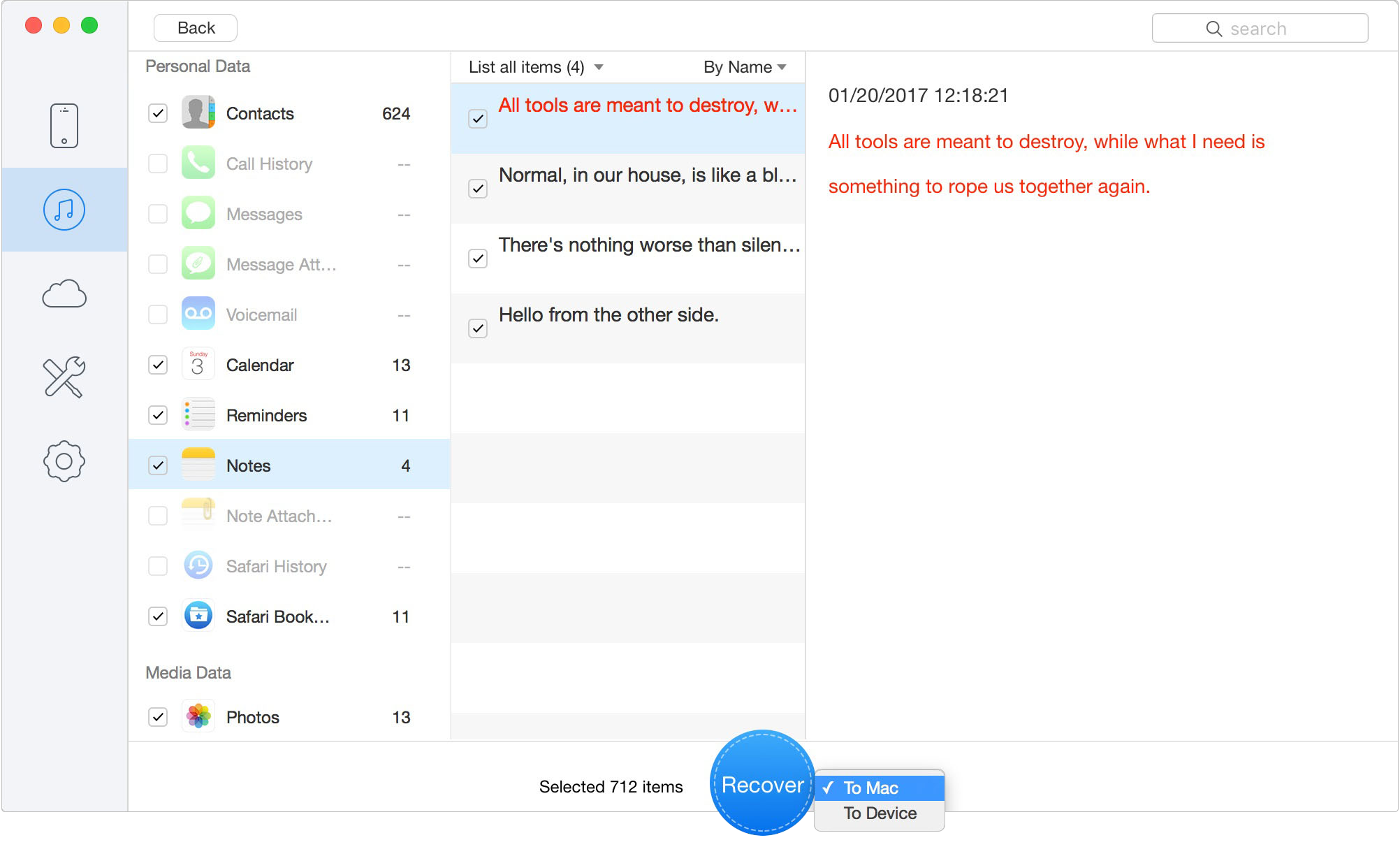
Preview and Select Recoverable Data
● Recover the Data to Your Computer
Use Primo iPhone Data Recovery when:
1. You cannot create a new backup from the locked iPhone.
2. You have an existing iTunes or Finder backup but do not want to restore the whole backup blindly.
3. You want to preview data before recovery.
4. You need to recover selected files from iCloud or an existing local backup.
5. You want to save recoverable files to your computer before resetting the locked iPhone.
A more accurate way to position Primo in this article is:
● If you cannot create a new backup from the locked iPhone, Primo iPhone Data Recovery helps you recover available data from iCloud or existing iPhone backups before or after you reset the device.
This keeps the recommendation honest while still matching the user’s real intent: saving important data before a factory reset.
Primo iPhone Data Recovery can help you retrieve your deleted messages on iPhone 7/7 Plus with or without backup. Click Here to Free Download
Because navigating a lockout can feel overwhelming, here are clear, factual answers to the most common questions about disabled iPhone data recovery.
Yes, but only under specific conditions. You can create a new local backup only if the iPhone can still communicate with a previously trusted Mac or PC. If the computer was never trusted, or if the iPhone asks for the passcode before allowing access, a new backup usually cannot be created.
Yes, but only if the computer was previously authorized through the "Trust This Computer" prompt. If that trusted relationship does not exist, Finder or iTunes will ask you to unlock the iPhone first, which is impossible when the device is unavailable or the passcode is forgotten.
No. Primo iPhone Data Recovery is not a locked iPhone backup tool. It cannot create a brand-new backup from a locked, disabled, or unavailable iPhone. Primo is designed to recover data from iCloud, iCloud backups, or existing iTunes/Finder backups.
No. Primo iPhone Data Recovery does not unlock iPhones, remove passcodes, bypass Security Lockout, or bypass USB restrictions. Its purpose is data recovery from available backup or cloud sources.
Yes. Restoring an unavailable iPhone performs a factory reset. It removes the forgotten passcode, but it also erases local data, settings, and apps from the device. You should only restore after checking iCloud, trusted computer backup options, and existing backup recovery options.
You can sign in to iCloud.com from another device and check Photos, iCloud Drive, Notes, Contacts, Calendar, and other iCloud apps. If your recent data appears there, it is synced to iCloud and should remain available after you erase the locked iPhone.
Before entering Recovery Mode, finish your data safety checks. Confirm whether you have iCloud synced data, an iCloud backup, a trusted computer that can still create a local backup, or an existing iTunes/Finder backup that can be scanned with data recovery software.
It can be safe if the software is transparent about its limits. A reliable recovery tool should not claim to magically back up or unlock every locked iPhone without data loss. Primo’s proper role is recovering available data from iCloud and existing backup sources, not bypassing the iPhone passcode.
Experiencing an "iPhone Unavailable" or "Security Lockout" screen does not always mean your data is gone, but it does mean you need to act carefully. Before you restore the device, check whether your data is already synced to iCloud, whether an iCloud backup exists, whether your iPhone can still connect to a previously trusted computer, and whether older iTunes or Finder backups are available.
If a new backup is still possible through a trusted computer, create an encrypted local backup before doing anything else. If a new backup is blocked, do not rely on tools that promise impossible locked-device backup results. Instead, use a realistic recovery approach.
Primo iPhone Data Recovery can help you recover available data from iCloud, iCloud backups, or existing iTunes/Finder backups. It cannot back up or unlock a fully locked iPhone, but it can help you preview and recover selected files from existing data sources before or after resetting the device.
The safest order is simple: check iCloud first, try a trusted computer backup if available, recover data from existing sources with Primo if needed, and only then restore the locked iPhone.
Ansel A member of PrimoSync Support Team, passionate for mobile industry and ready to help you with Apple related issues.
Get Up-to-the-minute iPhone Tips & Enjoy Awesome Deals.



Design Simple and Beautiful Software
with Passion & Love

