
 by Ansel on Jun. 23, 2026 | NO COMMENT
Sophie stared at the "iPhone Unavailable" screen in disbelief. Her toddler had entered the wrong passcode too many times, and the immediate panic set in: she had never manually backed up her phone, and she feared years of family memories were gone forever.
If your disabled iPhone is displaying a Security Lockout screen, facing a locked device when you need it most is terrifying. You are likely scared of losing your data, confused by articles promising impossible magic tricks, and worried that erasing the device will permanently destroy your files.
Take a deep breath. Before you take any destructive steps, this guide outlines a clear, tested procedure to help you safely locate and recover your photos. We will explore how to check for hidden cloud syncs and leverage trusted computer connections so you do not worsen the situation. For a related recovery scenario, see how to recover photos from locked iPhone before trying any destructive reset.
🚨 CRITICAL WARNING: DO NOT ERASE YOUR PHONE YET Putting your device into recovery mode and choosing to "Restore" via Finder or iTunes will completely and permanently wipe all local data from your device. Do not trigger a reset until you have fully exhausted the non-destructive cloud and computer checks listed in this guide.

Preview and recover available iPhone data from your device, iCloud, or an existing backup. Click Here to Free Download
Before attempting to fix a disabled iPhone, you need to understand your real options. Many users are confused by articles promising impossible results, so establishing exactly what works—and what requires a prior sync or trust certificate—is critical.
When evaluating your options, you generally have two main categories:
By understanding these parameters, you can make an informed choice. It is mandatory to verify manual cloud syncs first.
In Sophie's case, before erasing the phone, she searched for any chance to recover photos from iCloud, shared albums, or her laptop. This "treasure hunt" approach is a vital procedure you must follow. Here is a critical expert tip: recovering your photos after a lockout heavily depends on finding prior cloud syncs rather than attempting to break Apple's device encryption.
Follow this exact checklist before doing anything else:
Also Read: How to View Photos on iCloud in 2 Ways
If your cloud checks come up empty, your next best hope is a "Trusted Computer." If you previously connected your iPhone to a Mac or PC and tapped "Trust this Computer," the computer retains a digital certificate. Sometimes, this allows you to bypass the passcode screen strictly for importing photos via a USB cable.
Here are the literal, step-by-step instructions on how to try this:

Designed to fit effortlessly into your iPhone data recovery.
Download NowUnderstanding the technical reality of a Security Lockout helps clarify why certain recovery methods fail. A common oversight is assuming that data can simply be forcefully extracted from a locked Apple device using a random USB cable.
Here is the brutal truth based on extensive testing: Without the passcode, local device extraction is virtually impossible if no prior trust certificate or cloud sync exists.
Apple employs stringent hardware-based data encryption tied directly to your specific passcode. When your device reaches an "unavailable" state, the cryptographic keys required to read your local files are actively hidden. Without the correct passcode to decrypt the file system, the data remains permanently scrambled.
Any service or article claiming they can effortlessly read your files without a previously trusted computer is misrepresenting the facts. Such deceptive tools can introduce significant malware to your desktop system. Protect yourself by accepting the limitations of the hardware.
So, if encryption is so strict, why do data recovery tools exist?
Tools like Primo iPhone Data Recovery are specifically designed for a very particular scenario: When you have a trusted computer connection, but the native Mac/Windows apps are failing.
Sometimes, even with a valid trust certificate, Apple's native Image Capture or Finder apps will glitch, crash, or only load a partial camera roll because the phone's iOS is bogged down in a lockout state.
This is where Primo iPhone Data Recovery helps. Provided you have that existing trusted connection, the software can bypass glitchy native apps and safely scan for recoverable items.

Recover from iOS Device
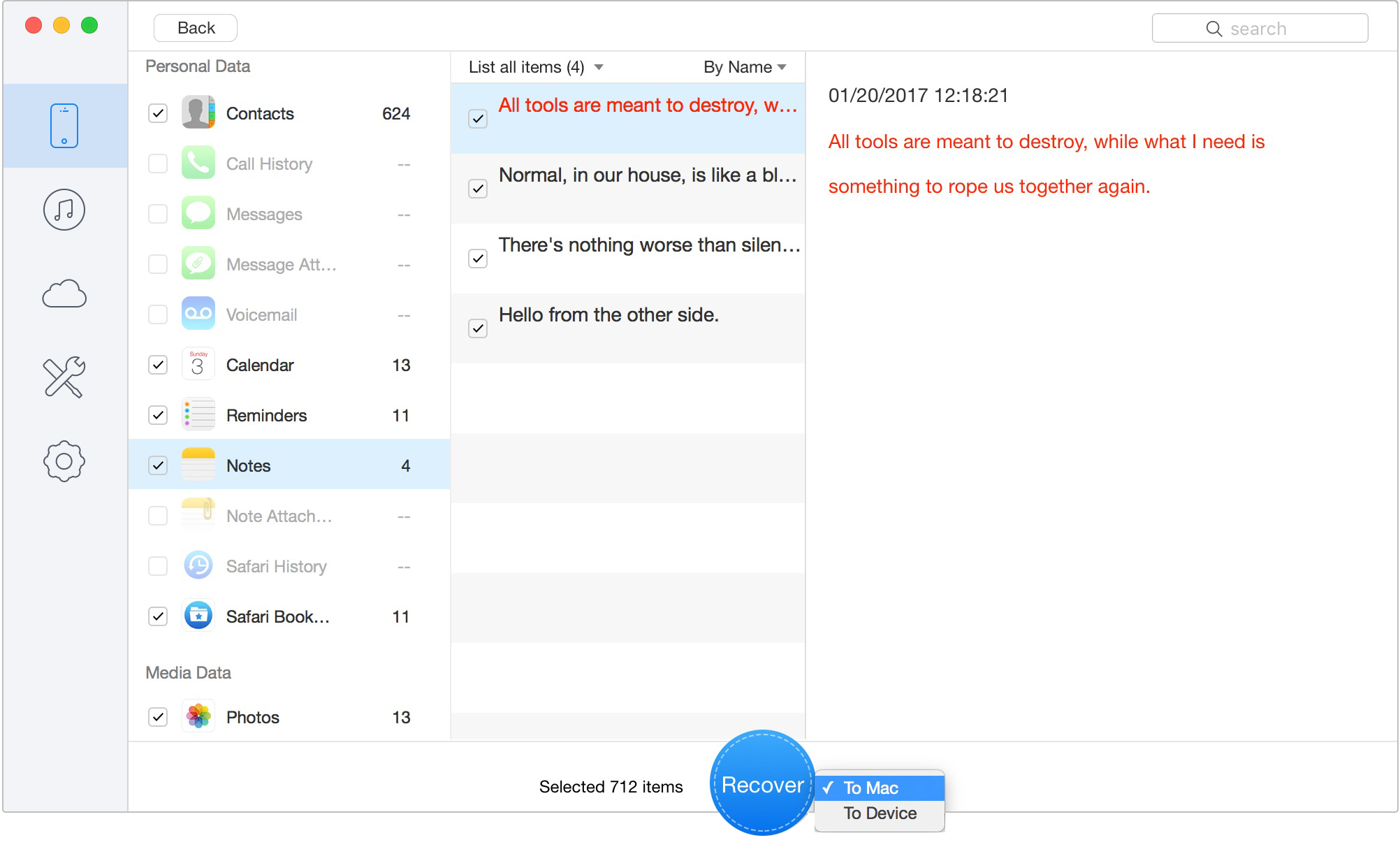
Retrieve Data to Computer or iOS Device
If your Mac or PC is trusted but you are struggling to get your files to physically transfer, downloading a reputable tool gives you a clean interface to preview and selectively restore your files to your desktop before you erase the locked device.
Preview and recover available iPhone data from your device, iCloud, or an existing backup. Click Here to Free Download
When facing a lockout, you likely have specific, urgent questions. This section addresses the most common concerns.
Can I recover my photos if my iPhone has no backup?
Yes, but only if you have an active iCloud Photos sync, alternate cloud storage (like Google Photos), or access to a previously trusted Mac/PC that can read the device's existing trust certificate.
Does iCloud Photos count as a backup?
No. iCloud Photos is a live syncing service. Because many users do not know whether it was turned on, checking iCloud.com from a web browser is vital; you can view and download synced images even if the phone itself is a brick.
Will recovery mode erase my photos?
Yes. Putting your device into recovery mode and choosing to "Restore" via a computer will wipe all local data. This is why checking cloud sources and trusted computers first is mandatory.
Can Apple Store employees unlock my iPhone without deleting photos?
No. Apple Store employees do not have the tools or the authority to bypass your data encryption. They can help you erase the device to make it usable again, but they cannot save local data.
What should I do right before clicking "Erase iPhone"?
Do one final check. Verify your Apple Account at iCloud.com for synced photos, check external services like Google Photos on a laptop, and plug the phone into any computer you might have previously trusted to see if the camera roll appears.
Once you have checked iCloud Photos, Google Photos, shared albums, Messages on your Mac or iPad, and any previously trusted computer, resetting the disabled iPhone may be the only remaining option. For Sophie, this meant using the iOS 15.2+ erase flow or a Mac Finder restore to regain access.
Before erasing, make one final recovery attempt. If the iPhone can still connect to a trusted computer, or if an iTunes/iCloud backup exists, Primo iPhone Data Recovery can scan the available source, preview recoverable photos, and save selected files to your computer. It will not bypass the passcode, but it can help recover what is still accessible before the reset.
After the phone works again, prevent this from happening twice: turn on iCloud Photos, enable automatic iCloud Backups, and connect the device to your personal computer once so it becomes trusted.
When your screen reads "iPhone Unavailable," do not rush to erase. Check every cloud and trusted-computer option first, use Primo when a valid recovery source is available, and only reset the iPhone when there is no safer path left.
Ansel A member of PrimoSync Support Team, passionate about the mobile industry and ready to help with Apple-related issues.
Get Up-to-the-minute iPhone Tips & Enjoy Awesome Deals.



Design Simple and Beautiful Software
with Passion & Love

