
 by Abby on Sep. 30, 2016 | NO COMMENT
Some of you are used to storing your photos taken with camera to home computer as backup, but what if you want to view these photos on your new iPhone 7 and share with friends?It’s time to transfer these photos to your new iPhone 7 or iPhone 7 Plus. Please try this quick tip.

Don't have PrimoPhoto? Download it now prior to reading this guide and it will save you quite a lot of time. Click Here to Free Download.
No matter it's a picnic with families in the park, or a barbecue with friends in the yard, we all like to take photos with our camera to keep these good memories. When we return from a trip, a gallery, or the wedding of our friends, the first thing we can think of is importing these wonderful photos from camera to our computer. Among these beautiful pictures, probably several photos are quite special and meaningful to us, and we may want to set as wallpaper or share with friends. Since Apple has just released a new generation of iPhone 7 and iPhone 7 Plus, we can copy these photos from computer to our iPhone 7 or iPhone 7 Plus.
For those who have been using iDevices for a very long time, iTunes may be their first option. Synchronizing with iTunes is slow and tedious, and if you’re tired of iTunes for it always erases the existing pictures in iPhone photo library, PrimoPhoto is strongly recommended to transfer photos from computer to iPhone 7 or iPhone 7 Plus in an easy and convenient way.
First of all, you need to install iTunes to your computer and then create a folder and move these photos to your computer. But iTunes will keep warning you that it will wipe your existing photos, music, ringtones, iBooks and etc. You’d better back up your data before transferring.
Step 1. Connect with your iPhone 7 or iPhone 7 Plus, and open iTunes. Click Device, and choose photos on the left sidebar.
Step 2. Click Sync Photos and select [Choose folder…], choose the folder you just created, and click Open to start transferring.
Step 3. Click Apply to start copying photos from computer to iPhone 7/7 Plus.
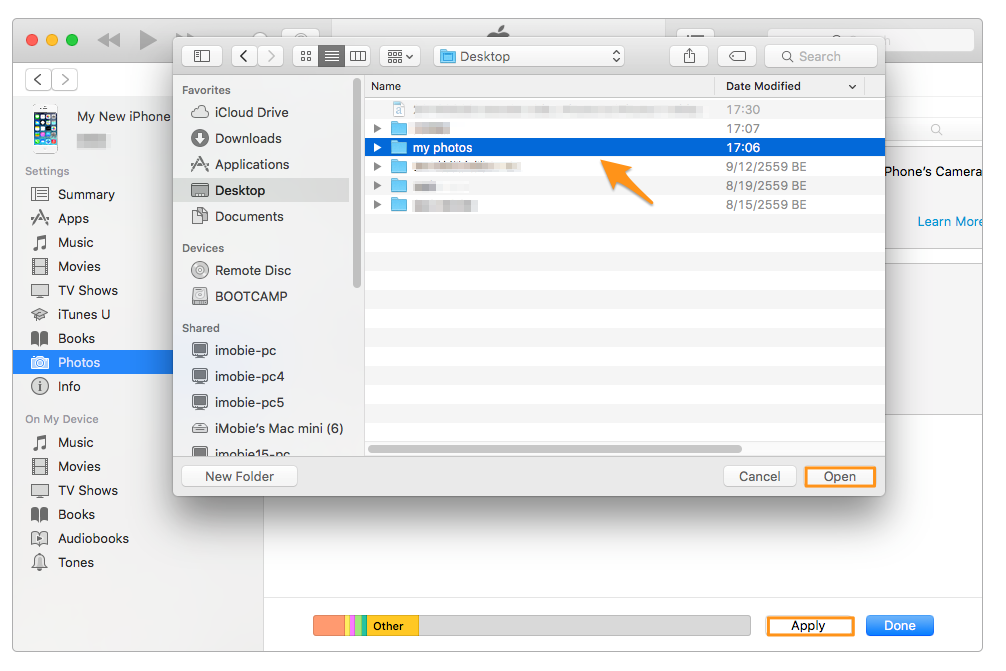
Transfer Photos from computer to iPhone 7 or iPhone 7 Plus with iTunes
You May Like: How to Transfer Music from iPod to your iPhone >
We all know that iTunes sync is not only slow but always erases previous photo library photos. That’s why we need a fast and no-data-erase solution, providing an intuitive and easy transferring experience. PrimoPhoto basically meets all of our needs, for example transferring photos from computer to iPhone 7, converting live photos into GIFs and optimizing storage. You don’t have to worry about losing your previous data any more, and you don't even need to connect the network.
Designed to fit effortlessly into your iPhone photo management
Download NowStep 1. Download and Install PrimoPhoto and connect with your iPhone 7 or iPhone 7 Plus, and click Import to Device.
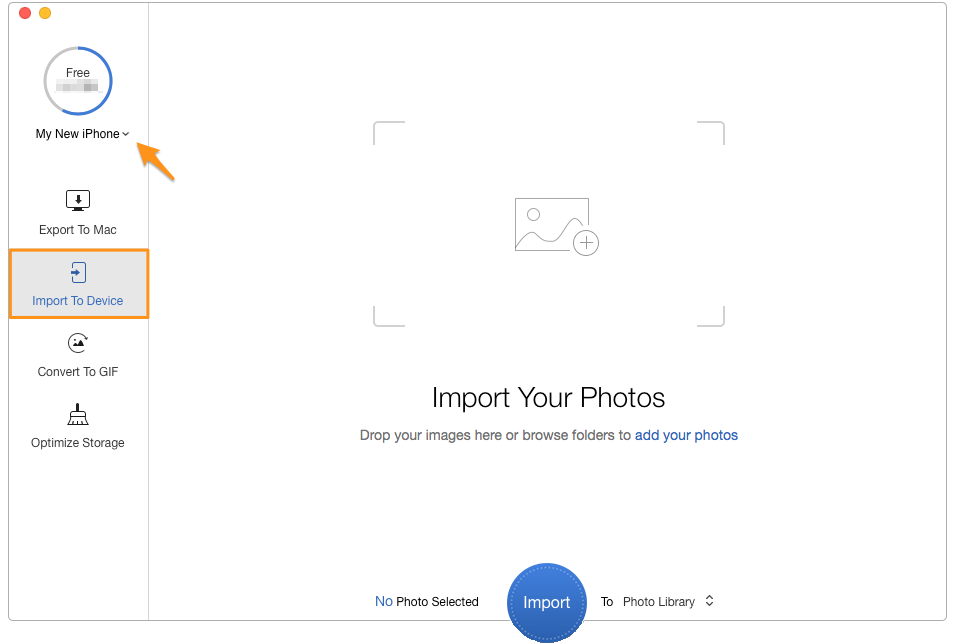
Transfer Photos from Computer to iPhone 7 – Step 1
Step 2. Click the plus sign in the middle to add the photos you want to copy.
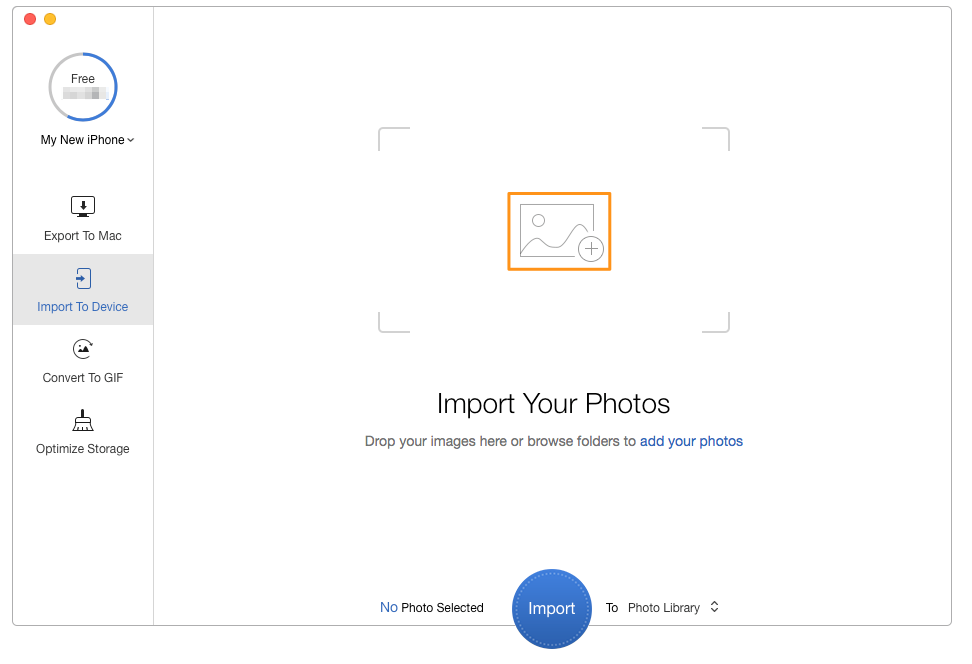
Move Photos from Computer to iPhone 7 Plus – Step 2
Step 3. Choose the pictures you want to transfer > Open > Import.
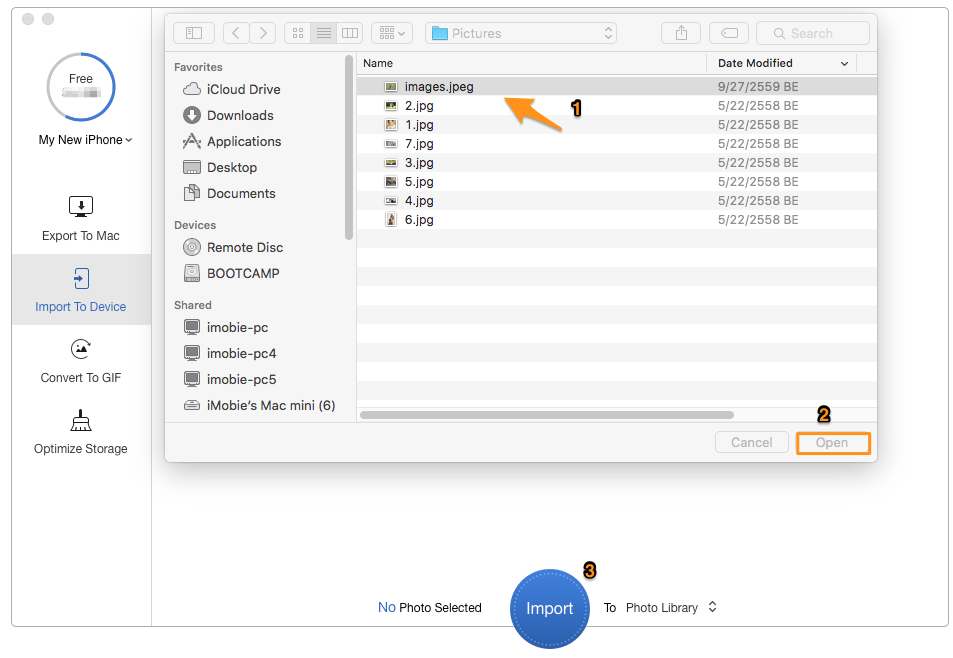
Copy Photos from Computer to iPhone 7 or 7 Plus – Step 3
It’s quite obvious that PrimoPhoto will be our best choice, since it offers us so much convenience and flexibility to manage our iPhone photos. Whether you want to transfer your photos in Photo Library and Albums, or the whole Camera Roll photos, PrimoPhoto will solve your troubles quick and easily within several minutes. The more you know about it, the more you feel how irreplaceable it is. Have a Free Trial Now >


Abby Member of @PrimoSync team, an Apple fan as well as an anime lover. Like to share solutions on Apple related problems.
Get Up-to-the-minute iPhone Tips & Enjoy Awesome Deals.



Design Simple and Beautiful Software
with Passion & Love

