
 by Yuri on Jul. 04, 2016 | NO COMMENT
When you get an iPhone for the first time, do you know how to quickly access the Camera app? Check this basic Apple users’ guide to using Camera on your devices with ease.

Don’t have Primo iPhone Data Recovery? Download it now prior to reading this guide and it will save you quite a lot of time. Click Here to Free Download
Built-in with high-resolution camera on iPhone, and most Apple users enjoy taking photos with their devices on the go. However, there is also a considerable part of people who use iPhone for the first time, and they may have some troubles on Photos app (Learn: How to manage Photos App), iMessages (Learn: What is iMessages), Siri (Learn: how to use Siri), Camera app and so on. Here we mainly explain how to use Camera app easily for basic Apple users and we also provide related tips to solve iOS devices common troubles with ease.
Don’t Miss: How to Recover Deleted Messages from iPhone
Unlocking your iPhone > Going to the Home screen > Tapping the Camera app. It gets you set to take a photo (Learn: How to transfer photos from iPhone to PC) or video, but it's slow. For those times when you're in a hurry, when something unexpected, sudden, and marvelous happens, there's faster camera access: From the Lock screen, from Control Center, with Hey Siri, and with 3D Touch, you can get to the camera more quickly than ever. We take iPhone Camera as an example,
Camera offers several photo and video modes, which let you shoot stills, square-format photos, panoramas, time-lapse, videos (Learn: how to retrieve deleted videos from iPhone), and slow-motion videos (iPhone 5s or later).
Before taking photos (Learn: how to transfer photos from iPhone to PC) with your iPhone, you can drag the screen left or right, or tap the camera mode labels to choose Time- Lapse, Slo-Mo, Video, Photo, Square, or Pano and then touch and hold the Take Picture button to take rapid-fire photos in bursts (available while in Square or Photo mode). To see the suggested shots and select the photos you want to keep, tap the thumbnail, and then tap Select. The gray dot(s) mark the suggested photos. To copy a photo from the burst as a separate photo in your Bursts album in Photos, tap the circle in the lower-right corner of the photo. To delete the burst of photos, tap it, then tap Deletion icon.
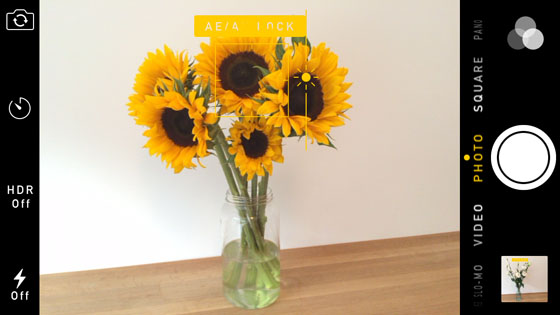
How to Take Photos with Camera on iPhone
Don’t Miss: How to Transfer Photos from iPhone to iPhone.
(iSight camera) Choose Pano, tap the Take Picture button, then pan slowly in the direction of the arrow. To pan in the other direction, first tap the arrow. To pan vertically, first rotate iPhone to landscape orientation. You can reverse the direction of a vertical pan, too.
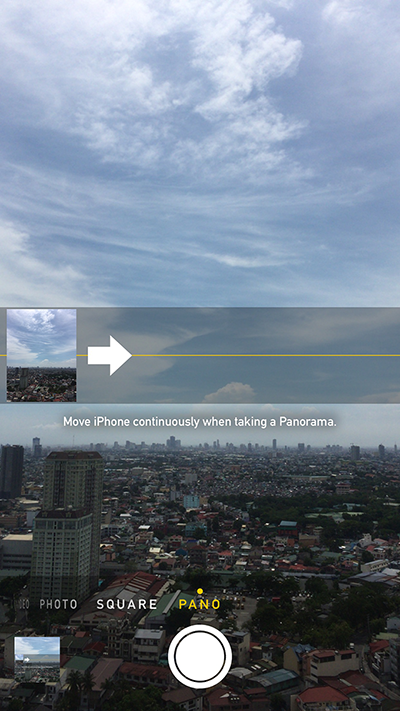
How to Take Panorama Photos with Camera on iPhone
The Camera app on your iPhone is simple but powerful, which can automatically focus and refocus, expose and re-expose, on whatever part of the image you like. You can even bias the exposure with a swipe. If you want to better frame your shots, you can turn on the grid, or you can turn geo-location on and off to either track your photos or protect your privacy, whatever you prefer.

Designed to fit effortlessly into your iPhone data recovery.
Download NowPhotos and videos you take are saved in Photos. With iCloud Photo Library enabled, all new photos and videos are automatically uploaded and available in Photos on all your iOS 8.1 or later devices set up with iCloud Photo Library. When iCloud Photo Library is turned off, you can still collect up to 1,000 of your most recent photos (Learn: how to recover deleted photos from iPhone) in the My Photo Stream album from your devices set up with iCloud.
Don’t Miss: How to Retrieve Photos from iCloud.
In this PrimoSync Wiki Page, you will learn how to use and manage your Camera app on your iPhone, which is also available on iPad and iPod touch. It will help you make a full use of the Camera and record the most important monuments in your life
Yuri A young but experienced iPhone Pro Tip editor at @PrimoSync, also a hiking lover for couple years. Enthused by sharing daily tips on all Apple related topics.
Get Up-to-the-minute iPhone Tips & Enjoy Awesome Deals.



Design Simple and Beautiful Software
with Passion & Love

