
 by Abby on Oct. 23, 2017 | NO COMMENT
Want to put some favorite music on your iPhone 8/X but don’t know how? Here we’ll offer the detailed steps to add music on iPhone 8 or iPhone X with/without iTunes.

PrimoMusic can help you add music to iPhone 8/X without the hassle of using iTunes. Just click here to download it and have a free trial.
We all know iTunes is the official media content managing tool for iOS devices though sometimes it’s not so flexible and convenient. But recently some users are looking for ways to add music on their new iPhone 8 or iPhone X preferably without using iTunes cause it will remove all the existing music, playlists and videos on iPhone 8/X. So how can we make it?
To put music on iPhone 8/X without trouble, PrimoMusic is strongly recommended for you. It’s an impressive iTunes alternative that can help users add music on iPhone/iPad/iPod touch without removing any data. Let’s walk through this article to add music on iPhone 8/X quickly.
Can’t Miss: How to Recover Deleted Videos from iPhone 8/X >>
As the default media player and music manager, iTunes can help you put music on iPhone (including the new iPhone 8/X), iPad and iPod touch. Now let’s check the specific steps below:
Step 1. Connect your iPhone 8/X to computer and run iTunes (update iTunes to the latest version).
Step 2. Click on the device icon on the left corner and go to Summary option > scroll down and cancel “Automatically sync when this iPhone is connected” and check “Manually manage music and videos” > click Apply.
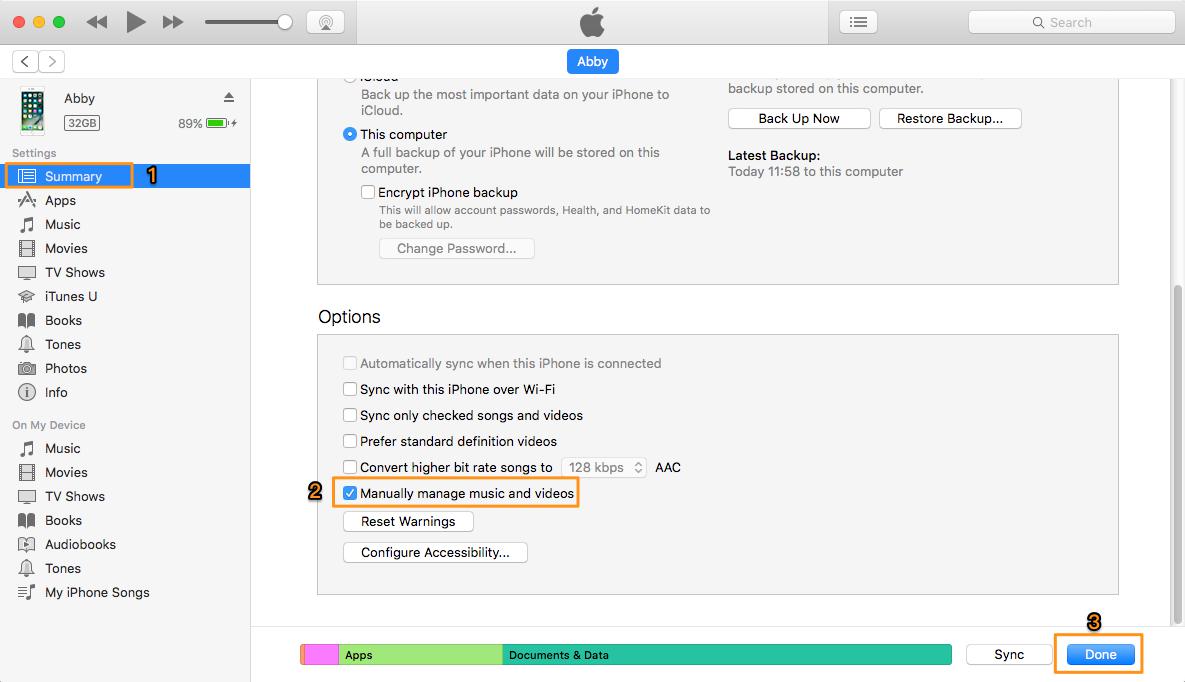
How to Put Music on iPhone 8/X with iTunes – Step 2
Step 3. Import music from your Mac/PC to iTunes Library > click File on the left upper corner > Add to Library and choose the music you want to add.
Step 4. Check Music under Summary tab > Click Sync Music (choose Entire Music library or selected ones) > click Apply to add music on your iPhone 8/X.
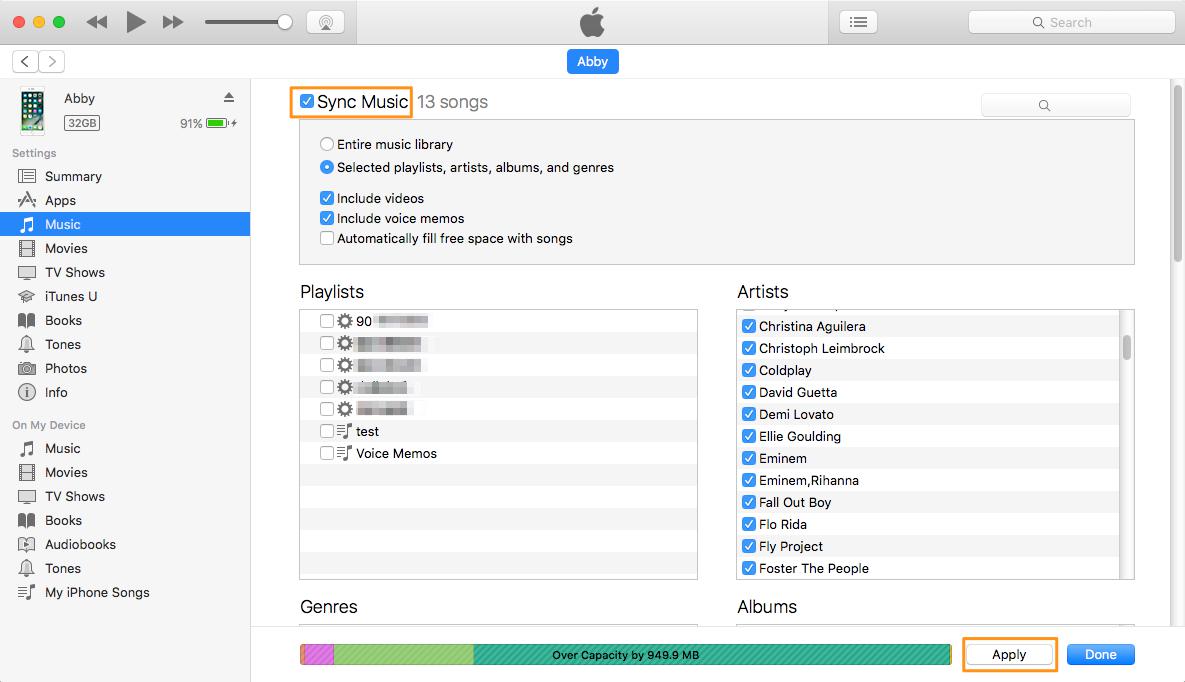
How to Put Music on iPhone 8/X with iTunes – Step 4
To put music on iPhone 8/X without iTunes, PrimoMusic is exactly what you need to make it within steps. Designed as a professional iOS media content manager, PrimoMusic is capable of adding music from computer to iPhone without any data erasing. What’s more, it can also import music from iPhone to computer selectively. Now let’s follow the steps below to get started:
Step 1. Download and install PrimoMusic to your Mac/PC > run PrimoMusic and connect your iPhone 8/X to computer.
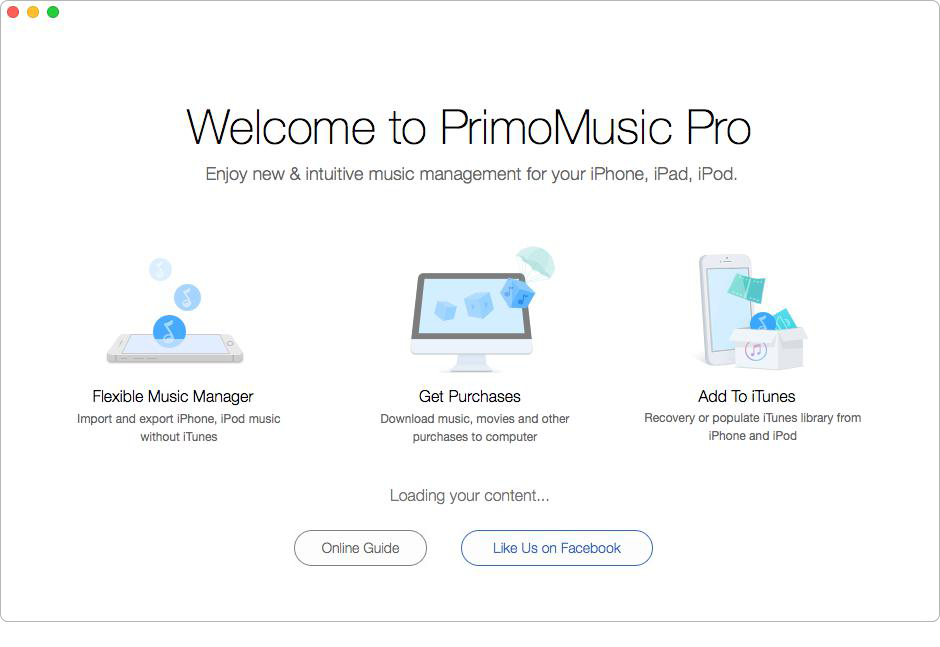
How to Add Music on iPhone 8/X without iTunes – Step 1
Step 2. Click Import To Device > Drag-n-drop your music files or click Add your content.
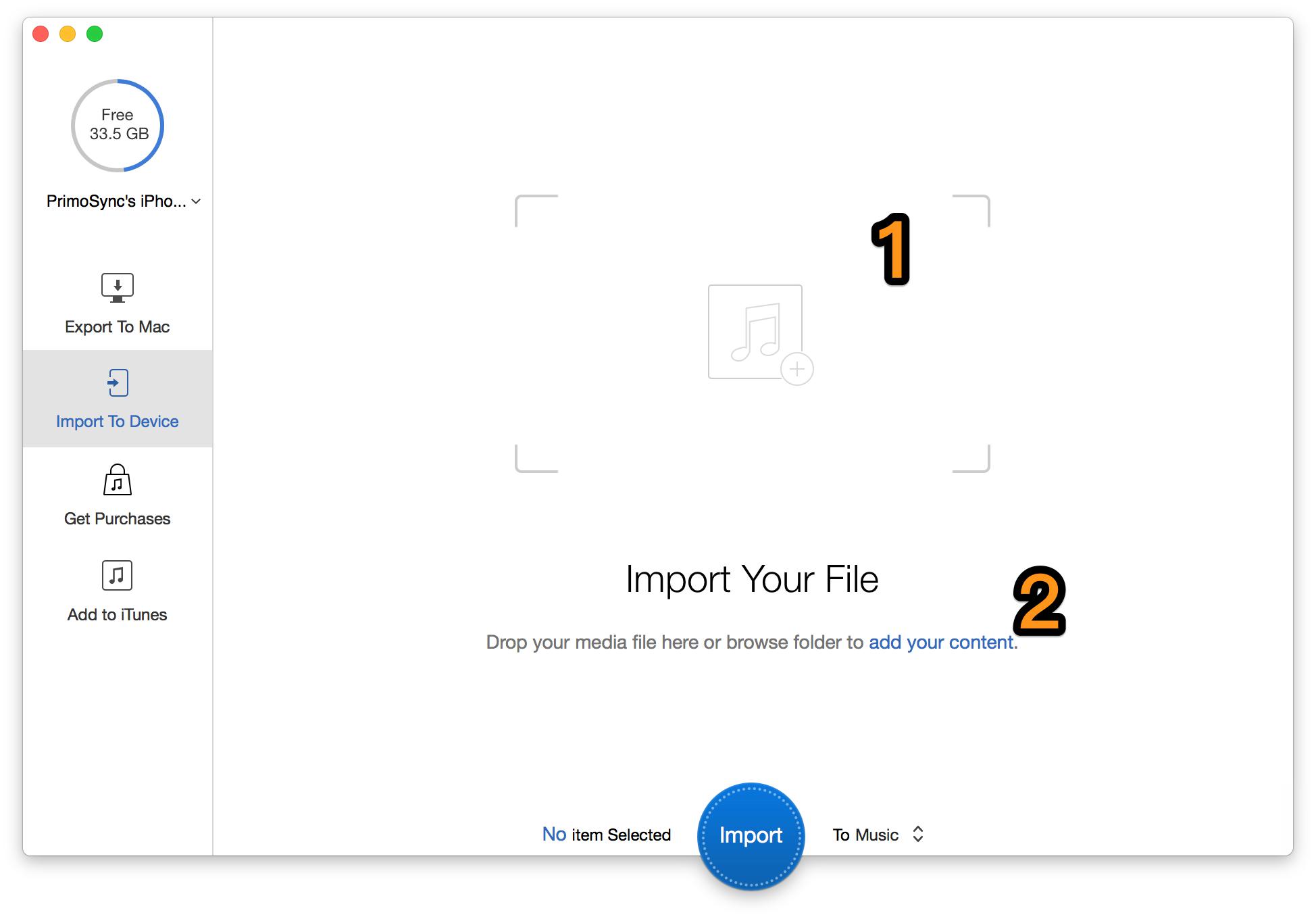
How to Add Music on iPhone 8/X without iTunes – Step 2
Step 3. You’ll see all music here and choose the music you want to add on iPhone 8/X > set the export path > click Import.
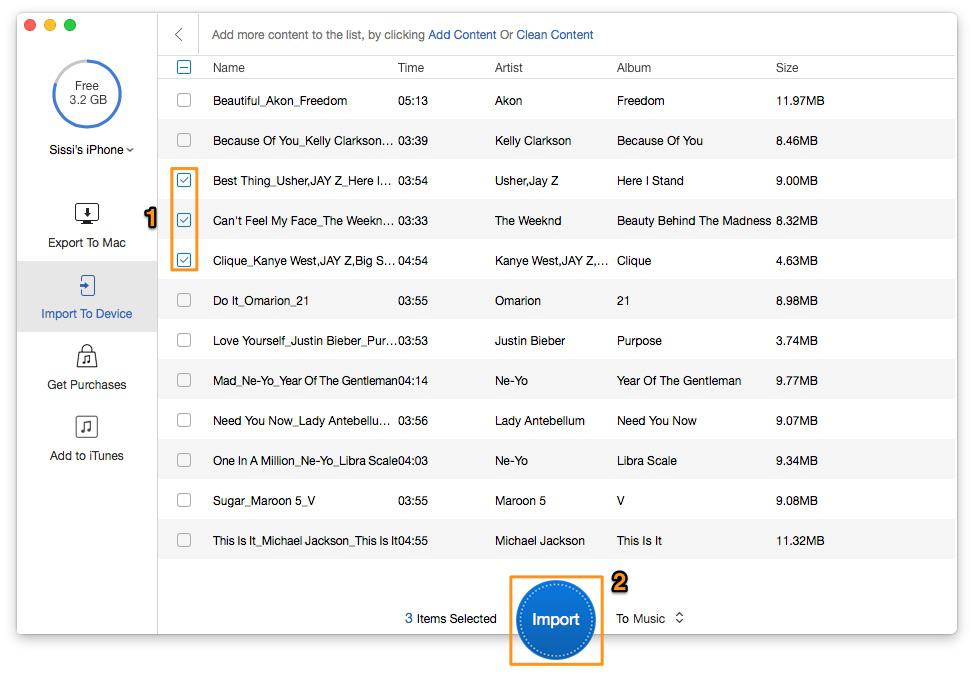
How to Add Music on iPhone 8/X without iTunes – Step 3
Also Read: Top 5 iPhone Data Recovery Tools in 2017 >>
After reading these two methods to add music on iPhone 8/X, it’s not difficult to draw the conclusion that PrimoMusic is a great helper to put music on iPhone 8 or iPhone X without the hassle of using iTunes. Just download it and have a trial now >>
Abby Member of @PrimoSync team, an optimistic Apple user, willing to share solutions about iOS related problems.
Get Up-to-the-minute iPhone Tips & Enjoy Awesome Deals.



Design Simple and Beautiful Software
with Passion & Love

